Adobe CC: new Drawing Tools part 2 / neue Zeichnungs-Werkzeuge Teil 2

Tutorial in English and German / Anleitung in Deutsch und Englisch

Deutsche Version siehe unten!
divider

English version:

Would you like to receive our tips for free in your e-mail box? Simply select FOLLOW to sign up with your e-mail address.

divider

TIP OF THE WEEK: How to draw with the new PENCIL TOOL in Adobe CC

It’s never been so easy to draw in Illustrator. Simply double-click the Pencil-Tool icon in your tool bar to adjust the Pencil Tool Options.

Next step: trace your drawing by using the new Pencil Tool. You’ll see how easy it flows with the right setting! You’re now even able to draw closed shapes.


pfadFINAL

divider

Tutorial, part 1: New Drawing Tools in Illustrator CC / Part 1

divider

Deutsche Version

Möchten Sie unsere gratis Tipps im e-mail erhalten? Schreiben Sie sich unter FOLLOW mit Ihrer e-mail Adresse ein.

TIPP DER WOCHE: Wie man mit dem neuen Buntstift-Werkzeug in Adobe CC zeichnet

Noch nie war es so leicht in Adobe Illustrator zu zeichnen. CC macht’s möglich! Doppelklicken Sie auf das Buntstift-Werkzeug um die Optionen zu öffnen und anzupassen.

Nächster Schritt: zeichnen Sie mit dem neuen Buntstift-Werkzeug von Adobe CC den Formen nach. Jetzt ist es sogar möglich geschlossene Formen mit dem Buntstift zu erstellen!

pfadFINAL

divider

Tutorial, Teil 1: Neue Zeichnungswerkzeuge in Illustrator CC / Teil 1

divider

Here is the final illustration / Hier ist die fertige Illustration:
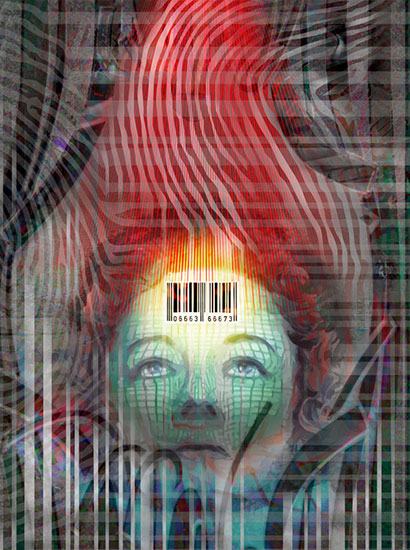
Courtesy of Illustration Source

Courtesy of Illustration Source

Miriam Selmi Reed is represented by Illustration Source, New York City. Portfolio and contact: Illustration Source NYC

Illustration technique: Traditional colored pencil drawing combined with digital mixed media using Smart Objects in Adobe Photoshop and Illustrator. Copyright by Illustration Source, New York City. All rights reserved.

Illustrations-Technik: Farbstiftzeichnung gemischt mit Adobe Illustrator und Photoshop sowie Smart-Objekten. Copyright by Illustration Source, New York City. All rights reserved.

Illustrator: new Drawing Tools 1 / neue Zeichnungs-Werkzeuge 1

Tutorial in English and German / Anleitung in Deutsch und Englisch

Deutsche Version siehe unten!
divider

English version:

Would you like to receive our tips for free in your e-mail box? Simply select FOLLOW to sign up with your e-mail address.

divider

TIP OF THE WEEK: The new Curvature Tool in Adobe Illustrator Creative Cloud

It’s never been so easy to draw in Illustrator!

Select the new Curvature Tool in Illustrator CC. Start with two basic points, and then watch a preview of the how the curve will look like as you are about to drop another point at the end of the path!

kruemmung

Don’t want a curve? Instead of just dropping a point, press Option/Alt when you drop a point, to create a straight line from the previous point. If you’ve already created a smooth curve, double-click a point to change it. It’s simply amazing!

Illustrator Tip: New Drawing Tools in Adobe Illustrator CC – Part 2

divider

Deutsche Version

Möchten Sie unsere gratis Tipps im e-mail erhalten? Schreiben Sie sich unter FOLLOW mit Ihrer e-mail Adresse ein.

TIPP DER WOCHE: Das neue Kurvenzeichner-Werkzeug in Adobe Illustrator CC

Noch nie war es so leicht in Adobe Illustrator zu zeichnen.

TIPP: Wählen Sie das neue Kurvenzeichner-Werkzeug in Illustrator CC. Beginnen Sie mit einem Ankerpunkt, dann sehen Sie die Kurve entstehen, währenddessen Sie den nächsten Ankerpunkt setzen.

kruemmung

Möchten Sie keine Kurve? Anstelle von einem normalen Klicken, drücken Sie die Option/Alt Taste wenn Sie einen Ankerpunkt setzen, damit setzen Sie eine geraden Linie vom vorherigen Punkt.
Falls Sie bereits eine runde Kurve erstellt haben, Doppel-klicken Sie auf einen Ankerpunkt um die Linie zu ändern. Es ist genial und lohnt sich auf die Creative Cloud zu wechseln, sollten Sie Probleme mit dem Zeichenstiftwerkzeug in der Version CS6 haben.

Illustrator Tipp: Neue Zeichnungs-Werkzeuge in Adobe Illustrator CC – Teil 2

divider

Here is the final illustration / Hier ist die fertige Illustration:

Courtesy of Illustration Source

Miriam Selmi Reed is represented by Illustration Source, New York City. Portfolio and contact: Illustration Source NYC

Illustration technique: Traditional colored pencil drawing combined with digital mixed media using Smart Objects in Adobe Photoshop and Illustrator. Copyright by Illustration Source, New York City. All rights reserved.

Illustrations-Technik: Farbstiftzeichnung gemischt mit Adobe Illustrator und Photoshop sowie Smart-Objekten. Copyright by Illustration Source, New York City. All rights reserved.

Invitation / Einladung Art Show in Zurich, Switzerland

Vernissage_Facebook

Art Exhibition in Zurich, Switzerland – from 19.2. – 11.3.2016
Vernissage / Opening reception: Friday 19.2.16 starts at 6pm (18 Uhr) – GALERIE 16b, Ausstellungsstrasse 16, 8005 Zürich – (hinter dem HB Zürich) Finissage with concert: Friday 11.3.16 starts at 6pm (18 Uhr) – Gallery opening hours: WE to SA from 5 to 8pm. (Öffnungszeiten: MI bis SA von 17 bis 20 Uhr)

BLOG / Info: Fine Art / Illustrations by Miriam Selmi Reed

Programs used out of the Adobe Creative Cloud: Adobe Photoshop, After Effects, Audition, Illustrator and Apple Logic Pro

Fine Art & Footage: Miriam Selmi Reed
Music composed, played and arranged by Michael Alan Reed
Copyright 2015 – www.REEDesign.ch – all rights reserved

neuer Adobe Illustrator Kurs / new Adobe Illustrator class

Meine neue Klasse hat noch ein paar freie Plätze 🙂
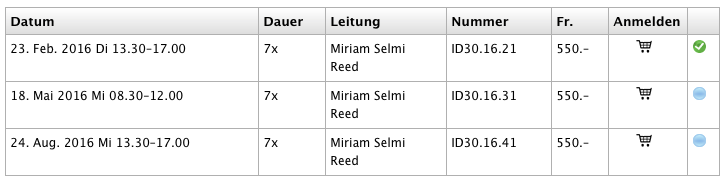
(Durchführung garantiert – Beginn: 23. Februar)

Neuer Adobe Illustrator Basis Kurs – mehr info!

Screen Shot 2016-02-15 at 21.17.05

EB Zürich
Bildungszentrum für Erwachsene BiZE
Riesbachstrasse 11
8090 Zürich
Telefon 0842 843 844
lernen@eb-zuerich.ch

PANTONE > CMYK

Tutorial in English and German / Anleitung in Deutsch und Englisch

Deutsche Version siehe unten!
divider
English version:

Would you like to receive our tips for free in your e-mail box? Simply select FOLLOW to sign up with your e-mail address.

TIP OF THE WEEK: How to change your Pantone color into CMYK using Adobe Photoshop, InDesign or Illustrator

Does this sound familiar to you? “When I convert PANTONE colors to CMYK in Adobe software, the results do not match the values in my PANTONE COLOR BRIDGE guide. Why is this?”

Tip 1: find your Pantone color or convert to CMYK/RGB: PANTONE COLOR FINDER

Still our Pantone BRIDGE guide showed different values, DID NOT MATCH the Adobe software nor the PANTONE conversions, so we had to find another solution:

Tip 2: Another possible solution how to covert PANTONE into CMYK in Adobe Photoshop:
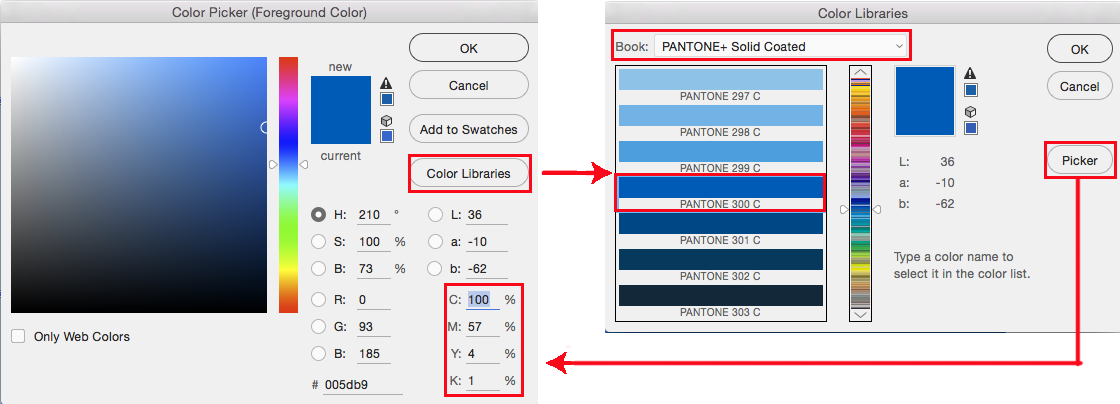
1. Open the Color Picker.
2. Click on the button Color Libraries. In our case we’ve selected Pantone+ 300C.
3. Now click again on the button Picker. The breakdown in Photoshop is 100% Cyan, 57% Magenta, 4% Yellow, 1% K. You can switch back and forth between the Color Picker (CMYK/RGB/HEX) and the Color Libraries (Pantone).
(Our Adobe Bridge Guide shows: 99% Cyan, 51% Magenta, 0% Yellow, 0% Black.)

ColorpickerE

Tip 3: how to covert PANTONE into CMYK in Adobe Illustrator or InDesign:
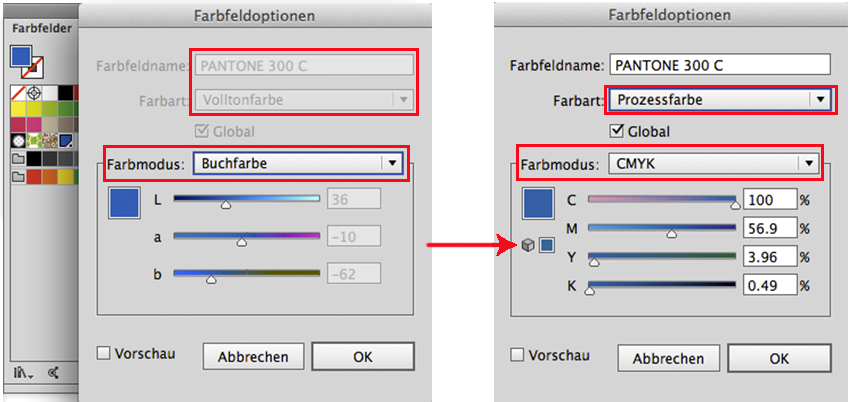
1. Open the Swatches. (Window > Swatches)
2. Double-click the Pantone color in the Swatches > so the Swatch Options will open.
3. Select Process Color and CMYK as shown below.

Of course it would be ideal if the PANTONE BRIDGE guide would have the same values as in the Adobe programs, but unfortunately this is not the case (yet).

ColorpickerIllustratorE

divider

Trailers and tutorials take lots of time. Of course it is free, but maybe you’d like to buy us “a cup of coffee?” Any support is greatly appreciated: PayPal Donate Button

divider

Deutsche Version:

Möchten Sie unsere gratis Tipps in Ihrem e-mail erhalten? Schreiben Sie sich unter FOLLOW mit Ihrer e-mail Adresse ein.

TIPP DER WOCHE: Wie man mit Adobe Photoshop, InDesign or Illustrator eine Pantone Farbe in CMYK wechseln kann

Kennen Sie dieses Problem? “Wenn ich PANTONE Farben in CMYK in meinen Adobe Programme konvertiere, sind die CMYK Prozente nicht gleich wie in meinem PANTONE COLOR BRIDGE Farbfächer. Warum ist das so?”

Tipp 1: Pantone Farbe finden oder in CMYK/RGB konvertieren : PANTONE FARBEN

Unser Pantone BRIDGE Fächer zeigt immer andere CMYK Werte an und NICHT die gleichen Werte wie bei unseren Adobe Programmen. Darum mussten wir weitere Lösungen finden:

Tipp 2: Eine weitere Möglichkeit wie man PANTONE Farben in CMYK umwandelt in Adobe Photoshop:
1. Öffnen Sie den Farbwähler.
2. Klicken Sie auf den Button Farbbibliotheken. In unserem Fall haben wir Pantone+ 300C gewählt.
3. Klicken Sie wieder auf den Button Farbwähler. Die Werte in Photoshop sind 100% Cyan, 57% Magenta, 4% Yellow, 1% K. Sie können immer wieder zwischen dem Farbwähler (CMYK/RGB/HEX) und dem Farbbibliotheken (PANTONE) hin und her wechseln.
(Unser Adobe Bridge Guide zeigt: 99% Cyan, 51% Magenta, 0% Yellow, 0% Black.)

photoshop

Tipp 3: wie man PANTONE in CMYK wechselt mit Adobe Illustrator oder InDesign:
1. Öffnen Sie das Bedienfeld Farbfelder. (Fenster > Farbfelder)
2. Doppelklicken Sie die Pantone Farbe in Ihren Farbfeldern > damit sich die Farbfeldoptionen öffnen.
3. Wählen Sie Prozessfarbe und CMYK. Siehe unten.

Illustrator

Natürlich wäre es ideal wenn der PANTONE BRIDGE Fächer dieselben CMYK Prozente angeben würde wie in den Adobe Programmen, dies ist aber leider (bis jetzt) nicht Realität.

divider

Adobe-Tipps zusammenzustellen braucht viel Zeit. Natürlich ist es gratis, aber vielleicht spendieren Sie uns einen “Kaffee?” Jede Unterstützung freut uns. Danke! PayPal Donate Button