Graphic Styles / Grafikstile in Adobe Illustrator

Tutorial in English and German / Anleitung in Deutsch und Englisch

Deutsche Version siehe unten!
divider

English version:

Would you like to receive our tips for free in your e-mail box? Simply select FOLLOW to sign up with your e-mail address.

TIP OF THE WEEK: Graphic Styles in Illustrator CS6

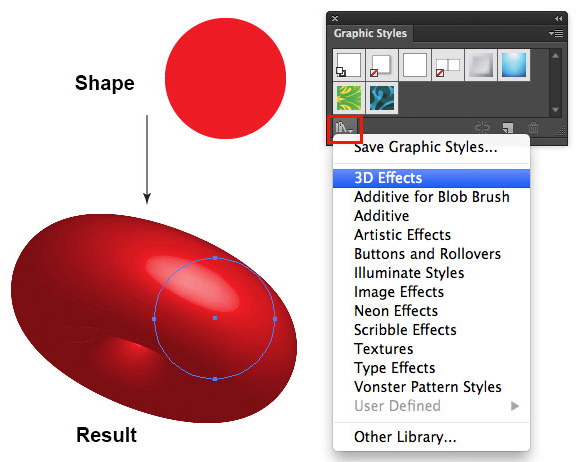
1. Open a new document in Adobe Illustrator and draw a simple shape with a fill color.

2. Select your shape with the Selection Tool and go to Window > Graphic styles. Select the drop-down-arrow of the Libraries and choose your favorite Graphic Style.
In our example, we are using the 3D Effect Library.
graphicstyle

Each time you select a Graphic Style in one of the protected Adobe Libraries, it will be added on to your personal Graphic Style collection and can be altered as you wish.
Under Window > Appearance you may change the Graphic Style or delete it.

There are lots of Graphic Styles in the Adobe Library you should try out – have fun!

divider

Deutsche Version:

Möchten Sie unsere gratis Tipps im e-mail erhalten? Schreiben Sie sich unter FOLLOW mit Ihrer e-mail Adresse ein.

TIPP DER WOCHE: Grafikstile in Illustrator CS6

1. Öffnen Sie ein neues Dokument in Adobe Illustrator, zeichnen Sie eine einfache Form und färben Sie diese mit einer Flächen-Farbe ein.

2. Wählen Sie die Form mit dem Auswahl-Werkzeug an und gehen Sie zu Fenster > Grafikstile. Wählen Sie einen Grafikstil nach Wunsch unter den Bibliotheken an.
Hier zeigen wir ein Beispiel aus der 3D-Effekte Bibliothek.

Grafikstil

Jedesmal wenn man einen Grafikstil von den schreibgeschützen Adobe Bibliotheken anwählt, wird dieser zu den eigenen Grafikstilen dazugefügt und kann somit verändert werden.
Unter Fenster > Aussehen kann man jeden Grafikstil verändern oder löschen.

Es gibt viele Grafikstile in den Adobe Bibliotheken die man ausprobieren sollte – viel Spass!

To The One I Love

divider

Tutorial: How to draw with Adobe Illustrator.

divider

Courtesy of Illustration Source

Courtesy of Illustration Source

View the artists’s homage on the topic: To The One I Love

Miriam Selmi Reed is represented by Illustration Source, New York City. Portfolio and contact: Illustration Source NYC

Illustration technique: watercolor, acrylic and pencil combined with digital mixed media using Adobe Photoshop and Illustrator.Copyright by Illustration Source, New York City.

Illustrations-Technik: Aquarell, Acryl mit Farbstift, gemischt mit Adobe Photoshop und Illustrator. Copyright by Illustration Source, New York City.

divider

Anleitung: Wie man mit Adobe Illustrator zeichnet.

divider

Vectorize your hand writing – Vektorisieren sie ihre Handschrift

Tutorial in English and German – Anleitung in Deutsch und Englisch

Deutsche Version siehe unten!
divider

We just received a “coffee” donation and request from a former student for the following tutorial:

ENGLISH version:

Vectorize your hand writing (scan or photo) in Illustrator CS6 or CC and colorize it!
In three simple steps:
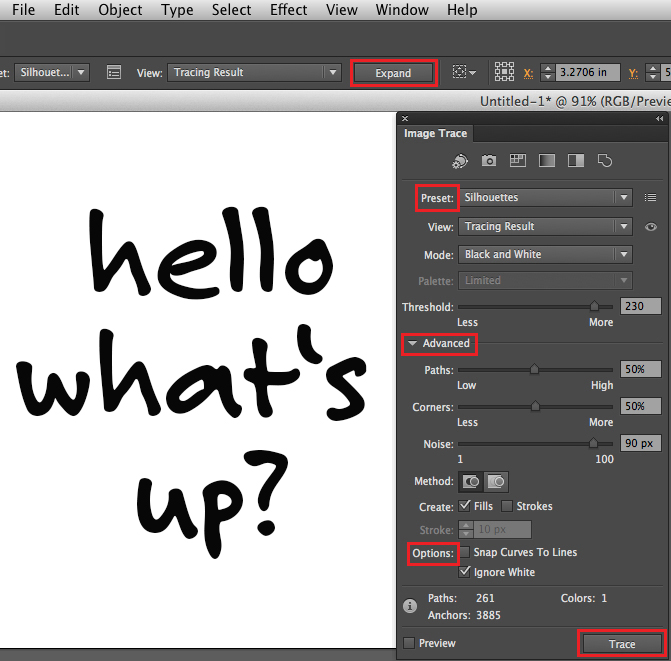
1. Place a scan or pixel image (jpg, tiff, psd) into Illustrator CS6 or CC.
2. Go to Menu > Window > Image Trace, choose your Preset, select under Advanced your Options and click on Trace.
3. When you are done, don’t forget to click on Expand in order to vectorise your image.
You may select the box “Ignore White” to delete the white background and make it transparent.
Tip: Choose your Direct-Selection-Tool to colorise each font element separately and place it into your InDesign document.

(To vectorize in CS5: go under Object > Live Trace > Tracing Options.)

imagetrace_new

divider

DEUTSCHE Version:

Dieses folgende Tutorial wurde auf Anfrage zusammengestellt, als “Danke für die Kaffee-Donation”:

Vektorisieren Sie ihre Handschrift (Scan oder digitales Foto) in Illustrator CS6 oder CC.
In drei einfachen Schritten:
1. Platzieren sie ihre Pixel-Vorlage (jpg, tiff, psd) in ihr Illustrator CS6 Dokument.
2. Gehen sie zu Menü > Fenster > Bildnachzeichner, wählen sie ihre Vorgabe, wählen zudem unter Erweitert ihre Optionen und klicken auf Nachzeichnen.
3. Wenn sie fertig sind, ist es wichtig auf Umwandeln zu klicken. Damit wird ihr Foto vektorisiert.
Sie können die Box “Weiss ignorieren” anwählen um den weissen Hintergrund zu löschen.
Tipp: Wählen sie das Direktauswahl-Werkzeug um jeden Buchstaben separat einzufärben und platzieren sie es in ihr InDesign Dokument.

(Um in CS5 zu vektorisieren: gehen sie unter Object > Interaktiv nachzeichnen > Nachzeichneroptionen.)

Bildnachzeichner_new

Additional option:

Compound Path Release option if you are trying to colorize a font
In case you’d like to colorize a font: With the “Compound Path Release” option, you can release the paths and colorize individual parts of each letter separately.

Zusatzinformation:

Option “Zusammengesetzter Pfad zurückwandeln” beim einfärben von Schriften
Möchten sie einzelne Buchstaben einer Schrift einfärben: Mit der Option “Zusammengesetzter Pfad zurückwandeln” kann man die Verknüpfung aller Pfade lösen und jeder Teil innerhalb des Buchstaben einzeln einfärben.

Tutorial spoken in English & German / Schritt für Schritt Anleitung auf Deutsch und Englisch: