Photoshop resolution / Auflösung

Tutorial in English and German / Anleitung in Deutsch und Englisch

Deutsche Version siehe unten!
divider

English version:

TIP OF THE WEEK: How to reduce or enlarge a Photoshop file

Below I show the steps of my job; to prepare my illustration at a 300 dpi resolution, 7 inches wide for Adobe InDesign. Go to MENU > IMAGE > IMAGE SIZE:

reduceImage

In my example I use 7 inches Width, because I will place this image in my InDesign document with this size. In your case, you simply use your desired Width (or Height) and place it into your InDesign document at a 100%. With this method you will retain the 300 dpi resolution for the professional printing press.

divider

Deutsche Version:

TIPP DER WOCHE: Wie man ein Bild in Photoshop vergrössert oder verkleinert.

Unten zeige ich die Arbeitsschritte; wie ich meine Illustration auf 300 dpi ändere und als 15 cm breites Bild für Adobe InDesign vorbereite. Gehen Sie zu MENÜ > BILD > BILDGRÖSSE:

reduceImageD

In meinem Beispiel benutze ich 15 cm Breite, weil ich dieses Bild mit diesen Massen in meinem InDesign Dokument benötige. Benutzen Sie in Ihrem Fall Ihre gewünschten Masse und platzieren Sie es zu 100% Grösse in Ihr InDesign Dokument. Mit dieser Methode werden Sie die 300 dpi für die professionelle Offset-Druckmaschine beibehalten.

Todays topic: COMMUNITY

Deutsche Version siehe unten!
divider

English version:

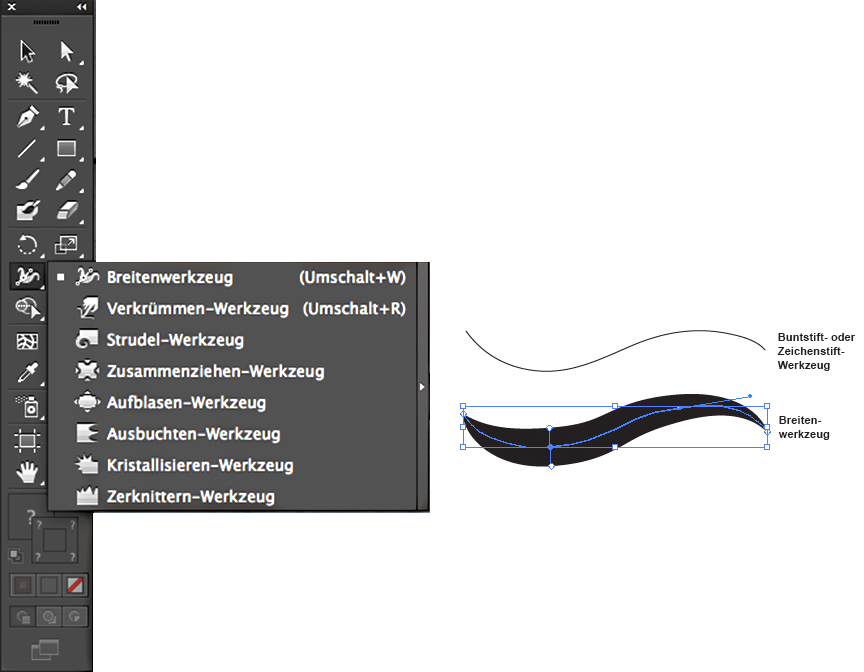
Illustrator Tipp > WIDTH TOOL: When I’m using any lines as shown on my Illustration below, I usually use the Width Tool. The Width Tool in Adobe Illustrator is ideal to give your lines character: select the line and drag with the mouse to define the width of your choice.

widthtool

divider

Deutsche Version:

Illustrator Tip > BREITEN-WERKZEUG: Wenn ich bei meinen Illustrationen (siehe unten) verschiedene Linienstärken benutze, dann benutze ich das Breiten-Werkzeug. Das Breitenwerkzeug in Adobe Illustrator ist ideal um einer simplen Linie einen Pinsel-Charakter zu geben: die Linie anklicken und mit der Maus ZIEHEN bis die Linie breiter wird.

breitenwerkzeugtool

divider

Miriam Selmi Reed represented and licensed by Illustration Source - Courtesy of Illustration Source

Miriam Selmi Reed represented and licensed by Illustration Source – Courtesy of Illustration Source

View the artists’s homage on the topic: COMMUNITY

Miriam Selmi Reed is represented by Illustration Source, New York City. Portfolio and contact: Illustration Source NYC

Illustration technique: watercolor, acrylic and pencil combined with digital mixed media using Adobe Photoshop and Illustrator.Copyright by Illustration Source, New York City.

Illustrations-Technik: Aquarell, Acryl mit Farbstift, gemischt mit Adobe Photoshop und Illustrator. Copyright by Illustration Source, New York City.

divider

Your source for commissioned illustration: ORIGINAL ART STUDIOS in New York City.

OAS

Portfolio Original Art Studios, New York City: MIRIAM SELMI REED

InDesign: Make your own Short-cuts / Eigene Kurzbefehle erstellen

Tutorial in English and German / Anleitung in Deutsch und Englisch

Deutsche Version siehe unten!
divider
English version:

Would you like to receive our tips for free in your e-mail box? Simply select FOLLOW to sign up with your e-mail address.

TIP OF THE WEEK: How to make your own short cuts in Adobe InDesign

MENU > EDIT > open the KEYBOARD-SHORTCUTS

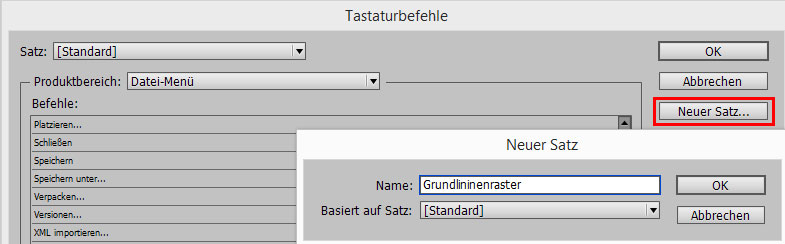
First you have to create a NEW SET and choose a name
newset

Under PRODUCT AREA choose the shortcut you’d like to change:

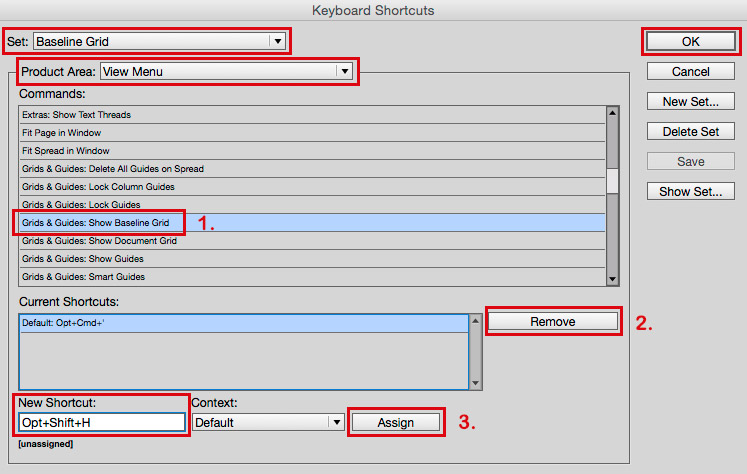
1. In our case I’ve chosen under VIEW-MENU > GRIDS & GUIDES: Show Baseline Grid.

assign

2. Under CURRENT SHORTCUTS remove the old shortcut.

3. Create a NEW SHORTCUT and hit ASSIGN.
In our case I’ve selected on my Mac for Show/Hide Baseline Grid: ALT (Option) + SHIFT + H
It is important to create a shortcut which is not in use!

4. Confirm with OK

Try your own shortcut in InDesign – have fun 🙂

divider

Trailers and tutorials take lots of time. Of course it is free, but maybe you’d like to buy us “a cup of coffee?” Any support is greatly appreciated: PayPal Donate Button

divider

Deutsche Version:

Möchten Sie unsere gratis Tipps in Ihrem e-mail erhalten? Schreiben Sie sich unter FOLLOW mit Ihrer e-mail Adresse ein.

Tipp der Woche: wie man selber eigene Kurzbefehle in InDesign erstellen kann!

MENU > BEARBEITEN > TASTATURBEFEHLE

Das Bedienfeld öffnet sich!

Zuerst muss man einen NEUEN SATZ erstellen und nach Wunsch benennen.

Tastatur1

Unter PRODUKTEBEREICH den Tastaturbefehl suchen den man ändern will.

1. In unserem Fall unter ANSICHT-MENÜ > GRUNDLINIENRASTER EINBLENDEN.

Tastatur2

2. Unter AKTUELLE TASTATURBEFEHLE zuerst den alten Tastaturbefehl ENTFERNEN.

3. Unter NEUER TASTATURBEFEHL einen neuen (unbenutzten*) Tastaturbefehl ZUWEISEN.
In unserem Fall wählte ich auf meinem PC für den Grundlinienraster einblenden: z.B. UMSCHALT (SHIFT) + CTRL (PC) / Cmnd (Mac) + H

4. mit OK bestätigen

Wichtig ist, dass man logischerweise einen neuen KURZBEFEHL auswählt, der noch unbenutzt* ist!

Den neuen eigenen Kurzbefehl in InDesign ausprobieren – viel Spass!

divider

Adobe-Tipps zusammenzustellen braucht viel Zeit. Natürlich ist es gratis, aber vielleicht spendieren Sie uns einen “Kaffee?” Jede Unterstützung freut uns. Danke! PayPal Donate Button