Tip of the week: Retouch Layer / Tipp der Woche: Retuschenebene

divider

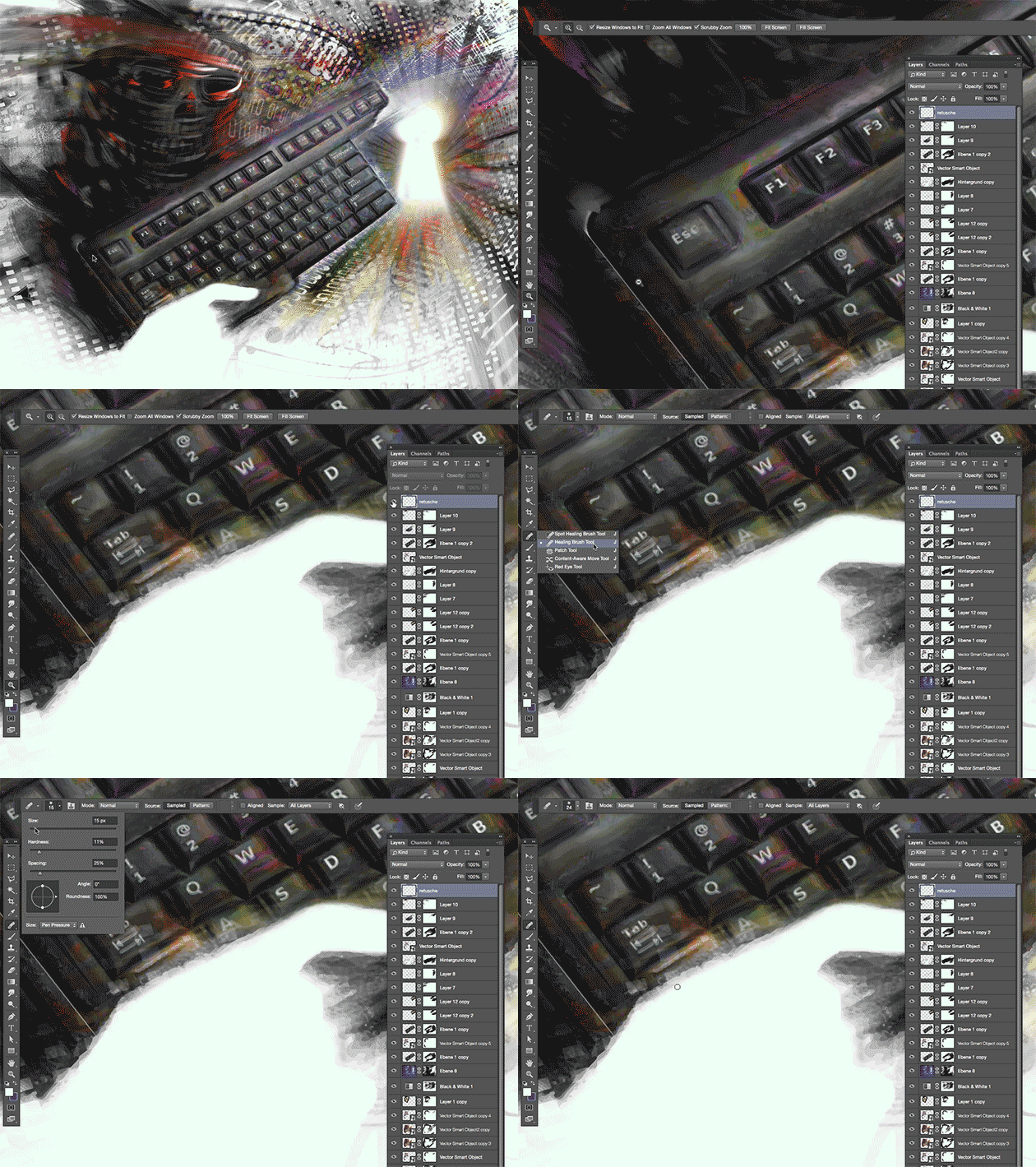
TIP OF THE WEEK: how I retouch my illustrations using the Stamp Tool and Healing Brush Tool in Photoshop CC or CS6. I place on an empty layer on top – while I select the option ALL LAYERS in the Control Bar – then I click the ALT key to sample and start stamping. 😉
Miriam Selmi Reed is represented and licensed by Illustration Source – Courtesy of Illustration Source

Miriam Selmi Reed is represented and licensed by Illustration Source – Courtesy of Illustration Source

TIPP DER WOCHE: Wie ich meine Illustrationen retuschiere mit dem Stempel Werkzeug oder dem Reparaturpinsel ist einfach. Ich benutze eine leere Ebene die ich ganz oben einfüge. Dann drücke ich die ALT Taste um einen sauberen Bereich aufzunehmen – mit der Option ALLE EBENEN aufnehmen in der Steuerung – und stemple vor mich hin. 😉
divider

Miriam Selmi Reed is represented and licensed by Illustration Source - Courtesy of Illustration Source

Miriam Selmi Reed is represented and licensed by Illustration Source – Courtesy of Illustration Source

View the artists’s homage on the topic: MENTAL HEALTH

Miriam Selmi Reed is represented by Illustration Source, New York City. Portfolio and contact: Illustration Source NYC

Illustration technique: watercolor, acrylic and pencil combined with digital mixed media using Adobe Photoshop and Illustrator.Copyright by Illustration Source, New York City.

Illustrations-Technik: Aquarell, Acryl mit Farbstift, gemischt mit Adobe Photoshop und Illustrator. Copyright by Illustration Source, New York City.

divider

Your source for commissioned illustration: ORIGINAL ART STUDIOS in New York City.

OAS

Portfolio Original Art Studios, New York City: MIRIAM SELMI REED

Freedom of Speech

divider

Tip 1: Promote your own artwork for free
I love the new promotion tools the Creative Cloud offers; check it out!

Illustrator Tip 2: how to use Global Colors in Adobe Illustrator
I always use Global Colors in all my Illustrator files. Click on the link to get more info.

divider

Tipp 1: Promoten Sie gratis Ihre Design-Arbeiten
Ich finde die neuen gratis Promotionsmöglichkeiten der Creative Cloud super; check it out!

Illustrator Tipp 2: Wie man Globale Farben in Adobe Illustrator benutzt
Ich benutze generell immer globale Farben in Adobe Illustrator. Klicken Sie auf den Link für mehr Infos.

divider

Courtesy of Illustration Source - Copyright by Illustration Source

Courtesy of Illustration Source – Copyright by Illustration Source

View the artists’s homage on the topic: FREEDOM OF SPEECH

Miriam Selmi Reed is represented by Illustration Source, New York City. Portfolio and contact: Illustration Source NYC

Illustration technique: watercolor, acrylic and pencil combined with digital mixed media using Adobe Photoshop and Illustrator.Copyright by Illustration Source, New York City.

Illustrations-Technik: Aquarell, Acryl mit Farbstift, gemischt mit Adobe Photoshop und Illustrator. Copyright by Illustration Source, New York City.

divider

Your source for commissioned illustration: ORIGINAL ART STUDIOS in New York City.

OAS

Portfolio Original Art Studios, New York City: MIRIAM SELMI REED

Social Media 2

divider

Photoshop Tutorial: Clipping Mask and Adjustment Layers
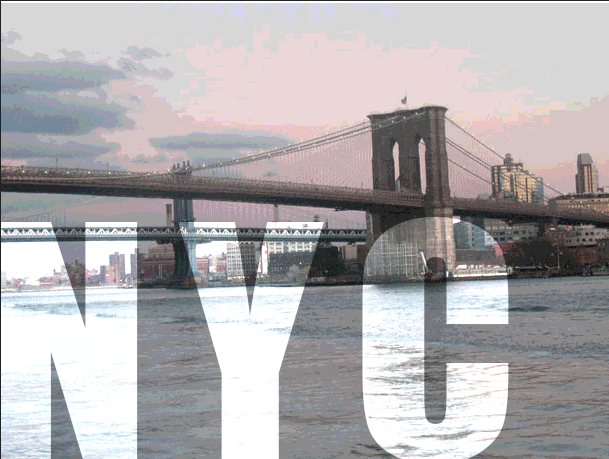
Here is a cool trick on how to use a font as a clipping mask, which I’ve used on my illustration below. Click on the link for more info.

divider

Photoshop Tipp: Schnittmaske und Einstellungsebene
Hier ist ein einfacher Trick wie ich eine Schrift als Schnittmaske benutze. Dieselbe Methode benutzte ich unten bei meiner Illustration.

divider

Miriam Selmi Reed represented and licensed by Illustration Source

Courtesy of Illustration Source

View the artists’s homage on the topic: SOCIAL MEDIA

Miriam Selmi Reed is represented by Illustration Source, New York City. Portfolio and contact: Illustration Source NYC

Illustration technique: watercolor, acrylic and pencil combined with digital mixed media using Adobe Photoshop and Illustrator.Copyright by Illustration Source, New York City.

Illustrations-Technik: Aquarell, Acryl mit Farbstift, gemischt mit Adobe Photoshop und Illustrator. Copyright by Illustration Source, New York City.

divider

Your source for commissioned illustration: ORIGINAL ART STUDIOS in New York City.

OAS

Portfolio Original Art Studios, New York City: MIRIAM SELMI REED
Original Art Studios

Happy to announce that I just became part of the ORIGINAL ART STUDIOS in New York City.

OAS

Portfolio Original Art Studios, New York City: MIRIAM SELMI REED
Courtesy of Illustration Source

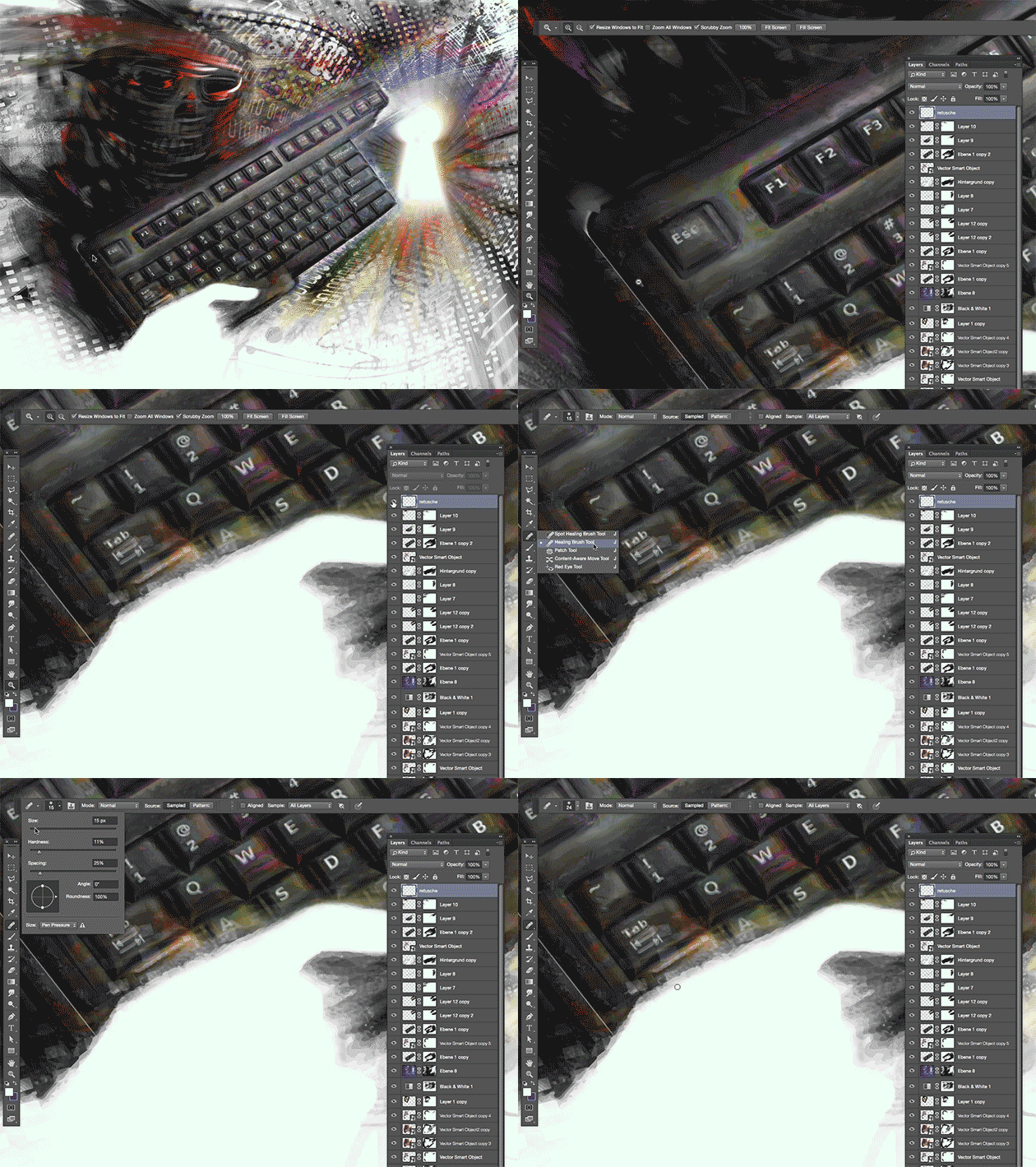
Illustration by Miriam Selmi Reed | Courtesy of Illustration Source, all rights reserved

Find out more or request a catalog – email: oas@illustrationsource.com
© Original Art Studios, 2015 | 15 East 32nd Street 7th Floor, New York, NY 10016 | USA | Illustration Source | Portfolio > Illustrationsource.com

divider

TIP OF THE WEEK: how I retouch my illustrations using the Stamp Tool and Healing Brush Tool in Photoshop CC or CS6. I place on an empty layer on top – while I select the option ALL LAYERS in the Control Bar – then I click the ALT key to sample and start stamping. 😉

Illustration by Miriam Selmi Reed / Courtesy of Illustration Source, all rights reserved

Illustration by Miriam Selmi Reed / With courtesy of Illustration Source, all rights reserved

TIPP DER WOCHE: Wie ich meine Illustrationen retuschiere mit dem Stempel Werkzeug oder dem Reparaturpinsel ist einfach. Ich benutze eine leere Ebene die ich ganz oben einfüge. Dann drücke ich die ALT Taste um einen sauberen Bereich aufzunehmen – mit der Option ALLE EBENEN aufnehmen in der Steuerung – und stemple vor mich hin. 😉

Ebenenmasken: Bilder einfach freistellen / Layer Masks: removing Backgrounds the Easy Way

Tutorial in English / Deutsch:

Deutsche Version siehe unten!
divider

English Version:

Simply open a Photoshop file with two images. The image you’d like to remove – a sky for example – is on the top layer.
The new Sky you prefer is on the bottom layer. What you’ll do next is simple and easy:
You delete your old sky on the top layer with a Layer Mask.

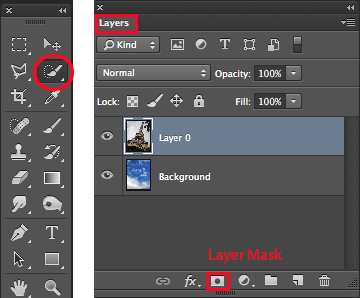
1. Make a selection of your sky or image part you’d like to remove on the top layer, using your favorite selection tool.
For example: The Quick Selection Tool in combination with “Refine Edge”.

2. Once your old sky on the top layer is selected, simply click on the “Layer Mask” icon.
Part of your image on the top will be covered by a Layer Mask and the new image on the layer below will show up instead.
layermask

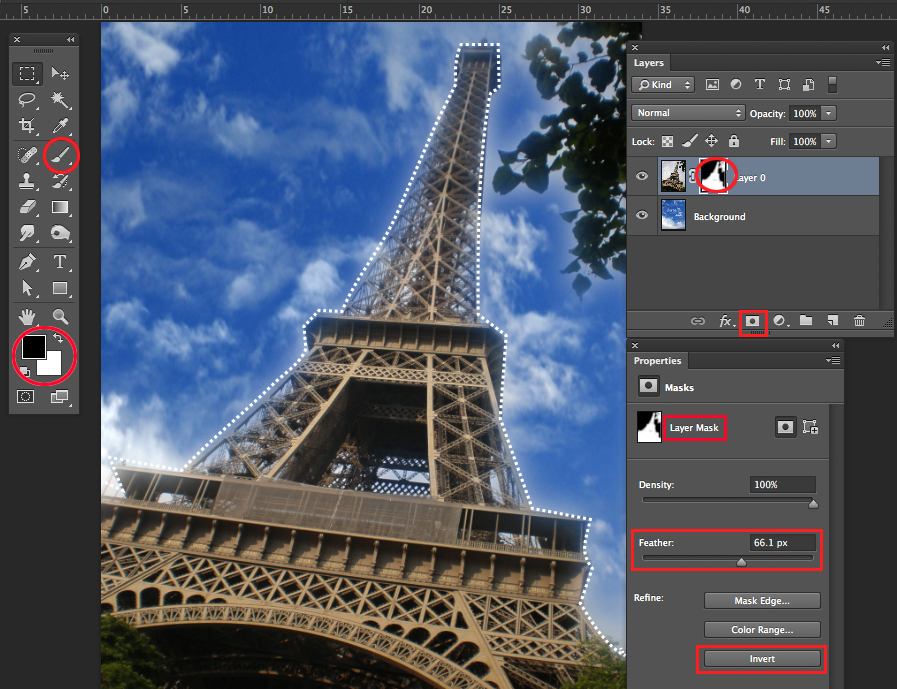
3. By double-clicking the Layer Mask icon on the top layer, the “Layer-Mask-Properties” will open. There you’ll be able to invert the Layer Mask or feather the edges.

layermask2

Tip 1: With the Brush Tool you can easily make changes to your Layer Mask: Simply select the Layer Mask and paint with the Brush Tool using either Black or White directly inside the Layer Mask, until you’re happy with the result!

Tip 2: How to remove parts of your image and save it with a transparent background: Tiff with a transparent background

divider
Deutsche Version:

Öffnen Sie Ihr Photoshop Dokument mit zwei Bildern. Das Sujet welches Sie löschen wollen – zum Beispiel ein Himmel – ist auf der oberen Ebene.
Der neue Himmel den Sie behalten wollen, ist auf der unteren Ebene. Was Sie als nächstes machen ist ganz einfach:
Sie löschen Ihren alten Himmel auf der oberen Ebene mit einer Ebenenmaske.

1. Wählen Sie Ihren Himmel oder Bildteil auf der oberen Ebene, den Sie löschen wollen, mit einem der Auswahlwerkzeuge an.
Zum Beispiel: Das Schnellauswahlwerkzeug zusammen mit der Option “Kante verbessern”.

2. Sobald Sie Ihren Himmel oder Bildteil angewählt haben den Sie löschen wollen, klicken Sie im Ebenenbedienfeld auf das “Ebenenmaske” icon. Sofort wird nun ein Bildteil gelöscht, respektive mit einer Maske abgedeckt und das untere Bild auf der unteren Ebene mit dem neuen Himmel kommt zum vorschein.
Ebenenmaske

3. Wenn Sie mit einem Doppelklick auf das Ebenenmaske-Symbol klicken, öffnen sich die “Ebenenmasken-Eigenschaften”.
Damit können Sie die Maske umkehren oder eine weiche Kante geben.

Ebenenmaske2

Tipp 1: Mit dem Pinsel-Werkzeug können Sie einfach und schnell Änderungen an Ihrer Ebenenmaske vornehmen: Wählen Sie die Ebenenmaske an und malen mit dem Pinselwerkzeug, sowie Schwarz oder Weiss direkt in die Ebenenmaske, bis Sie mit Ihrem Resultat zufrieden sind!

Tipp 2: Wie man ein Bild freistellt – mit einem transparenten Hintergrund: Tiff mit einem transparenten Hintergrund

Finalist of the 2014 International Art Competition

Finalist of the 2014 International Art Competition – April 16th until April 20th, 2014.
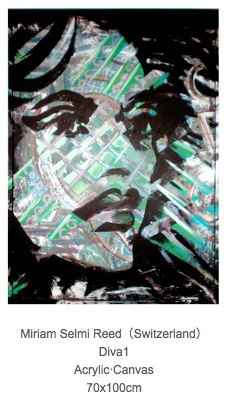
Painting by Miriam Selmi Reed, Acrylic combined with Adobe CC, framed canvas, 70 x 100 cm.

Result of the 2014 International Art Competiton in Taipei, Taiwan

Bildschirmfoto 2014-04-18 um 14.46.13

PHOTOS OF THE ART EXHIBITION TAIPEI – TAIWAN 2014

Taipei

PRESS RELEASE by Illustration Source, New York City

Animation for display ad – Bank CIC

Custom video display advertising for Swiss client Bank CIC, based on Mondrian art style under the art direction of Brainheart Gmbh. Set to the laid-back, chill-groove of instrumental freeform theme “Way” by Michael Alan Reed.

AUFTRAGGEBER:
Banque CIC (Suisse) – Sebastian Comment, Leiter Marketing
& Kommunikation / Thomas D’haemer, Projektleiter Marketing &
Kommunikation

WERBEAGENTUR:
Brainheart Gmbh – Mirjam Pierig, Creative Director

ANIMATION & PRODUCTION:
REEDesign.ch – Miriam Selmi Reed & Michel Alan Reed
Music Copyright © 2013 by Michael Alan Reed, all rights reserved.

Programs used: Adobe After Effects, Adobe Photoshop, Adobe Illustrator and Apple Logic Pro

Animation for Trailer: i-peak infosystems gmbh

Photoshop CS6: Clipping mask and adjustment layer option

English version:

Would you like to receive our tips for free in your e-mail box? Simply select FOLLOW to sign up with your e-mail address.

TIP OF THE WEEK: Clipping mask in Adobe Photoshop CS6

divider

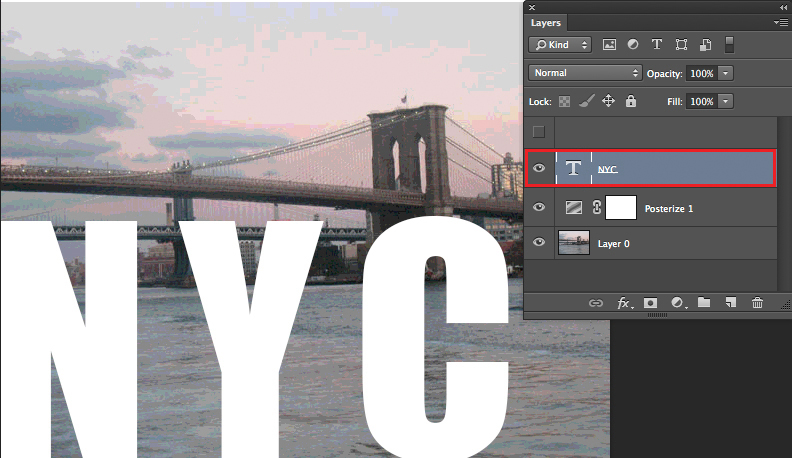
Step 1: Open your image in Photoshop CS 6 and add on “Posterize” in your adjustment layer.
1

Step 2: add on some bold, large Text.
2

Step 3: Duplicate your image, move that layer on top and select “Create Clipping Mask”.
To adjust the effect, we selected “Pin Light” from the layer blending mode.
3

and here is the result:
4