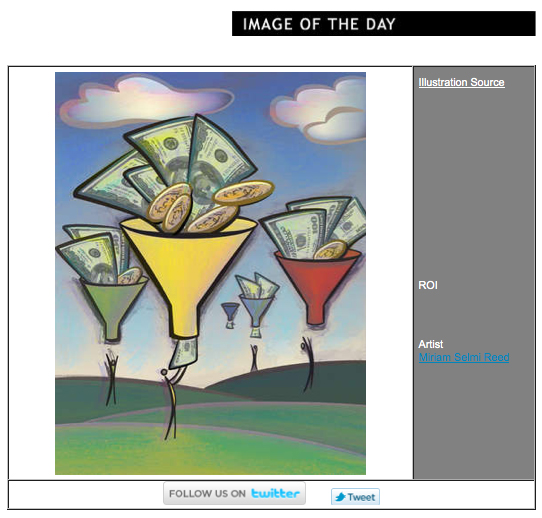
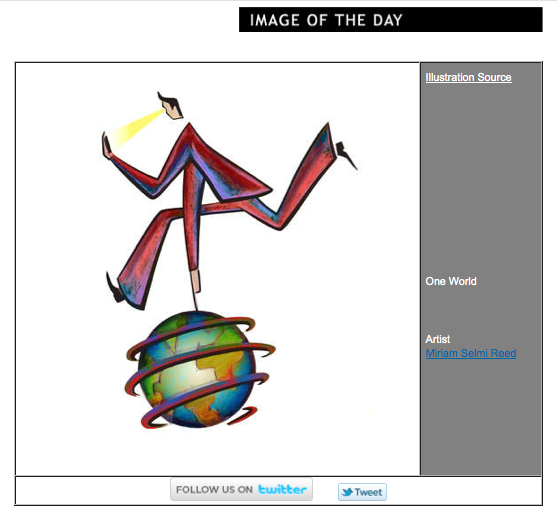
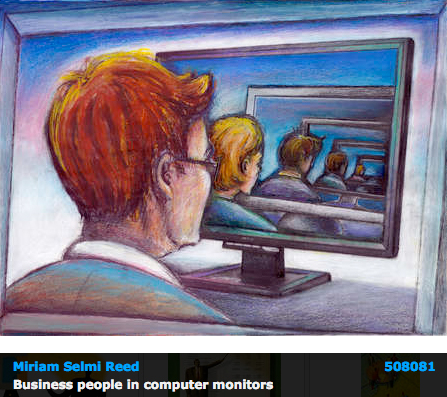
Today’s topic: In a meeting…

Courtesy of Illustration Source

Courtesy of Illustration Source

View the artists’s homage on the topic In a meeting…

Miriam Selmi Reed is represented by Illustration Source, New York City. Portfolio and contact: Illustration Source NYC

Illustration technique: Charcoal, acrylic and pencil combined with digital mixed media using Adobe Photoshop. Copyright by Illustration Source, New York City.

Illustrations-Technik: Kreide, Acryl mit Farbstift, gemischt Adobe Photoshop. Copyright by Illustration Source, New York City.

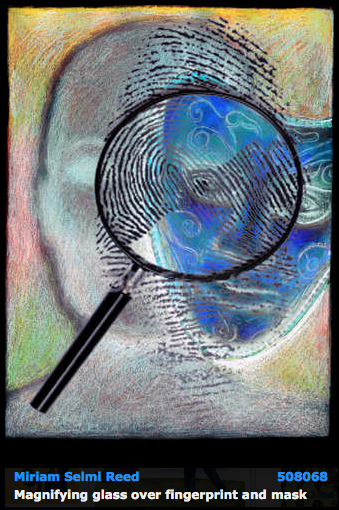
Be On The Lookout

Courtesy of Illustration Source

Courtesy of Illustration Source

View the artists’s homage on the topic Be On The Lookout

Miriam Selmi Reed is represented by Illustration Source, New York City. Portfolio and contact: Illustration Source NYC

Illustration technique: Traditional painting combined with digital mixed media using Smart Objects in Adobe Photoshop and Illustrator. Copyright by Illustration Source, New York City.

Illustrations-Technik: Acrylbild gemischt mit Adobe Illustrator und Photoshop sowie Smart-Objekten. Copyright by Illustration Source, New York City.

What are LAB colors good for? / Für was benutzt man LAB Farben?

Tutorial in English and German – Anleitung in Deutsch und Englisch

Deutsche Version siehe unten!
divider

English version:
Let’s try to keep it as simple as possible for beginners and open Adobe Photoshop to get familiar with the different color options.
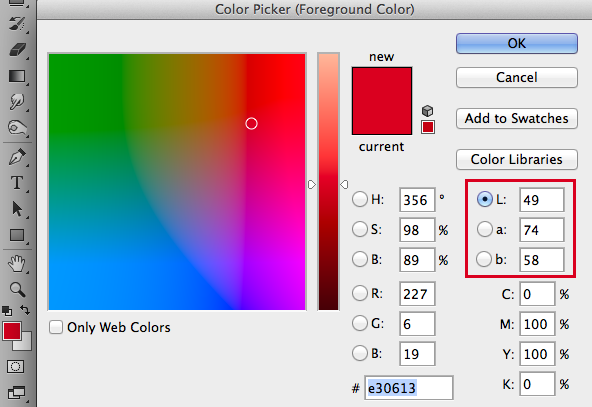
Open your Color Picker by double-clicking the Foreground Color on the Tool bar. There you can see the HSB colors (Hue, Brightness, Saturation), the RGB colors (for monitors, such as web) incl. the HEX code, the CMYK colors (for the printing process) and the LAB colors.

Screen Shot 2014-05-11 at 4.42.20 PM

In short, Lab colors are based on a mathematical color model. The L stands for the brightness, the a and b for the color information. In the a chanel you’ll find the pixel information for red/green, in the b chanel for blue/yellow.

You can change the brightness in the Lab color mode separately from the colors, this is neither with RGB nor with CMYK possible. To get the best result, change your image to 16 Bit and then go to Image > Mode > Color and select Lab Color. With this change you won’t loose color information since the Lab mode has even more colors than RGB.

Then start working with your Curves to alter the brightness of your image and leave the colors as is. This is very practical! Just don’t forget to change the Color Mode back to RGB and go back 8 Bit at the end when you’re done.

More infos on color profiles: Color Profiles

More infos on RGB / sRGB colors: RGB / sRGB

divider

Deutsche Version:
Wir versuchen das ganze so einfach wie möglich für Anfänger zu halten, daher öffnen wir mal Photoshop und schauen uns alle Farbmöglichkeiten an.
Öffnen Sie Ihren Farbwähler mit einem Doppelklick auf die Vordergrundfarbe unten auf Ihrer Werkzeugleiste. Dort können Sie die HSB Farben (Hue, Brightness, Saturation), die RGB Farben (für Monitore, z.B. für Webseiten) inkl. HEX Code, die CMYK Farben (Prozessfarben für die Druckerei) und die LAB Farben.

colors

Kurz erklärt, basieren die LAB Farben auf einem mathematischen Farbmodell. Das L steht für Helligkeit, das a und b für die Farbinformationen. Im a Kanal findet man die Pixel Infos für rot/grün, im b Kanal für blau/gelb.

Im Lab Mode kann man die Helligkeit separat von den Farben verändern, dies ist bei den RGB und CMYK Modellen nicht möglich. Am besten zuerst das Foto auf 16 Bit umwandeln um optimale Bildqualität zu erhalten und dann unter Bild > Modus > Farbe auf den Lab Modus wechseln. Damit gibt es keinen Qualitätsverlust wie von RGB auf CMYK, da der Lab Farbraum einiges grösser ist als der RGB Farbraum.

Dann kann man mit den Gradatationskurven arbeiten, nur um die Helligkeit des Bildes zu verändern. Eine praktische Sache! Am Schluss ist es einfach wichtig nicht zu vergessen, den Bildmodus wieder auf RGB zu setzen und auf 8 Bit zurückzustellen.

Weitere Infos zu Farbprofilen: Farbprofile

Weitere Infos zu RGB / sRGB Farben: RGB / sRGB

IMAGE OF THE DAY by Miriam Selmi Reed at Illustration Source, New York City

Miriam Selmi Reed represented and licensed by Illustration Source

Miriam Selmi Reed represented and licensed by Illustration Source, New York City

Miriam Selmi Reed’s Portfolio and contact: Illustration Source NYC

Illustration technique: Traditional drawing combined with digital mixed media using Smart Objects in Photoshop and Illustrator. Copyright by Illustration Source, New York City.

Illustrations-Technik: Farbstift-Zeichnung gemischt mit Illustrator und Photoshop sowie Smart-Objekten. Copyright by Illustration Source, New York City.

Earth Day!

To view the artists’s homage on the topic Earth Day!

Image by Miriam Selmi Reed – Technique: Manual drawing, combined with Adobe CC.

earthday

Image: Courtesy of Illustration Source.

Copyright by www.illustrationsource.com All rights reserved.
15 East 32nd Street 7th Floor, New York, NY 10016 USA
Contact: sales@illustrationsource.com

Color Profiles / Farbprofile

Tutorial in English and German / Anleitung in Deutsch und Englisch

Deutsche Version siehe unten!

English Version:
Color profiles are necessary to maintain optimal color quality for both print and digital. The following is a brief overview for beginners in Adobe.

RGB = Red, Green and Blue color mode is based on light primarily for digital display and often used with the following color profile: sRGB. (Standard RGB). This profile ensures consistency across a wide range of monitors and displays for websites, apps, video-games, etc.

sRGB is also a preferred choice by many designers if your image will be used in office programs such as Microsoft Word and on the internet. The colors display correctly on the web, has the simplest workflow and looks fine in print. BUT! It has a smaller color space than ADOBE RGB. The latest trend: simply place jpgs, sRGB, 72 images into Indesign and let Indesign converting it into CMYK for the printing press when exporting the file into a print-ready PDF.

CMYK = Cyan, Magenta, Yellow and Key (Black) color mode is based on ink primarily for use with an actual printing press and will often require color profile and/or conversion provided by the printer.

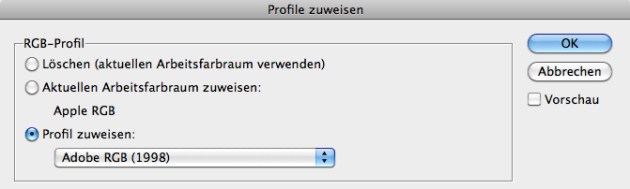
ASSIGN PROFILES: allows you to check how the colors react in your image. Assigning a color profile shows you the result, without changing the colors permanently. ASSIGN PROFILES is like putting a sticker on your image – if someone takes that sticker away, your image returns to the original setting. TIP: ASSIGN PROFILES is ideal to check how the your colors react to a different color profile.

Screen Shot 2014-02-20 at 4.18.53 PM

INFO: Changing the mode from RGB into CMYK in Photoshop is a crucial step. (RGBs contain approx. 16 millions of colors, CMYK approx. 4000 to 6000). Therefore, it is recommended to leave your Photoshop (psd) file in RGB as long as possible and keep all the layers, paths and masks.

Once your Photoshop (psd) file is completed; save out a PSD or Tiff copy and flatten it to one layer.

Step 2: Open your flattened Tiff file. Go to Menu > Edit > Convert to Profile and select your CMYK color profile. (In our case: FOGRA 39. To find out which color profile you should choose: contact your printer directly, as the correct color profile will depend on a number of variables including your paper choice, printing press and location!)

Screen Shot 2014-02-20 at 4.19.42 PM

CONVERT TO PROFILE: converts your colors permanently into another color profile!
The document will be converted to and tagged with this new profile.

Step 3: Make sure your Tiff has the correct resolution for print (300dpi) and place your Tiff file at 100% size into your Adobe InDesign Layout. (Enlarging or reducing a Tiff Image in InDesign will usually result in quality loss.)

Tip 1: Article on How to resize a pixel image
Tip 2: Article on How to make a PDF/X

IMPORTANT: to maintain color consistency throughout the entire Creative Suite Design programs, make sure you synchronise your Creative Suite Color settings in Adobe Bridge. Open Adobe Bridge and go to Menu > Edit > Creative Suite Color Settings. Click on the box “Show expanded List of Color Settings Files” and make your selection.

Additional info and download options for offset printing color profiles in Europe: European Color Initiative. Please download and install the archive ECI Offset 2009. In case you are not sure which ICC profile for offset printing to use, it is recommended to use ISO Coated v2 300% (ECI). it is crucial to keep yourself informed on the latest news by visiting this website if you’re working with European printing houses: www.eci.org .

Additional Info for color profiles in the United States: INTERNATIONAL COLOR CONSORTIUM

divider

Deutsche Version!

Farbprofile zu verstehen ist wichtig, um optimale Farbqualität im Druck oder Web zu erhalten. In diesem Tutorial diskutieren wir beides, aber auf einem Niveau für Anfänger.

RGB = Rot, Grün und Blau sind sogenannte additive Lichtfarben, werden für Monitore gebraucht und meistens im folgenden RGB Profil: sRGB. (Standard RGB) Dies ist eine kluge Wahl, solange man ein Bild für den Bildschirm benutzt, zum Beispiel für Webseiten, Apps, Videogames usw.

sRGB ist auch eine sichere Option, wenn du dein Bild in Office Programmen wie Microsoft Word benutzen und auf dem Internet zeigen möchtest. Adobe RGB hat einen grösseren Farbraum im Grün-Bereich, die Farben werden dadurch verstärkt auch im Kontrast, was beim Drucken je nach dem positiv sein kann, aber wird auf dem Internet deine Farben nicht korrekt zeigen.
Ein neuer Trend hier im deutschen Raum heisst: Medien-neutrales-Arbeiten Check it out!

CMYK = Cyan, Magenta, Yellow (Gelb) und Key (Schwarz) sind subtraktive Prozessfarben, die in einer professionelle Offsetdruckmaschine benutzt werden.

PROFILE ZUWEISEN: Ermöglicht die Auswahl eines anderen Profils. Die Anwendung weist dem Dokument das neue Profil zu, ohne die Farben in den Profilfarbraum zu konvertieren. Das Erscheinungsbild der Farben auf Ihrem Monitor kann sich dadurch erheblich verändern.
AdobeRGB

PROFIL ZUWEISEN WIE EINE ETIKETTE – wenn man diese wegnimmt kehrt das Bild wieder in den Ursprung zurück. TIPP: ZUWEISEN ist IDEAL um anzuschauen wie sich die Farben in einem anderen Farbprofil verhalten.

INFO: Der Moduswechsel von RGB zu CMYK in Photoshop ist ein heikler Punkt.
(RGB hat ca. 16 Millionen von Farben, CMYK nur ca. 4000 bis 6000). Darum ist es empfohlen das Photoshop (psd) Dokument in RGB zu lassen und alle Ebenen, Pfade und Masken zu behalten.

Sobald du mit dem Bearbeiten ihres Photoshop (psd) Dokuments fertig bist, speicherst du eine PSD oder Tiff Kopie und reduzierst es auf eine Ebene.

2. Öffne deine Tiff Datei. Geh zum Menu > Bearbeiten > in Profil umwandeln und wählen dein CMYK Farbprofil für deine Tiff Datei. (In unserem Fall: FOGRA 39. Um das korrekte Farbprofil zu erfahren: frag unbedingt deine Offset-Druckerei, denn das korrekte Farbprofil hängt vom Papier, der Druckmaschine und dem Land ab!)

Fogra39

IN PROFIL UMWANDELN: Konvertiert die Dokumentfarben in ein anderes Profil!
D.h. du rechnest die Farbwerte in den anderen Farbraum um. Das gewählte FARBPROFIL wird mit diesem Befehl permanent umgewandelt.

3. Vergewissere dich, dass dein Tiff Bild die korrekte Resolution für den Druck aufweist (300dpi) und platziere dein Tiff zu 100 % Grösse in dein Adobe InDesign Layout. (Vergrössern oder verkleinern eines Tiff Bildes in InDesign kann auch Qualitätsverlust erzeugen).

Tipp 1: Artikel Wie man ein Pixel Bild vergrössert oder verkleinert
Tipp 2: Artikel Wie man ein PDF-X für die Druckerei erstellt

WICHTIG: Um die Farbprofile in allen Creative Suite Design Programme konsistent zu halten, ist es wichtig die Creative Suite Farbeinstellungen in Adobe Bridge zu synchronisieren . Öffne dein Adobe Bridge Programm und gehe zum Menu > Bearbeiten > Creative Suite-Farbeinstellungen. Wähle dann die Box “Erweiterte Liste mit Farbeinstellungsdateien anzeigen” und dein gewünschtes Farbprofil.

Um deine gewünschten Farbprofile für den Offsetdruck herunterzuladen und mehr Informationen – findest du hier der Link zur Webseite > European Color Initiative.
Tipp: Die ECI Offset 2009 Farbprofile herunterladen und installieren. Im Zweifelsfall ist das ISO Coated v2 300% (ECI) das richtige Farbprofil. Es ist wichtig, sich immer via www.eci.org auf dem neuesten Stand zu halten.
Gratis Leitfaden für die Erstellung von PDF-X: PDF-X READY LEITFADEN
Mixing Photoshop & Illustrator

Tutorial in English / Deutsch:

Deutsche Version siehe unten!
divider

English version:

Would you like to receive our tips for free in your e-mail box? Simply select FOLLOW to sign up with your e-mail address.

divider

TIP OF THE WEEK: Vectorize your pixel image or embed your Photo in Illustrator to avoid missing links!

Option 1: Vectorize your pixel image in Illustrator CS6.
In three simple steps:
1. Place a Photoshop document (jpg, tiff, psd) into Illustrator CS6.
2. Go to Menu > Window > Image Trace, choose your Preset, select under Advanced your Options and click on Trace.
3. When you are done, don’t forget to click on Expand.

imagetrace

Option 2: Embed your image!
In one easy step:
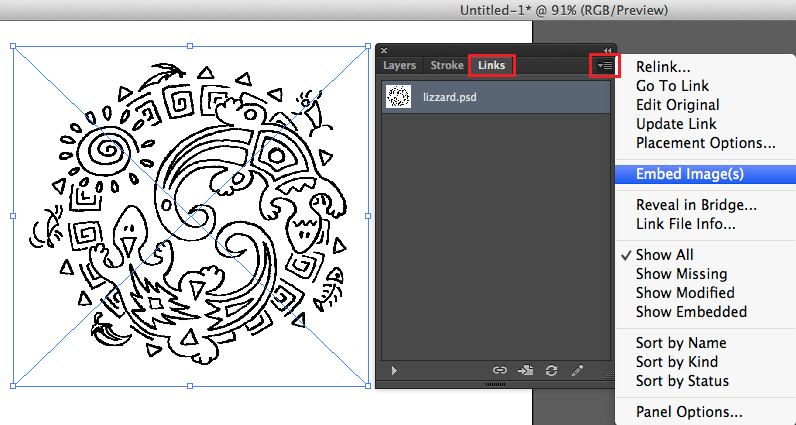
1. Select your image. Go to Window > Links > choose the side option > Embed Image(s).
This way your photo is part of your Illustrator document and won’t show as a missing link.
embed

Tutorial in English with german subtitles for advanced users: How to vectorize and colorise a photo

divider

Deutsche Version:

Möchten Sie unsere gratis Tipps im e-mail erhalten? Schreiben Sie sich unter FOLLOW mit Ihrer e-mail Adresse ein.

divider

TIPP DER WOCHE: Vektorisieren Sie Ihr Pixel Bild oder betten Sie Ihr Foto in Illustrator ein um Probleme mit Verknüpfungen zu vermeiden!

Option 1: Vektorisieren Sie Ihr Pixel Bild in Illustrator CS6.
In drei einfachen Schritten:
1. Platzieren Sie Ihre Photoshop Datei (jpg, tiff, psd) in Ihr Illustrator CS6 Dokument.
2. Gehen Sie zu Menü > Fenster > Bildnachzeichner, wählen Sie Ihre Vorgabe, wählen zudem unter Erweitert Ihre Optionen und klicken auf Nachzeichnen.
3. Wenn Sie fertig sind, ist es wichtig auf Umwandeln zu klicken. Damit wird Ihr Foto vektorisiert.

Bildnachzeichner

Option 2: Betten Sie Ihr Foto ein!
Mit einem einfachen Schritt:
1. Wählen Sie Ihr Bild an und gehen zu Fenster > Verknüpfungen > wählen Sie im Bedienfeld Eingebettete Bilder. Damit wird Ihr Pixel-Bild Teil Ihrer Illustrator Datei und ist nicht mehr mit dem platzierten Original-Bild verknüpft.

einbetten

Tutorial in Englisch mit deutschen Untertitel für Fortgeschrittene: Wie man ein Foto vektorisiert und einfärbt

Get smart with Smart Objects!

Tutorial in English and German / Anleitung in Englisch und Deutsch

Deutsche Version siehe unten!
divider

English version:

Would you like to receive our tips for free in your e-mail box? Simply select FOLLOW to sign up with your e-mail address.

In case you are into mixing Adobe programs, such as Photoshop and Illustrator, using SMART OBJECTS might be an option for you!

TIP OF THE WEEK: Placing Illustrator Images as Smart Objects into Photoshop CC or CS6.

In two simple steps!
1. Open your Illustrator document with a simple Icon, Illustration or Logo.
2. Copy your Object and place it as Smart Object into Photoshop.

SmartObject1

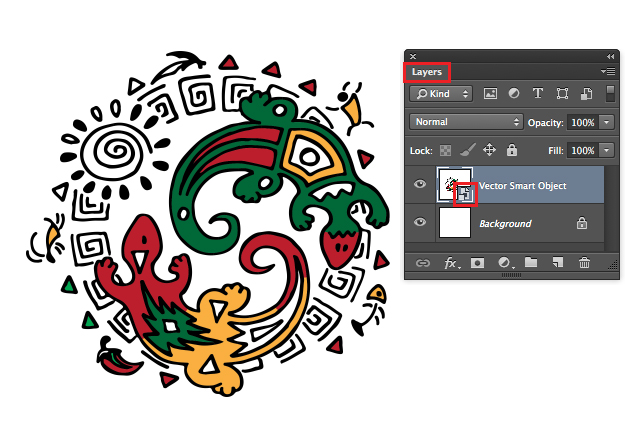
3. Click OK to confirm the placement. In the Layers you’ll find the Smart Oject as a small icon. By clicking on the small icon, the original file opens again in Illustrator.

SmartObjct2

If you make a change there and hit Save, the changes will be automatically transferred into your Photoshop Document because both programs are now connected.

Simple and Easy!

divider

Our new i-adobe book is available online – in English – including tutorials on 72 pages! Have a look: Preview & secure online Shop!

divider

Deutsche Version:

Möchten Sie unsere gratis Tipps im e-mail erhalten? Schreiben Sie sich unter FOLLOW mit Ihrer e-mail Adresse ein.

Falls Sie gerne Adobe Programme – wie Photoshop und Illustrator – mischen möchten, wäre das benutzen von SMART OBJEKTEN eine Option.

TIPP DER WOCHE: Platzieren von Illustrator Bilder als Smart Objekte in ein Photoshop CC oder CS6 Dokument.

In nur zwei einfachen Schritten!
1. Öffnen Sie Ihr Illustrator Dokument mit einem Icon, Illustration oder Logo.
2. Kopieren Sie Ihr Objekt und fügen es als Smart Objekt in Ihre Photoshop Datei ein.

SMartObjekt1

3. Klicken Sie auf OK um die Platzierung zu bestätigen. In Ihren Ebenen finden Sie nun Ihr Smart Objekt als kleines Icon. Wenn Sie auf dieses Icon klicken, öffnet sich das Original Dokument wieder in Illustrator.

SmartObjekt2

Sollten Sie in dieser neu geöffneten Illustrator Datei wieder eine Änderung machen und auf Speichern klicken, werden die Änderungen automatisch in Ihre Photoshop Datei übernommen. Das heisst: Beide Programme sind jetzt mit diesem Smart-Objekt verbunden!

divider

Unser neues i-adobe book ist erhältlich online – in Deutsch – inklusive Tutorials auf 72 Seiten! BESTELLUNG mit Käuferschutz: Vorschau und sicherer Onlineshop!

divider

Illustration of today at Illustration Source, New York City

Miriam Selmi Reed represented and licensed by Illustration Source

Miriam Selmi Reed represented and licensed by Illustration Source


Portfolio and contact: Illustration Source NYC

Illustration technique: Traditional drawing combined with digital mixed media using Smart Objects in Photoshop and Illustrator. Copyright by Illustration Source, New York City.

Illustrations-Technik: Farbstift-Zeichnung gemischt mit Illustrator und Photoshop sowie Smart-Objekten. Copyright by Illustration Source, New York City.

Photoshop CS6: Schnittmaske und Einstellungsebene

Deutsche Version:

Möchten Sie unsere gratis Tipps im e-mail erhalten? Schreiben Sie sich unter FOLLOW mit Ihrer e-mail Adresse ein.

TIPP DER WOCHE: Schnittmasken in Adobe Photoshop CS6

divider

Schritt 1: Öffnen Sie Ihr Bild in Photoshop CS6 und wählen “Tontrennung” in den Einstellungsebenen.
1D

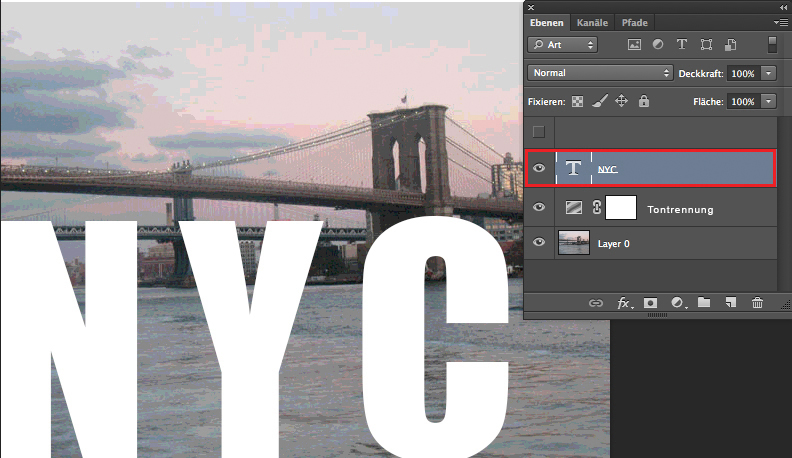
Schritt 2: Schreiben Sie Ihren Text möglichst gross und fett.
2D

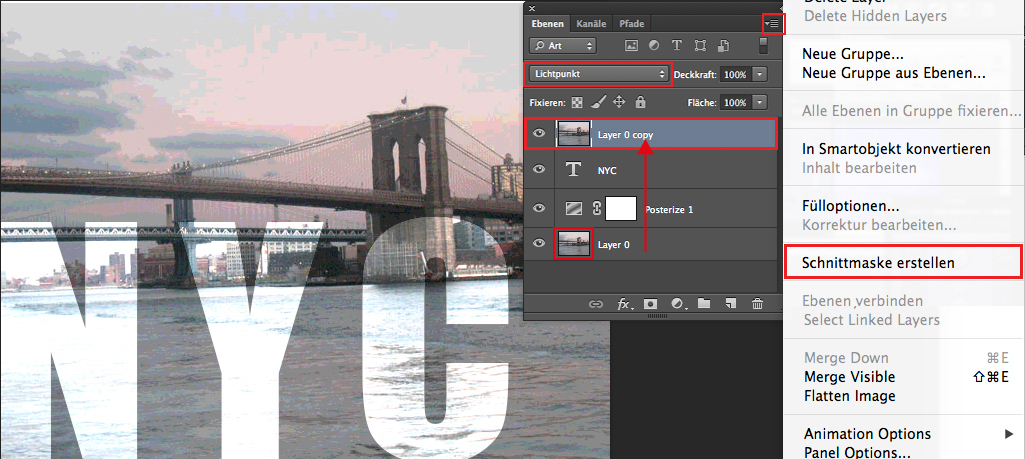
Schritt 3: Duplizieren Sie Ihr Bild, schieben diese Ebene ganz nach oben und
wählen “Schnittmaske erstellen”.
Um unseren Effekt zu erzielen, wählten wir zusätzlich die Option “Lichtpunkt”.
3D

Und hier ist das fertige Resultat:
4

Pixel is King!

English version:

Would you like to receive our tips for free in your e-mail box? Simply select FOLLOW to sign up with your e-mail address.

TIP OF THE WEEK: How to change the image size of a photo in Adobe Photoshop

divider

Teaching Photoshop for so many years, we’ve come across the same issues over and over again. One of the major problems especially for beginners is; how to re-size an image to 300 Pixels/Inch for print. Actually it is VERY simple: All a user has to understand is that Photoshop is based on pixels.
Simply pay attention to the “Pixel Dimensions” while changing the size of the image. The Pixel Dimensions should always remain the same! Reason: if Photoshop deletes Pixels or adds on Pixels, our image quality changes for the worse, gets blurry etc.

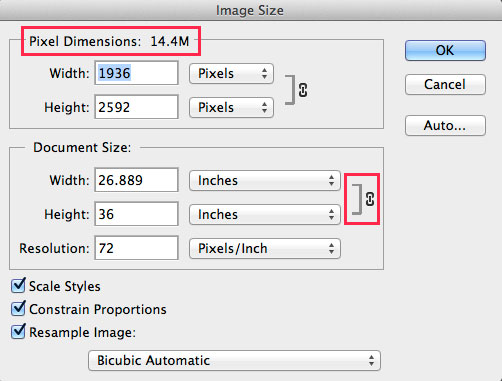
Step 1: Open the image in Photoshop CS6. Go to MENU > IMAGE > IMAGE SIZE.
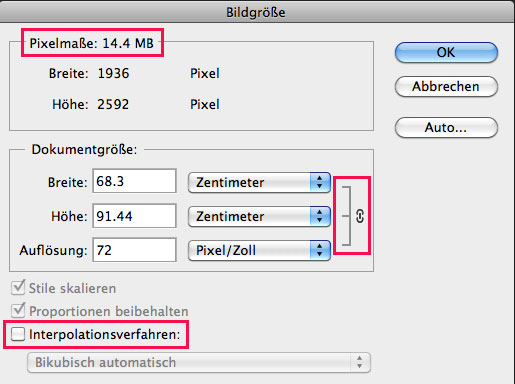
Pay attention to the Pixel Dimensions which should remain the same. The Width and Height are linked together.

1E

Step 2: Click off the Box “Resample Image” now the Width, Height and Resolution are linked together. Pay attention to the Pixel Dimensions on top. They are the same as before.

2E

Step 3: Type in the Resolution field 300 Pixels/Inch for print. Notice that the Pixel Dimensions stay the same.
This means that we have changed the size of the image BUT, the Pixel Dimensions remain the same, so we have optimal quality for print.

3E

Keep in mind that DPI is not PPI is not LPI and although there are many opinions as to the best re-sizing methods, one should at least utilize and compare the results of the 6 different re-sampling methods available at the bottom of the Photoshop image size dialog box, as the Automatic default setting “Bicubic Automatic” may not always be optimal.

TIP 2: how to enlarge an image in Photoshop CC

Pixel ist König!

Deutsche Version:

Möchten Sie unsere gratis Tipps im e-mail erhalten? Schreiben Sie sich unter FOLLOW mit Ihrer e-mail Adresse ein.

TIPP DER WOCHE: Bilder korrekt in der Grösse in Photoshop anpassen

divider

Seit vielen Jahren unterrichten wir Photoshop, daher bemerken wir immer wieder dieselben Probleme. Eines davon ist wie man Pixelbilder korrekt in der Grösse auf 300 Pixels/Zoll für den Druck anpasst.

Eigentlich ist es simpel: Der Benutzer muss einfach verstehen, dass die Pixelmasse IMMER gleich bleiben sollten.
D.h. man kann die Bildgrösse in der Breite und Höhe verändern, die Pixelmasse sollten aber gleich bleiben. Grund: Wenn Photoshop Pixels löscht oder dazufügt, verschlechtert sich die Bildqualität und das Bild wird unscharf.

Schritt 1: Öffnen Sie das Bild in Photoshop CS6. Gehen Sie zu MENÜ > BILD > BILDGRÖSSE.
Beachten Sie die Pixelmasse die nun immer gleich bleiben sollten. Die Breite und Höhe sind miteinander verknüpft.

1D

Schritt 2: Wählen Sie die Check Box “Interpolationsverfahren” ab. Damit werden die Breite, Höhe und Auflösung (Pixel) miteinander verknüpft. Beachten Sie oben die Pixelmasse: sie verändern sich nicht.

2D

Schritt 3: Tippen Sie im Feld “Auflösung” 300 Pixel/Zoll für den Druck. Beachten Sie die Pixelmasse oben: sie bleiben immer noch gleich.
Das heisst: Wir änderten zwar die Grösse des Bildes, ABER die Pixelmasse bleiben gleich und wir haben eine optimale Qualität für den Offsetdruck.

3D

DPI ist nicht das dasselbe wie PPI und ist nicht dasselbe wie LPI, dieses Thema wird in einem zukünftigen Post gezeigt. Es gibt viele Möglichkeiten wie man Bilder in Photoshop vergrössert oder verkleinert, man sollte dazu auch noch die 6 verschiedenen Optionen unter dem “Interpolationsverfahren” in Betracht ziehen, da “Bikubisch automatisch” nicht immer die optimale Lösung ist.

TIPP 2: Wie man ein Bild in Photoshop CC vergrössert