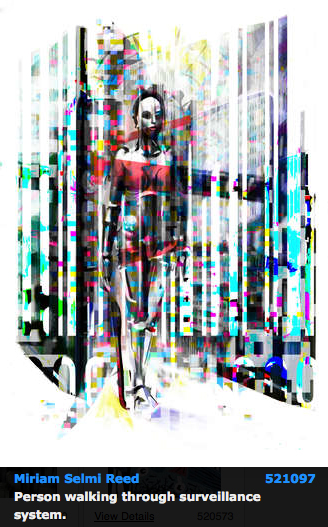
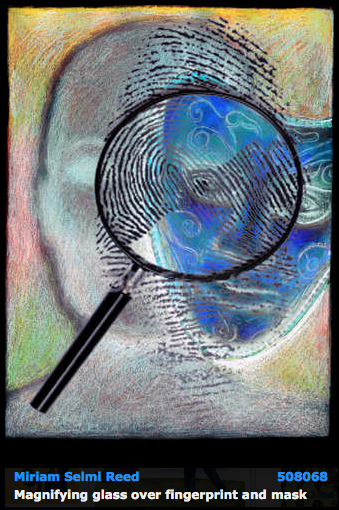
Topic of the week: Consumerism

divider

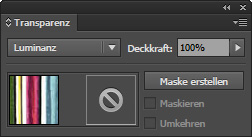
Illustrator Tipp > TRANSPARENCY: I love to use Transparencies in Adobe Illustrator, as shown on my Illustration below. I first go under MENU > WINDOW < TRANSPARENCY; and select a Transparency for my selected object. With this method, I can apply different transparencies and work non-destructive.

transparency

divider

Illustrator Tip > TRANSPARENZ: Ich benutze gerne die Transparenzen in Illustrator – wie bei meiner Illustration unten. Dazu gehe ich unter MENU > FENSTER > TRANSPARENZ; und wähle eine Transparenz nach Wahl. Mit dieser Methode arbeite ich nicht-Destruktiv, und kann somit jederzeit eine Transparenz löschen oder nach Wunsch verändern.

transparenz

divider

Miriam Selmi Reed represented and licensed by Illustration Source - Courtesy of Illustration Source

Miriam Selmi Reed represented and licensed by Illustration Source – Courtesy of Illustration Source

View the artists’s homage on the topic: CONSUMERISM

Miriam Selmi Reed is represented by Illustration Source, New York City. Portfolio and contact: Illustration Source NYC

Illustration technique: watercolor, acrylic and pencil combined with digital mixed media using Adobe Photoshop and Illustrator.Copyright by Illustration Source, New York City.

Illustrations-Technik: Aquarell, Acryl mit Farbstift, gemischt mit Adobe Photoshop und Illustrator. Copyright by Illustration Source, New York City.

divider

Your source for commissioned illustration: ORIGINAL ART STUDIOS in New York City.

OAS

Portfolio Original Art Studios, New York City: MIRIAM SELMI REED

Todays topic: PATHWAYS

divider

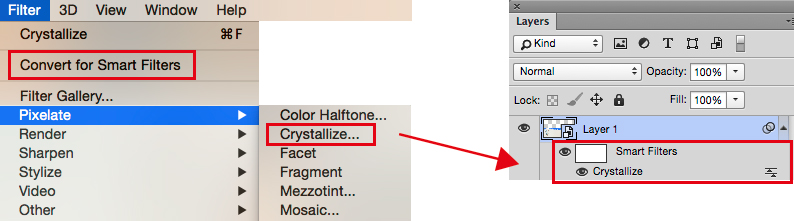
Photoshop Tipp > SMART FILTERS: When I’m using Filters as shown on my Illustration below, I first go under MENU > FILTER > Convert for Smart Filter. With this method, I can apply every filter and work non-destructive. I open my layers and click on my Filter icon which opens the previous chosen filter settings so I can make my adjustments.

smart-filters

Photoshop Tip > SMART FILTER: Wenn ich in Photoshop Filter benutze – siehe unten – dann gehe ich unter MENU > FILTER > Konvertieren für Smart Filter. Mit dieser Methode arbeite ich nicht-Destruktiv, und kann somit jeden Filter löschen oder nach Wunsch verändern. Dazu öffne ich mein Ebenen-Bedienfeld und klicke auf meinen Filter, damit sich der vorher gewählte Filter wieder öffnet und ich Änderungen vornehmen kann.

divider

Miriam Selmi Reed represented and licensed by Illustration Source - Courtesy of Illustration Source

Miriam Selmi Reed represented and licensed by Illustration Source – Courtesy of Illustration Source

View the artists’s homage on the topic: PATHWAYS

Miriam Selmi Reed is represented by Illustration Source, New York City. Portfolio and contact: Illustration Source NYC

Illustration technique: watercolor, acrylic and pencil combined with digital mixed media using Adobe Photoshop and Illustrator.Copyright by Illustration Source, New York City.

Illustrations-Technik: Aquarell, Acryl mit Farbstift, gemischt mit Adobe Photoshop und Illustrator. Copyright by Illustration Source, New York City.

divider

Your source for commissioned illustration: ORIGINAL ART STUDIOS in New York City.

OAS

Portfolio Original Art Studios, New York City: MIRIAM SELMI REED

Clean up Swatches automatically / Farbfelder automatisch aufräumen lassen!

Tutorial in English and German / Anleitung in Deutsch und Englisch

Deutsche Version siehe unten!
divider

English version:

Would you like to receive our tips for free in your e-mail box? Simply select FOLLOW to sign up with your e-mail address.

TIP OF THE WEEK: How to clean up color Swatches in InDesign and Illustrator

Ever had a huge amount of colors in your Swatch-box in an InDesign or Illustrator document and had no idea which colors to delete?

In order to provide the printer or another designer a clean working file, it is advisable to remove unnecessary color swatches.

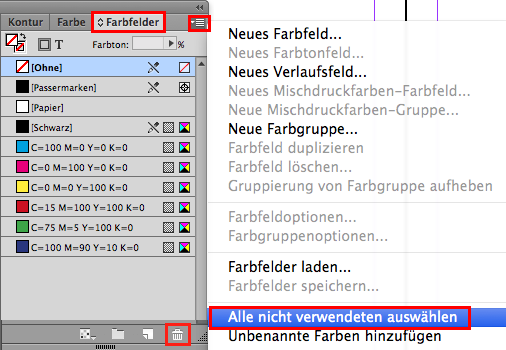
The answer is simple: Go to MENU > WINDOW > and open the Swatches.
1. Select all Unused. 2. Click on the trash can.
All colors which you didn’t use in your document are now deleted in your swatch box automatically!

UnusedSwatches

divider

TIP 2: How to use Global Colors in Adobe Illustrator – here is a cool trick: GLOBAL COLORS

divider

Deutsche Version:

Möchten Sie unsere gratis Tipps in Ihrem e-mail erhalten? Schreiben Sie sich unter FOLLOW mit Ihrer e-mail Adresse ein.

TIPP DER WOCHE: Wie man in Adobe InDesign und Illustrator Farbfelder aufräumt

Hatten Sie jemals Ihre Farbfelder in InDesign oder Illustrator so vollgeladen mit Farben, dass Sie nicht mehr wussten, welche Farben in Ihrer Datei verwendet wurden?

Die Lösung ist einfach: gehen Sie zu MENU > FENSTER > und öffnen Sie das Bedienfeld Farbfelder.
1. Alle nicht verwendeten auswählen. 2. Klicken Sie auf den Papierkorb.
Alle Farben die in Ihrem Dokument nicht benutzt werden, wurden somit aus Ihrem Farbfeld-Bedienfeld automatisch gelöscht!

Um der Druckerei oder einem anderen Designer eine saubere Datei zu schicken, ist es ratsam, unnötige Farbfelder zu löschen.

NichtgebrauchteFarbfelder

divider

TIPP 2: Wie man globale Farben in Illustrator benutzt. Ein cooler Trick: GLOBALE FARBEN

divider

Any support is greatly appreciated – Jede Unterstützung freut uns: PayPal Donate Button

divider

Freedom of Speech

divider

Tip 1: Promote your own artwork for free
I love the new promotion tools the Creative Cloud offers; check it out!

Illustrator Tip 2: how to use Global Colors in Adobe Illustrator
I always use Global Colors in all my Illustrator files. Click on the link to get more info.

divider

Tipp 1: Promoten Sie gratis Ihre Design-Arbeiten
Ich finde die neuen gratis Promotionsmöglichkeiten der Creative Cloud super; check it out!

Illustrator Tipp 2: Wie man Globale Farben in Adobe Illustrator benutzt
Ich benutze generell immer globale Farben in Adobe Illustrator. Klicken Sie auf den Link für mehr Infos.

divider

Courtesy of Illustration Source - Copyright by Illustration Source

Courtesy of Illustration Source – Copyright by Illustration Source

View the artists’s homage on the topic: FREEDOM OF SPEECH

Miriam Selmi Reed is represented by Illustration Source, New York City. Portfolio and contact: Illustration Source NYC

Illustration technique: watercolor, acrylic and pencil combined with digital mixed media using Adobe Photoshop and Illustrator.Copyright by Illustration Source, New York City.

Illustrations-Technik: Aquarell, Acryl mit Farbstift, gemischt mit Adobe Photoshop und Illustrator. Copyright by Illustration Source, New York City.

divider

Your source for commissioned illustration: ORIGINAL ART STUDIOS in New York City.

OAS

Portfolio Original Art Studios, New York City: MIRIAM SELMI REED

Social Media 3

divider

Illustrator Tutorial: How to vectorize a photo and colorise it
I like to use my own photographs and combine them into my illustrations. Here is a cool trick on how to vectorize your own photos in Illustrator.

divider

Illustrator Tipp: Wie man ein Foto vektorisiert und einfärbt
Ich benutze gerne meine digitalen Fotos in meinen Illustrationen. Hier ist ein cooler Trick wie Sie Ihre eigenen Photos in Illustrator vektorisieren.

divider

Courtesy of Illustration Source

Courtesy of Illustration Source

View the artists’s homage on the topic: SOCIAL MEDIA

Miriam Selmi Reed is represented by Illustration Source, New York City. Portfolio and contact: Illustration Source NYC

Illustration technique: watercolor, acrylic and pencil combined with digital mixed media using Adobe Photoshop and Illustrator.Copyright by Illustration Source, New York City.

Illustrations-Technik: Aquarell, Acryl mit Farbstift, gemischt mit Adobe Photoshop und Illustrator. Copyright by Illustration Source, New York City.

divider

Your source for commissioned illustration: ORIGINAL ART STUDIOS in New York City.

OAS

Portfolio Original Art Studios, New York City: MIRIAM SELMI REED

Cool Illustrator Effects

Tutorial in English and German / Anleitung in Deutsch und Englisch

Deutsche Version siehe unten!
divider

English version:

Would you like to receive our tips for free in your e-mail box? Simply select FOLLOW to sign up with your e-mail address.

TIP OF THE WEEK: Cool Illustrator Effects!

Did you ever try the cool Illustrator effects in CS6 or Creative Cloud?

1. Draw a small star or any simple shape you like
2. Go to MENU > EFFECT > DISTORT & TRANSFORM > TRANSFORM
3. Type in the numbers of your choice or use the same numbers as shown below
4. Click the Preview Button

effectE1

5. Click OK, if you like the Preview

EffectE2

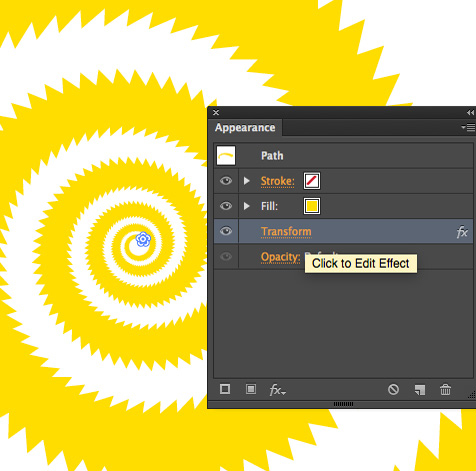
You want to change your effect? Simply go to MENU > WINDOW > APPEARANCE and click on Transform FX to open the same Effect-Window again.
To delete an effect; simply drag it to the trash can.

EffectE3

There are many effects you can try – since you can change them anytime with the APPEARANCE window, it’s really fun to try them all 🙂

divider

TIP 2: additional tutorial for Adobe InDesign Effects: INDESIGN EFFECTS

divider

Deutsche Version:

Möchten Sie unsere gratis Tipps in Ihrem e-mail erhalten? Schreiben Sie sich unter FOLLOW mit Ihrer e-mail Adresse ein.

TIPP DER WOCHE: Cool Illustrator Effekte!

Haben Sie jemals die coolen Illustrator Effekte in CS6 oder Creative Cloud ausprobiert?

1. Zeichnen Sie einen kleinen Stern oder Form nach Wunsch
2. Gehen Sie zu MENU > EFFEKT > VERZERRUNGS- UND TRANSFORMATIONSFILTER > TRANSFORMIEREN
3. Tippen Sie Ihre Nummern ein oder nehmen die gleichen wie unten im Bild
4. Klicken Sie auf Vorschau

effectD1

5. Klicken Sie OK, wenn Ihnen die Vorschau gefällt

EffectE2

Möchten Sie Ihren Effekt ändern? Gehen Sie zu MENU > FENSTER > AUSSEHEN und klicken Sie auf Transformieren FX um dasselbe Effekte-Bedienfeld wieder zu öffnen und Änderungen vorzunehmen.
Mit dem Auge können Sie den Effekt temporär ausschalten und den Effekt ganz löschen ist einfach; klicken Sie auf den Papierkorb.

Mit dem Aussehen-Bedienfeld können Sie jeden Effekt modifizieren oder löschen.
Dies betrifft auch 3-D Effekte, Schlagschätten usw.

EffectD3

Es gibt endlos viele Effekte – da Sie diese jederzeit löschen oder ändern können, macht es Spass so viele wie möglich auszuprobieren 🙂

divider

TIPP 2: Zusätzliche Anleitung für Adobe InDesign Effekte: INDESIGN EFFEKTE

divider

Social Media 1

divider

Illustrator Tip Part 1: New Drawing Tools in Adobe Illustrator CC – Part 1
I love the new drawing tools in Adobe Illustrator Creative Cloud; the new Curvature-tool makes tracing so much easier!

Illustrator Tip Part 2: New Drawing Tools in Adobe Illustrator CC – Part 2
I’ve also used the new Pencil-Tool in my new illustrations you see below. Click on the link to get more info.

Adobe Illustrator CS6 Tip: How to draw in Adobe Illustrator CS6

divider

Illustrator Tipp Teil 1: Neue Zeichnungs-Werkzeuge in Adobe Illustrator CC – Teil 1
Dieses neue Krümmungs-Werkzeug macht es noch einfacher Kurven zu zeichnen und Ankerpunkte zu setzen.

Illustrator Tipp Teil 2: Neue Zeichnungs-Werkzeuge in Adobe Illustrator CC – Teil 2
Bei meinen neuen Illustrationen benutzte ich auch das neue Buntstift-Werkzeug. Klicken Sie auf den Link für mehr Info!

Adobe Illustrator CS6 Tipp: Wie man mit Illustrator CS6 zeichnen kann

divider

Courtesy of Illustration Source

Courtesy of Illustration Source

Courtesy of Illustration Source

Courtesy of Illustration Source

View the artists’s homage on the topic: SOCIAL MEDIA

Miriam Selmi Reed is represented by Illustration Source, New York City. Portfolio and contact: Illustration Source NYC

Illustration technique: watercolor, acrylic and pencil combined with digital mixed media using Adobe Photoshop and Illustrator.Copyright by Illustration Source, New York City.

Illustrations-Technik: Aquarell, Acryl mit Farbstift, gemischt mit Adobe Photoshop und Illustrator. Copyright by Illustration Source, New York City.

divider

Your source for commissioned illustration: ORIGINAL ART STUDIOS in New York City.

OAS

Portfolio Original Art Studios, New York City: MIRIAM SELMI REED

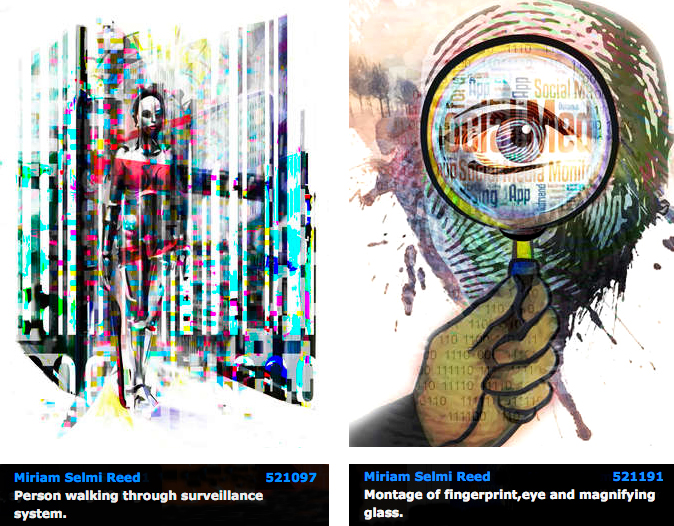
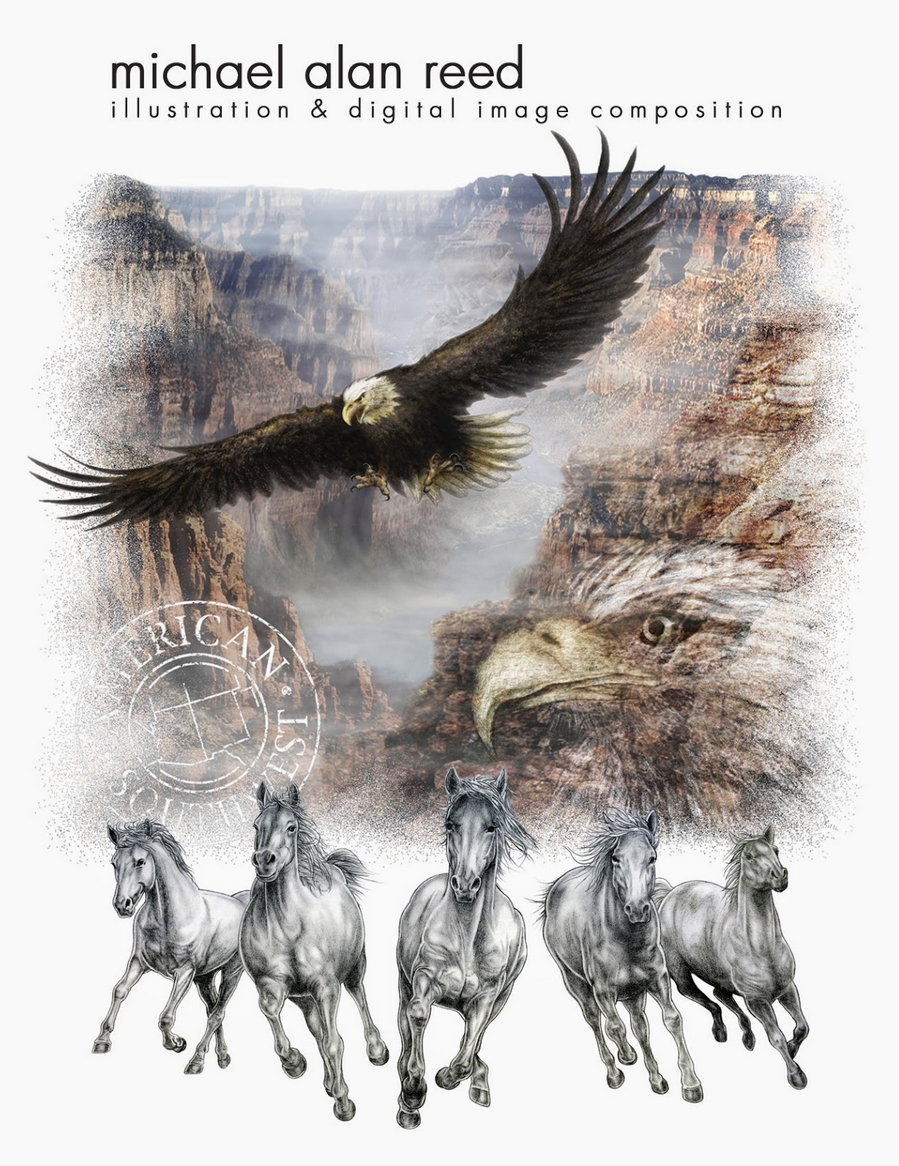
Today’s concept: Privacy

divider

Instead of using filters which change the overall color balance , I prefer to use LAB colors when I only need to adjust the brightness… if you’d like to know how; click on the link below!
Tutorial: What are LAB colors in Photoshop

Wenn ich bei meinen Illustrationen die Helligkeit meiner Farben separat von meinen Farbtönen verändern will, benutze ich LAB Farben… klicken Sie auf den Link um herauszufinden, wie das geht!
Anleitung: Was sind LAB Farben in Photoshop

divider

Courtesy of Illustration Source

Courtesy of Illustration Source / All rights reserved

View the artists’s homage on the topic: PRIVACY TODAY

Miriam Selmi Reed is represented by Illustration Source, New York City. Portfolio and contact: Illustration Source NYC

Illustration technique: watercolor, acrylic and pencil combined with digital mixed media using Adobe Photoshop and Illustrator.Copyright by Illustration Source, New York City.

Illustrations-Technik: Aquarell, Acryl mit Farbstift, gemischt mit Adobe Photoshop und Illustrator. Copyright by Illustration Source, New York City.

divider

Your source for commissioned illustration: ORIGINAL ART STUDIOS in New York City.

OAS

Portfolio Original Art Studios, New York City: MIRIAM SELMI REED

Tax time…

divider

TIP OF THE WEEK: How to make your own comic: Comic & Illustration

TIPP DER WOCHE: Zeichnen Sie ihren eigenen Comic: Comic & Illustration

divider

Miriam Selmi Reed represented and licensed by Illustration Source / courtesy of Illustration source

Courtesy of Illustration source

View the artists’s homage on the topic TAX TIME

Miriam Selmi Reed is represented by Illustration Source, New York City. Portfolio and contact: Illustration Source NYC

Illustration technique: Traditional painting combined with digital mixed media using Smart Objects in Photoshop and Illustrator. Copyright by Illustration Source, New York City.

Illustrations-Technik: Acrylbild gemischt mit Illustrator und Photoshop sowie Smart-Objekten. Copyright by Illustration Source, New York City.

divider

Your source for commissioned illustration: ORIGINAL ART STUDIOS in New York City.

OAS

Portfolio Original Art Studios, New York City: MIRIAM SELMI REED

Featured Illustrator: Michael Alan Reed

divider

Mike’s TIP OF THE WEEK: How to use a layer mask and make a background transparent in Photoshop – PHOTOSHOP LAYER MASK

divider

Featured Illustrator Mike Reed has an amazing technique; a combination of manual and digital media – we love his style! Manual drawing with pencil enhanced with digital media.

Copyright by Michael Alan Reed - all rights reserved

Copyright by Michael Alan Reed – all rights reserved

Michael Alan Reed, a native of the American North West, has been successfully working as a graphic designer / illustrator and image composer for many years. His work has been shown, printed and licensed in fashion, sportswear, magazines, products, advertising and animation internationally.

COOL STUFF! check out his PORTFOLIO and BLOG at: Michael Alan Reed
Contact & website: REEDesign

divider

Mike’s TIPP DER WOCHE: Wie man ein Foto in Photoshop mit einer Ebenenmaske freistellt und den Hintergrund transparent speichert – PHOTOSHOP EBENENMASKE

divider

Graphic Styles / Grafikstile in Adobe Illustrator

Tutorial in English and German / Anleitung in Deutsch und Englisch

Deutsche Version siehe unten!
divider

English version:

Would you like to receive our tips for free in your e-mail box? Simply select FOLLOW to sign up with your e-mail address.

TIP OF THE WEEK: Graphic Styles in Illustrator CS6

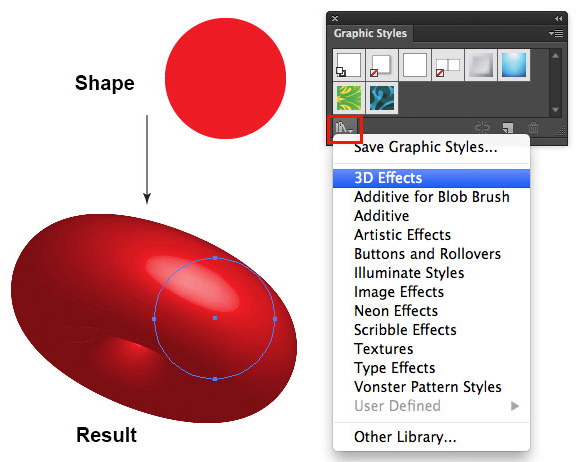
1. Open a new document in Adobe Illustrator and draw a simple shape with a fill color.

2. Select your shape with the Selection Tool and go to Window > Graphic styles. Select the drop-down-arrow of the Libraries and choose your favorite Graphic Style.
In our example, we are using the 3D Effect Library.

graphicstyle

Each time you select a Graphic Style in one of the protected Adobe Libraries, it will be added on to your personal Graphic Style collection and can be altered as you wish.
Under Window > Appearance you may change the Graphic Style or delete it.

There are lots of Graphic Styles in the Adobe Library you should try out – have fun!

divider

Deutsche Version:

Möchten Sie unsere gratis Tipps im e-mail erhalten? Schreiben Sie sich unter FOLLOW mit Ihrer e-mail Adresse ein.

TIPP DER WOCHE: Grafikstile in Illustrator CS6

1. Öffnen Sie ein neues Dokument in Adobe Illustrator, zeichnen Sie eine einfache Form und färben Sie diese mit einer Flächen-Farbe ein.

2. Wählen Sie die Form mit dem Auswahl-Werkzeug an und gehen Sie zu Fenster > Grafikstile. Wählen Sie einen Grafikstil nach Wunsch unter den Bibliotheken an.
Hier zeigen wir ein Beispiel aus der 3D-Effekte Bibliothek.

Grafikstil

Jedesmal wenn man einen Grafikstil von den schreibgeschützen Adobe Bibliotheken anwählt, wird dieser zu den eigenen Grafikstilen dazugefügt und kann somit verändert werden.
Unter Fenster > Aussehen kann man jeden Grafikstil verändern oder löschen.

Es gibt viele Grafikstile in den Adobe Bibliotheken die man ausprobieren sollte – viel Spass!

To The One I Love

divider

Tutorial: How to draw with Adobe Illustrator.

divider

Courtesy of Illustration Source

Courtesy of Illustration Source

View the artists’s homage on the topic: To The One I Love

Miriam Selmi Reed is represented by Illustration Source, New York City. Portfolio and contact: Illustration Source NYC

Illustration technique: watercolor, acrylic and pencil combined with digital mixed media using Adobe Photoshop and Illustrator.Copyright by Illustration Source, New York City.

Illustrations-Technik: Aquarell, Acryl mit Farbstift, gemischt mit Adobe Photoshop und Illustrator. Copyright by Illustration Source, New York City.

divider

Anleitung: Wie man mit Adobe Illustrator zeichnet.

divider

How to save down to a lower version / wie man in eine tiefere Version abspeichert

Tutorial in English and German / Anleitung in Deutsch und Englisch

Deutsche Version siehe unten!
divider

English version:

Would you like to receive our tips for free in your e-mail box? Simply select FOLLOW to sign up with your e-mail address.

TIP OF THE WEEK: How to save down to a lower version in Adobe Illustrator and InDesign

Have you ever tried to open an Illustrator or InDesign file and the message pops-up “cannot open file since it was created in a newer version”?

Here is the solution for Adobe Illustrator:

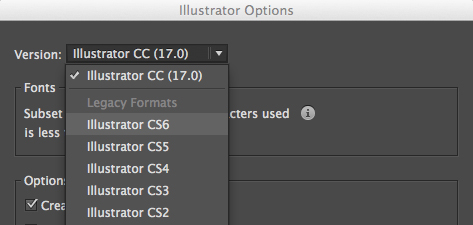
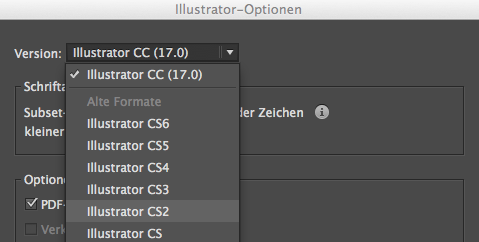
1. When you work in Adobe Illustrator and select the SAVE command: don’t forget to select the lower version of your choice!

Illustrator_SaveAs2

divider

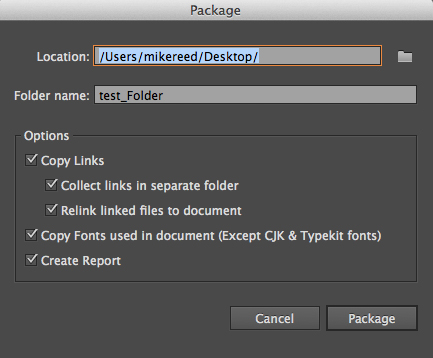
2. New in Illustrator Creative Cloud; you can package your document! With the package command – under MENU > FILE > PACKAGE – Illustrator collects the links and fonts you’ve used in the document and creates a folder.
A very practical tool, Adobe InDesign has featured for years.
(Except for the Typekit Fonts which can only be used with the Creative Cloud)

File-Package

divider

When you work in Adobe InDesign and select the SAVE command: don’t forget to save an IDML (InDesign Markup)! The IDML is the key to open an InDesign document in a lower version.

InDesign CS6 and CS5:
How to make an IDML in InDesign CS6, so I can open it in an older version

Indesign CC – Creative Cloud:
How to make an IDML InDesign CC (Creative Cloud), so I can open it in an older version

divider

TIP: HOW TO USE TYPEKIT IN ADOBE CREATIVE CLOUD

divider

Deutsche Version:

Möchten Sie unsere gratis Tipps im e-mail erhalten? Schreiben Sie sich unter FOLLOW mit Ihrer e-mail Adresse ein.

TIPP DER WOCHE: Wie man in Illustrator auf eine niedrigere Version abspeichern kann

Haben Sie jemals versucht eine Illustrator oder Indesign Datei zu öffnen und eine Fehlermeldung erscheint mit der Nachricht “die Datei kann nicht geöffnet werden, da sie in einer neueren Version erstellt wurde”?

Hier ist die Lösung für Adobe Illustrator:

1. Wenn Sie in Adobe Illustrator arbeiten und den Befehl SPEICHERN eingeben: wählen Sie ganz einfach die niedrigere Version Ihrer Wahl!

Illustrator_SpeichernUnter

divider

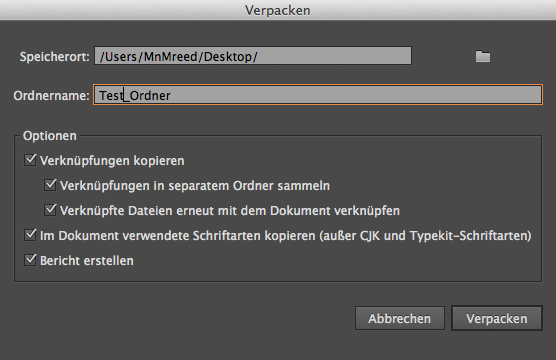
2. NEU in Illustrator Creative Cloud; Sie können neu Ihr Dokument verpacken! Mit dem verpacken Befehl – unter MENÜ > DATEI > VERPACKEN – sammelt Illustrator die Verknüpfungen und Schriften die Sie in Ihrem Dokument benutzen und sammelt diese in einen Ordner.
Eine praktische Sache; Adobe InDesign hat dies schon seit Jahren.
(Ausser der Typekit Fonts, welche nur von Creative Cloud Benutzer gebraucht werden können)

Datei_Verpacken

divider

Wenn Sie in Adobe InDesign arbeiten, vergessen Sie nicht ein IDML zu exportieren. (IDML=InDesign Markup.) Das IDML ist der Schlüssel um InDesign Dokumente in älteren Versionen öffnen zu können.

InDesign CS6 und CS5:
Wie man in InDesign CS6 ein IDML erstellt um es in einer älteren Version öffnen zu können

Indesign CC – Creative Cloud:
Wie man in InDesign CC (Creative Cloud) ein IDML erstellt um es in einer älteren Versionen öffnen zu können

divider

TIPP: WIE MAN TYPEKIT IN ADOBE CREATIVE CLOUD BENUTZT

Data Security

divider

Tutorial: How to use Smart Objects in Adobe Photoshop.

divider

Courtesy of Illustration Source

Courtesy of Illustration Source

Courtesy of Illustration Source

Courtesy of Illustration Source

View the artists’s homage on the topic: Data Security

Miriam Selmi Reed is represented by Illustration Source, New York City. Portfolio and contact: Illustration Source NYC

Illustration technique: watercolor, acrylic and pencil combined with digital mixed media using Adobe Photoshop and Illustrator.Copyright by Illustration Source, New York City.

Illustrations-Technik: Aquarell, Acryl mit Farbstift, gemischt mit Adobe Photoshop und Illustrator. Copyright by Illustration Source, New York City.

divider

Anleitung: Wie man Smart Objekte in Adobe Photoshop benutzt.

divider

Moving forward in 2015!

The following illustration was created by Mimi Selmi Reed (webdesign: Adobe Muse) with pencils and water color – traced and executed in Illustrator & Photoshop – animated in Adobe Photoshop CC.
(Tutorial see below / Anleitung siehe unten)

Copyright by Miriam Selmi Reed - member SCBWI - all rights reserved.

Copyright by Miriam Selmi Reed – member SCBWI – all rights reserved.

Every Follower, Like and comment is welcome! More comics & cartoons at: Z-DOG COMIC

divider

ENGLISH:
Animations with Photoshop / Animationen mit Photoshop:
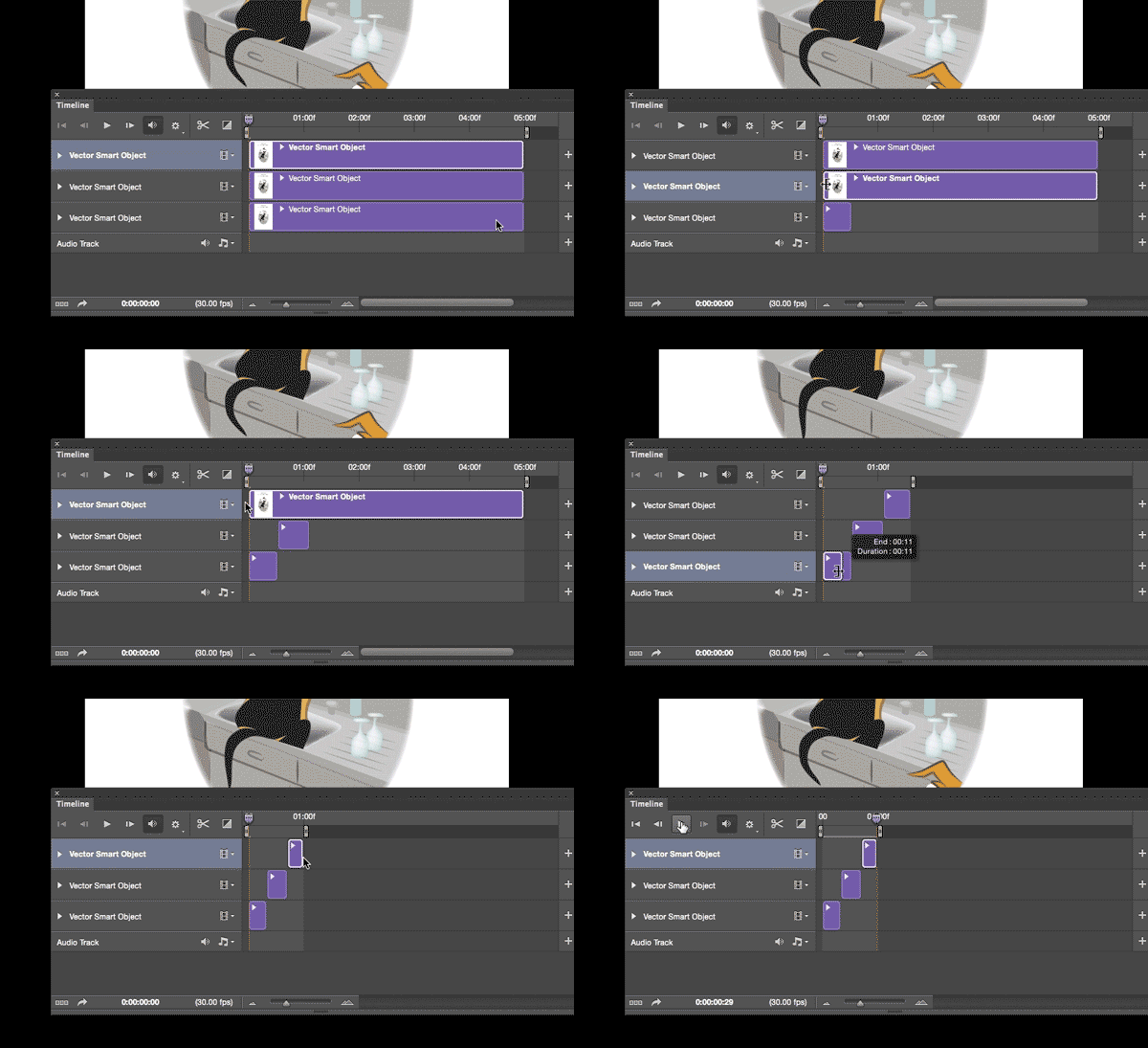
Photoshop timeline for animations is under Window > Timeline. Have fun!
How to create frame animations in Photoshop

DEUTSCH:
Die Photoshop-Zeitleiste für Animationen kann man unter Fenster > Zeitleiste finden. Viel Spass!
Erstellen von Frame-Animationen in Photoshop

animation

How to colorize a vectorized photo / Wie man ein Foto vektorisiert und einfärbt

Tutorial in English and German / Anleitung in Deutsch und Englisch

Deutsche Version siehe unten!

English version:

Would you like to receive our tips for free in your e-mail box? Simply select FOLLOW to sign up with your e-mail address.

divider

TIP OF THE WEEK: How to colorize a vectorized photo!
How to use the image trace option in Illustrator CS6 or CC, to vectorize and colorize a Photo – Bilingual instructions in English and German subtitles.

Step 1: Place your photo into Illustrator.
Step 2: Vectorise your photo > Window > Image Trace.
Step 3: Don’t forget to click on the button “EXPAND”.
Step 4: Edit your colors > Edit > Edit Colors.

Tutorial:

Tutorial for beginners:
How to vectorize a photo or embed the image

Tutorial for advanced users:
How to vectorize your handwriting

divider

Deutsche Version

Möchten Sie unsere gratis Tipps im e-mail erhalten? Schreiben Sie sich unter FOLLOW mit Ihrer e-mail Adresse ein.

TIPP DER WOCHE: Wie ein vektorisiertes Bild einfärbt

Tutorial: Wie man mit dem Bildnachzeichner in Illustrator CS6 oder CC arbeitet, damit ein Foto vektorisiert und einfärbt. Zweisprachige Anleitung in Englisch mit deutschen Untertiteln.

1: Platzieren Sie Ihr Bild in Illustrator.
2: Vektorisieren Sie Ihr Photo > Fenster > Bildnachzeichner.
3: Vergessen Sie nicht auf “UMWANDELN” zu klicken.
4: Färben Sie Ihr Vektorbild ein unter > Bearbeiten > Farben bearbeiten.

Tutorial auf Englisch mit deutschen Untertiteln:

Tutorial für Anfänger:
Wie man ein Bild vektorisiert oder einbettet

Tutorial für Fortgeschrittene:
Wie man eine Handschrift vektorisiert

Today’s concept: Government

Courtesy of Illustration Source

Courtesy of Illustration Source

View the artists’s homage on the topic: Government

Miriam Selmi Reed is represented by Illustration Source, New York City. Portfolio and contact: Illustration Source NYC

Illustration technique: watercolor, acrylic and pencil combined with digital mixed media using Adobe Photoshop and Illustrator.Copyright by Illustration Source, New York City.

Illustrations-Technik: Aquarell, Acryl mit Farbstift, gemischt mit Adobe Photoshop und Illustrator. Copyright by Illustration Source, New York City.

MONEY

Courtesy of Illustration Source

Courtesy of Illustration Source

View the artists’s homage on the topic MONEY

Miriam Selmi Reed is represented by Illustration Source, New York City. Portfolio and contact: Illustration Source NYC

Illustration technique: Traditional painting combined with digital mixed media such as Adobe Photoshop. Copyright by Illustration Source, New York City.

Illustrations-Technik: Acrylbild gemischt mit Adobe Photoshop. Copyright by Illustration Source, New York City.

Graphs / Diagramme in Illustrator CS6

Tutorial in English and German / Anleitung in Deutsch und Englisch

English version:

Would you like to receive our tips for free in your e-mail box? Simply select FOLLOW to sign up with your e-mail address.

divider

TIP OF THE WEEK: How to create Graphs and Charts in Adobe Illustrator.

How to create your Graph:
1. Select your Graph Tool and click where you want to create your graph.
2. Define the dimensions of your graph: Enter a width and height for the graph, and click OK.
3. Enter the data for the graph in the Graph Data window and click the Apply button.

Graph1

To change the graph: Select the entire graph with the Selection Tool, and then choose Object > Graph > Data.

How to change the graph type:
1. Select a graph with the Selection Tool.
2. Choose Object > Graph > Type.
3. Graph Type dialog box: click the button that corresponds to the desired graph type, and click OK.

GraphType

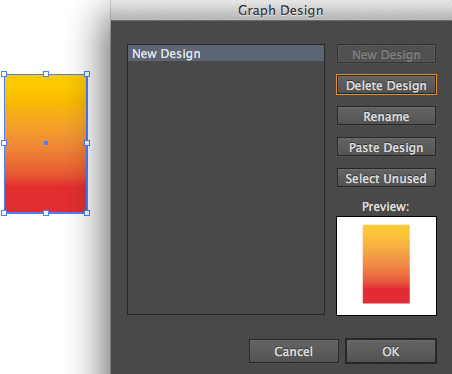
How to create a column design:
1. Create a rectangle as the object in the design. Paint the rectangle as desired.
2. Select the rectangle with the Selection Tool.
3. Choose Object > Graph > Design.
4. Click New Design. Rename it if needed.

GraphDesign

Select your Graph and choose Object > Graph > Column and choose your New Design.

Column

Tip: I personally prefer to colorize my columns manually using the Direct Selection Tool.

divider

Deutsche Version:

Möchten Sie unsere gratis Tipps im e-mail erhalten? Schreiben Sie sich unter FOLLOW mit Ihrer e-mail Adresse ein.

divider

TIPP DER WOCHE: Wie man Diagramme in Illustrator erstellt

Wie man ein Diagramm erstellt:
1. Wählen Sie ein Diagramm-Werkzeug aus und klicken auf die Position wo Sie Ihr Diagramm erstellt haben wollen.
2. Legen Sie die Abmessungen des Diagramms fest: in welcher Größe das Diagramm eingefügt werden soll und klicken Sie auf OK.
3. Geben Sie die Daten für das Diagramm im Diagrammdaten-Fenster ein und klicken Sie auf die Schaltfläche Anwenden.

Graph1

Um die Grafik im Nachhinein wieder zu ändern: Wählen Sie das Diagramm mit dem Auswahl-Werkzeug an und gehen zu Objekt > Diagramm > Daten.

Wie man die Diagramm-Art ändert:
1. Wählen Sie Ihr Diagramm mit dem Auswahl-Werkzeug an.
2. Gehen Sie zu Objekt > Diagramm > Art.
3. Diagrammattribute: Klicken Sie bei ART auf das Diagramm Ihrer Wahl und bestätigen Sie mit OK.

Diagrammattribute

Wie man ein Design für ein Balkendiagramm erstellt:
1. Erstellen Sie ein Rechteck als Platzhalter für Ihr Design. Färben Sie dieses nach Ihren Wünschen ein.
2. Wählen Sie Ihr gestaltetes Rechteck mit dem Auswahl-Werkzeug aus.
3. Gehen Sie zu Objekt > Diagramm > Designs.
4. Klicken Sie auf Neues Design. Wählen Sie Umbennen um Ihr Design zu betiteln.
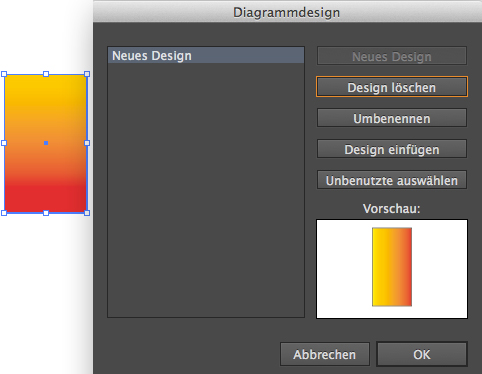
Diagramm-Design

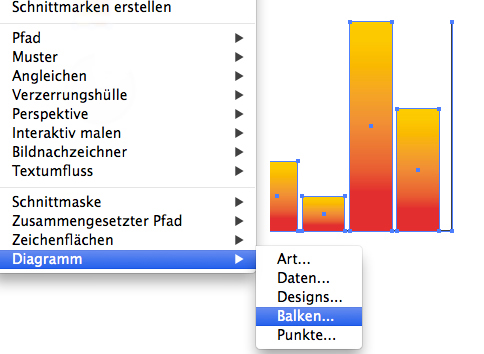
Wählen Sie Ihr Balkendiagramm und gehen zu Objekt > Diagramm > Balken und wählen Ihr neues Design.

<DiagrammBalken
Tipp: I persönlich benutze das Direktauswahl-Werkzeug und färbe meine Diagramme lieber selber ein.

Be On The Lookout

Courtesy of Illustration Source

Courtesy of Illustration Source

View the artists’s homage on the topic Be On The Lookout

Miriam Selmi Reed is represented by Illustration Source, New York City. Portfolio and contact: Illustration Source NYC

Illustration technique: Traditional painting combined with digital mixed media using Smart Objects in Adobe Photoshop and Illustrator. Copyright by Illustration Source, New York City.

Illustrations-Technik: Acrylbild gemischt mit Adobe Illustrator und Photoshop sowie Smart-Objekten. Copyright by Illustration Source, New York City.