Invitation / Einladung Art Show in Zurich, Switzerland

Vernissage_Facebook

Art Exhibition in Zurich, Switzerland – from 19.2. – 11.3.2016
Vernissage / Opening reception: Friday 19.2.16 starts at 6pm (18 Uhr) – GALERIE 16b, Ausstellungsstrasse 16, 8005 Zürich – (hinter dem HB Zürich) Finissage with concert: Friday 11.3.16 starts at 6pm (18 Uhr) – Gallery opening hours: WE to SA from 5 to 8pm. (Öffnungszeiten: MI bis SA von 17 bis 20 Uhr)

BLOG / Info: Fine Art / Illustrations by Miriam Selmi Reed

Programs used out of the Adobe Creative Cloud: Adobe Photoshop, After Effects, Audition, Illustrator and Apple Logic Pro

Fine Art & Footage: Miriam Selmi Reed
Music composed, played and arranged by Michael Alan Reed
Copyright 2015 – www.REEDesign.ch – all rights reserved

Photoshop resolution / Auflösung

Tutorial in English and German / Anleitung in Deutsch und Englisch

Deutsche Version siehe unten!

divider

English version:

TIP OF THE WEEK: How to reduce or enlarge a Photoshop file

Below I show the steps of my job; to prepare my illustration at a 300 dpi resolution, 7 inches wide for Adobe InDesign. Go to MENU > IMAGE > IMAGE SIZE:

reduceImage

In my example I use 7 inches Width, because I will place this image in my InDesign document with this size. In your case, you simply use your desired Width (or Height) and place it into your InDesign document at a 100%. With this method you will retain the 300 dpi resolution for the professional printing press.

divider

Deutsche Version:

TIPP DER WOCHE: Wie man ein Bild in Photoshop vergrössert oder verkleinert.

Unten zeige ich die Arbeitsschritte; wie ich meine Illustration auf 300 dpi ändere und als 15 cm breites Bild für Adobe InDesign vorbereite. Gehen Sie zu MENÜ > BILD > BILDGRÖSSE:

reduceImageD

In meinem Beispiel benutze ich 15 cm Breite, weil ich dieses Bild mit diesen Massen in meinem InDesign Dokument benötige. Benutzen Sie in Ihrem Fall Ihre gewünschten Masse und platzieren Sie es zu 100% Grösse in Ihr InDesign Dokument. Mit dieser Methode werden Sie die 300 dpi für die professionelle Offset-Druckmaschine beibehalten.

Todays topic: COMMUNITY

Deutsche Version siehe unten!
divider

English version:

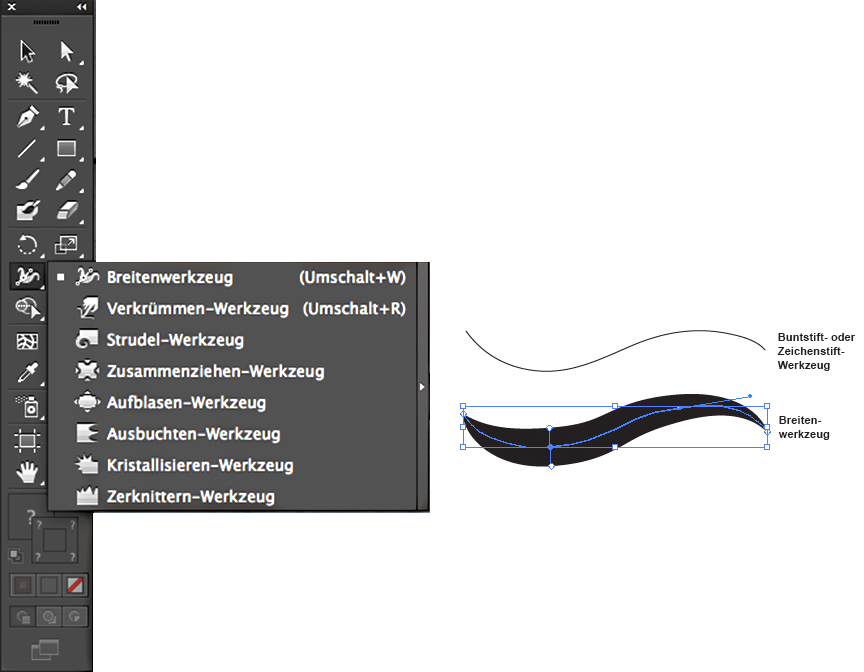
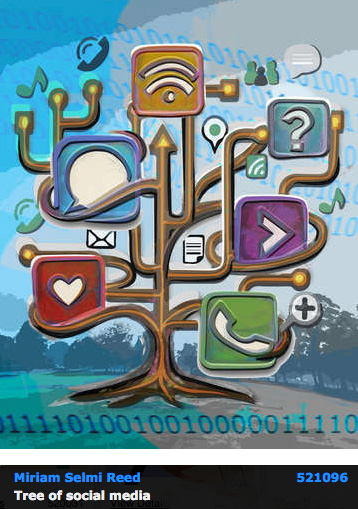
Illustrator Tipp > WIDTH TOOL: When I’m using any lines as shown on my Illustration below, I usually use the Width Tool. The Width Tool in Adobe Illustrator is ideal to give your lines character: select the line and drag with the mouse to define the width of your choice.

widthtool

divider

Deutsche Version:

Illustrator Tip > BREITEN-WERKZEUG: Wenn ich bei meinen Illustrationen (siehe unten) verschiedene Linienstärken benutze, dann benutze ich das Breiten-Werkzeug. Das Breitenwerkzeug in Adobe Illustrator ist ideal um einer simplen Linie einen Pinsel-Charakter zu geben: die Linie anklicken und mit der Maus ZIEHEN bis die Linie breiter wird.

breitenwerkzeugtool

divider

Miriam Selmi Reed represented and licensed by Illustration Source - Courtesy of Illustration Source

Miriam Selmi Reed represented and licensed by Illustration Source – Courtesy of Illustration Source

View the artists’s homage on the topic: COMMUNITY

Miriam Selmi Reed is represented by Illustration Source, New York City. Portfolio and contact: Illustration Source NYC

Illustration technique: watercolor, acrylic and pencil combined with digital mixed media using Adobe Photoshop and Illustrator.Copyright by Illustration Source, New York City.

Illustrations-Technik: Aquarell, Acryl mit Farbstift, gemischt mit Adobe Photoshop und Illustrator. Copyright by Illustration Source, New York City.

divider

Your source for commissioned illustration: ORIGINAL ART STUDIOS in New York City.

OAS

Portfolio Original Art Studios, New York City: MIRIAM SELMI REED

InDesign Trick!

Tutorial in English and German / Anleitung in Deutsch und Englisch

Deutsche Version siehe unten!
divider
English version:

Would you like to receive our tips for free in your e-mail box? Simply select FOLLOW to sign up with your e-mail address.

TIP OF THE WEEK: How to check on the separations for the printing press

All InDesign users who are sending their files to the printer, know the disappointment, when certain parts are being printed too dark which makes the details disappear.
The reason is simple: paper is like a sponge, which means more than 300% color is not possible for the paper to absorb.

Separations1

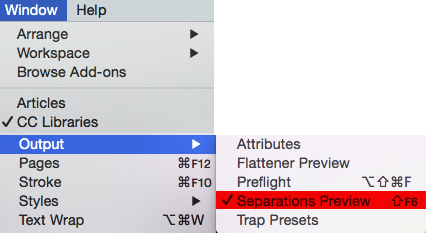
InDesign offers the Solution under MENU > WINDOW > OUTPUT > SEPARATIONS PREVIEW 300%. The parts which are higher as the allowed 300%, are shown in Indesign with this method! (see image below = the red marked parts are above 300%)

separations

we recommend opening the file again in Adobe Photoshop and lighten the red marked parts – save it – place the file again in Indesign or refresh the link!

face

divider

ALL tips of this Blog combined in one 72 pages PDF for easy download: i-adobe book in English – Preview & download here

divider

Deutsche Version:

Möchten Sie unsere gratis Tipps in Ihrem e-mail erhalten? Schreiben Sie sich unter FOLLOW mit Ihrer e-mail Adresse ein.

TIPP DER WOCHE: Wie man in InDesign den Farbauftrag für den Offsetdruck kontrollieren kann

Alle InDesign Benutzer die Ihre Dateien in den Druck schicken, kennen die Überraschung, wenn gewisse dunkle Bildstellen im Druck “absaufen”, d.h. zu dunkel gedruckt werden und die Details nicht mehr zu erkennen sind.
Der Grund ist einfach: Papier ist wie ein Schwamm, d.h. mehr als 300% Farbauftrag kann ein Papier nicht aufsaugen.

Farbauftrag1

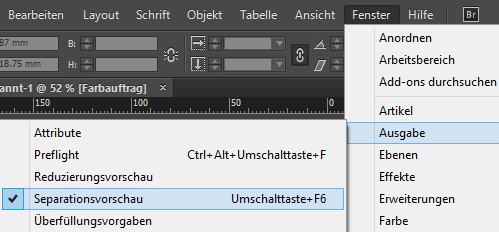
Die Lösung bietet InDesign unter MENU > FENSTER > AUSGABE > SEPARATIONSVORSCHAU 300%. Die Teile im Bild welche die erlaubten 300% übersteigen, werden damit in InDesign angezeigt! (siehe Foto unten = die Rot markierten Teile sind über 300%)

separationen

Wir empfehlen das Bild in Photoshop wieder zu öffnen und darauf achten, dass die rot markierten Stellen aufgehellt werden – danach wieder neu in InDesign platzieren oder erneut verknüpfen!

face

divider

Alle Tipps von diesem Blog kombiniert in einem 72-Seiten PDF zum herunterladen: i-adobe book in Deutsch – Vorschau & Download hier

divider

Today’s Topic: TRANSPARENCY

divider

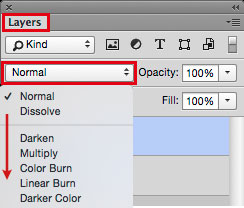
Photoshop Tipp > BLENDING MODE: I love to use Blending Modes in my layers, as shown on my Illustration below. I first go under MENU > LAYERS > and select a different Blending Mode for the layer. With this method, I can apply different transparencies to my layers and work non-destructive.

Blendingmode

divider

Photoshop Tip > MISCHMODUS: Ich benutze gerne den Mischmodus in Photoshop – wie bei meiner Illustration unten. Dazu gehe ich unter MENU > EBENEN > und stelle einen anderen Mischmodus für die Ebene ein. Mit dieser Methode arbeite ich nicht-Destruktiv, und kann somit jederzeit eine Transparenz löschen oder nach Wunsch verändern.

Mischmodus

divider

Miriam Selmi Reed represented and licensed by Illustration Source - Courtesy of Illustration Source

Miriam Selmi Reed represented and licensed by Illustration Source – Courtesy of Illustration Source

View the artists’s homage on the topic: TRANSPARENCY

Miriam Selmi Reed is represented by Illustration Source, New York City. Portfolio and contact: Illustration Source NYC

Illustration technique: watercolor, acrylic and pencil combined with digital mixed media using Adobe Photoshop and Illustrator.Copyright by Illustration Source, New York City.

Illustrations-Technik: Aquarell, Acryl mit Farbstift, gemischt mit Adobe Photoshop und Illustrator. Copyright by Illustration Source, New York City.

divider

Your source for commissioned illustration: ORIGINAL ART STUDIOS in New York City.

OAS

Portfolio Original Art Studios, New York City: MIRIAM SELMI REED

Todays topic: PATHWAYS

divider

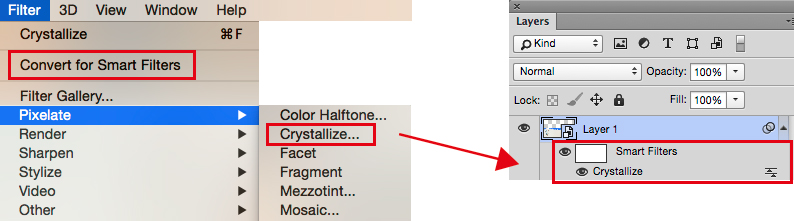
Photoshop Tipp > SMART FILTERS: When I’m using Filters as shown on my Illustration below, I first go under MENU > FILTER > Convert for Smart Filter. With this method, I can apply every filter and work non-destructive. I open my layers and click on my Filter icon which opens the previous chosen filter settings so I can make my adjustments.

smart-filters

Photoshop Tip > SMART FILTER: Wenn ich in Photoshop Filter benutze – siehe unten – dann gehe ich unter MENU > FILTER > Konvertieren für Smart Filter. Mit dieser Methode arbeite ich nicht-Destruktiv, und kann somit jeden Filter löschen oder nach Wunsch verändern. Dazu öffne ich mein Ebenen-Bedienfeld und klicke auf meinen Filter, damit sich der vorher gewählte Filter wieder öffnet und ich Änderungen vornehmen kann.

divider

Miriam Selmi Reed represented and licensed by Illustration Source - Courtesy of Illustration Source

Miriam Selmi Reed represented and licensed by Illustration Source – Courtesy of Illustration Source

View the artists’s homage on the topic: PATHWAYS

Miriam Selmi Reed is represented by Illustration Source, New York City. Portfolio and contact: Illustration Source NYC

Illustration technique: watercolor, acrylic and pencil combined with digital mixed media using Adobe Photoshop and Illustrator.Copyright by Illustration Source, New York City.

Illustrations-Technik: Aquarell, Acryl mit Farbstift, gemischt mit Adobe Photoshop und Illustrator. Copyright by Illustration Source, New York City.

divider

Your source for commissioned illustration: ORIGINAL ART STUDIOS in New York City.

OAS

Portfolio Original Art Studios, New York City: MIRIAM SELMI REED

Tip of the week: Retouch Layer / Tipp der Woche: Retuschenebene

divider

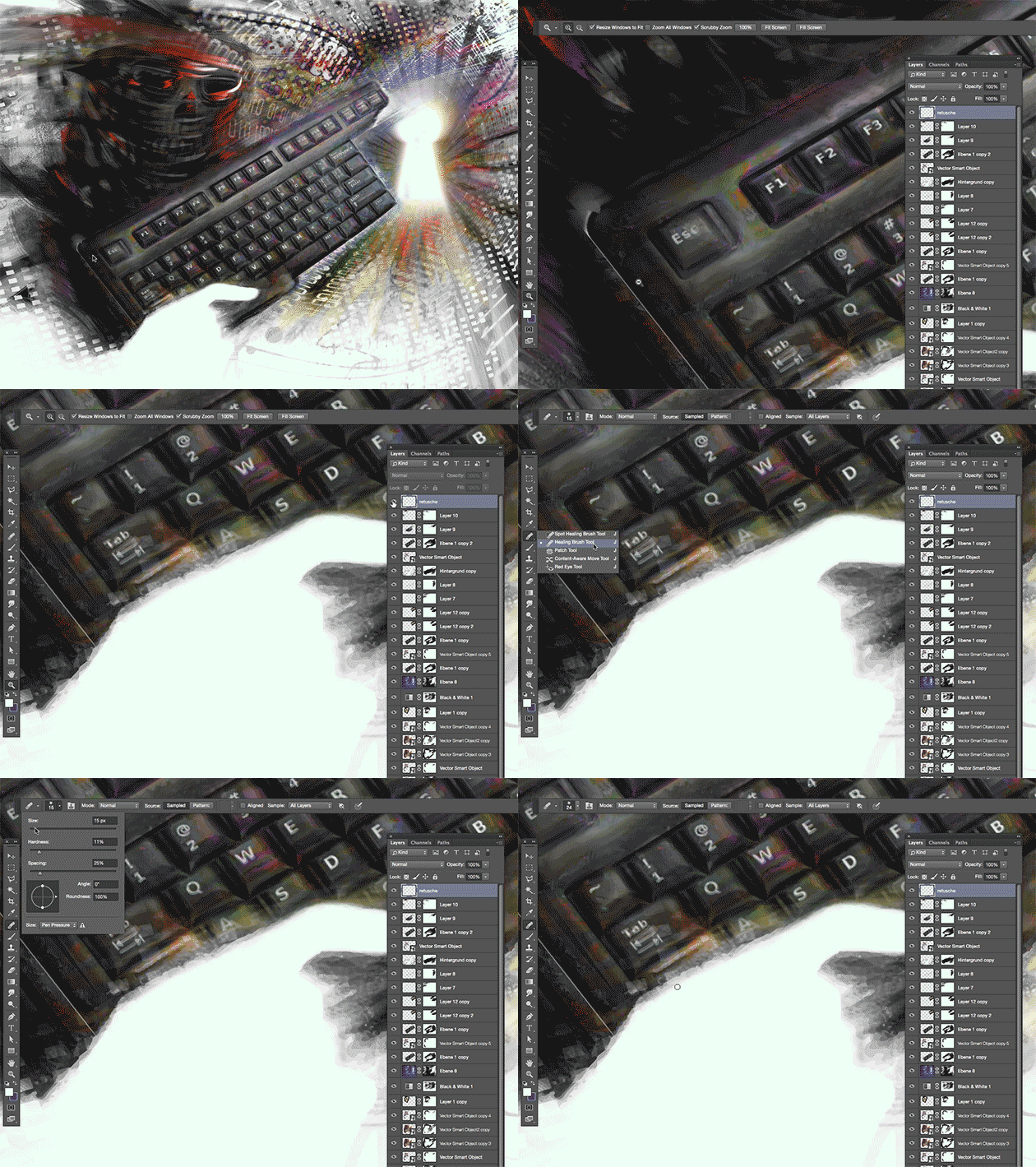
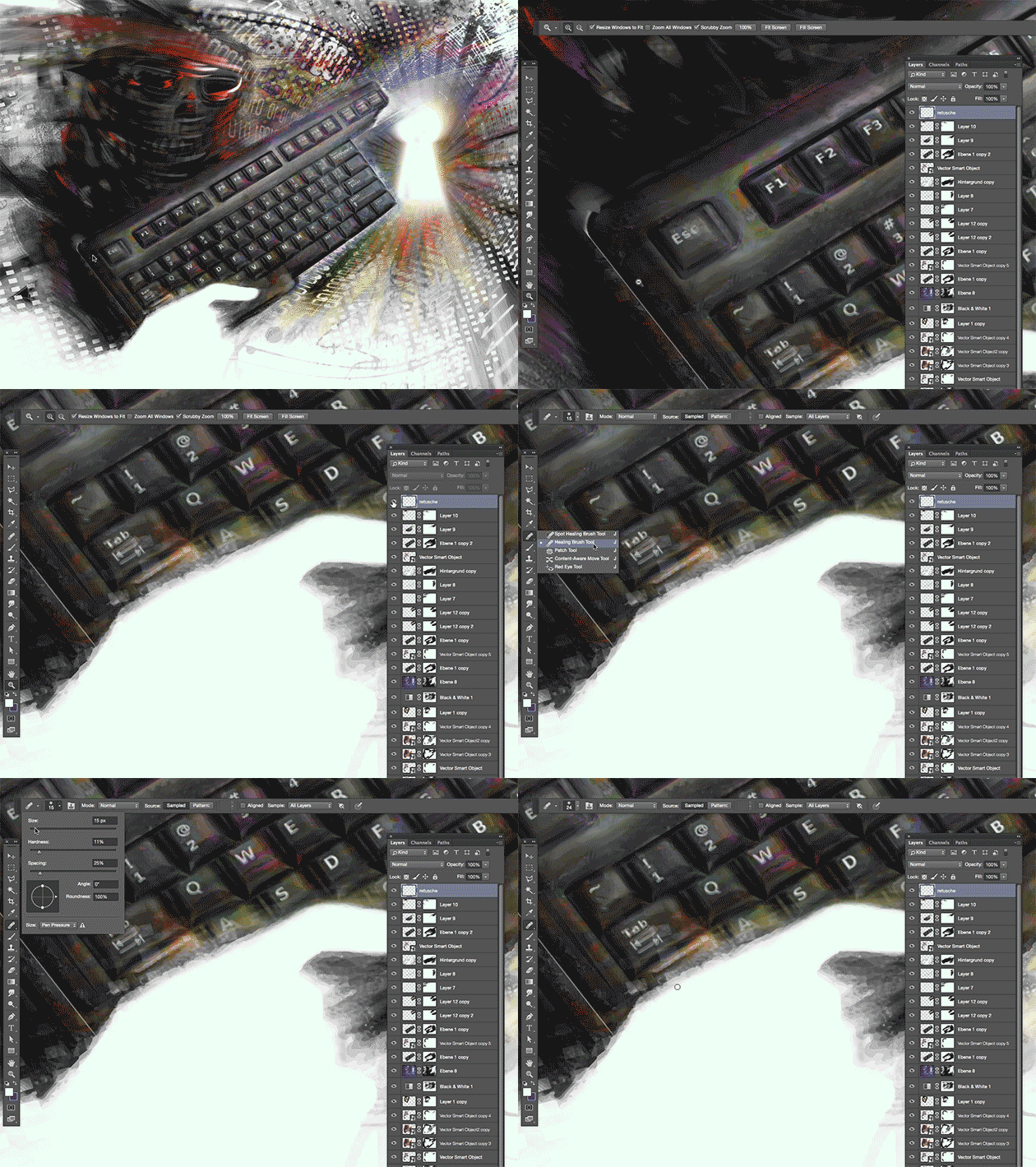
TIP OF THE WEEK: how I retouch my illustrations using the Stamp Tool and Healing Brush Tool in Photoshop CC or CS6. I place on an empty layer on top – while I select the option ALL LAYERS in the Control Bar – then I click the ALT key to sample and start stamping. 😉

Miriam Selmi Reed is represented and licensed by Illustration Source – Courtesy of Illustration Source

Miriam Selmi Reed is represented and licensed by Illustration Source – Courtesy of Illustration Source

TIPP DER WOCHE: Wie ich meine Illustrationen retuschiere mit dem Stempel Werkzeug oder dem Reparaturpinsel ist einfach. Ich benutze eine leere Ebene die ich ganz oben einfüge. Dann drücke ich die ALT Taste um einen sauberen Bereich aufzunehmen – mit der Option ALLE EBENEN aufnehmen in der Steuerung – und stemple vor mich hin. 😉
divider

Miriam Selmi Reed is represented and licensed by Illustration Source - Courtesy of Illustration Source

Miriam Selmi Reed is represented and licensed by Illustration Source – Courtesy of Illustration Source

View the artists’s homage on the topic: MENTAL HEALTH

Miriam Selmi Reed is represented by Illustration Source, New York City. Portfolio and contact: Illustration Source NYC

Illustration technique: watercolor, acrylic and pencil combined with digital mixed media using Adobe Photoshop and Illustrator.Copyright by Illustration Source, New York City.

Illustrations-Technik: Aquarell, Acryl mit Farbstift, gemischt mit Adobe Photoshop und Illustrator. Copyright by Illustration Source, New York City.

divider

Your source for commissioned illustration: ORIGINAL ART STUDIOS in New York City.

OAS

Portfolio Original Art Studios, New York City: MIRIAM SELMI REED

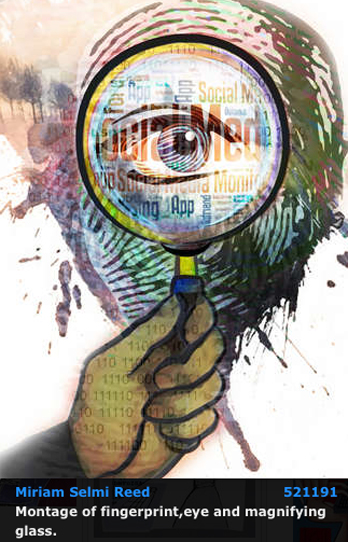
Social Media 2

divider

Photoshop Tutorial: Clipping Mask and Adjustment Layers
Here is a cool trick on how to use a font as a clipping mask, which I’ve used on my illustration below. Click on the link for more info.

divider

Photoshop Tipp: Schnittmaske und Einstellungsebene
Hier ist ein einfacher Trick wie ich eine Schrift als Schnittmaske benutze. Dieselbe Methode benutzte ich unten bei meiner Illustration.

divider

Miriam Selmi Reed represented and licensed by Illustration Source

Courtesy of Illustration Source

View the artists’s homage on the topic: SOCIAL MEDIA

Miriam Selmi Reed is represented by Illustration Source, New York City. Portfolio and contact: Illustration Source NYC

Illustration technique: watercolor, acrylic and pencil combined with digital mixed media using Adobe Photoshop and Illustrator.Copyright by Illustration Source, New York City.

Illustrations-Technik: Aquarell, Acryl mit Farbstift, gemischt mit Adobe Photoshop und Illustrator. Copyright by Illustration Source, New York City.

divider

Your source for commissioned illustration: ORIGINAL ART STUDIOS in New York City.

OAS

Portfolio Original Art Studios, New York City: MIRIAM SELMI REED

Social Media 1

divider

Illustrator Tip Part 1: New Drawing Tools in Adobe Illustrator CC – Part 1
I love the new drawing tools in Adobe Illustrator Creative Cloud; the new Curvature-tool makes tracing so much easier!

Illustrator Tip Part 2: New Drawing Tools in Adobe Illustrator CC – Part 2
I’ve also used the new Pencil-Tool in my new illustrations you see below. Click on the link to get more info.

Adobe Illustrator CS6 Tip: How to draw in Adobe Illustrator CS6

divider

Illustrator Tipp Teil 1: Neue Zeichnungs-Werkzeuge in Adobe Illustrator CC – Teil 1
Dieses neue Krümmungs-Werkzeug macht es noch einfacher Kurven zu zeichnen und Ankerpunkte zu setzen.

Illustrator Tipp Teil 2: Neue Zeichnungs-Werkzeuge in Adobe Illustrator CC – Teil 2
Bei meinen neuen Illustrationen benutzte ich auch das neue Buntstift-Werkzeug. Klicken Sie auf den Link für mehr Info!

Adobe Illustrator CS6 Tipp: Wie man mit Illustrator CS6 zeichnen kann

divider

Courtesy of Illustration Source

Courtesy of Illustration Source

Courtesy of Illustration Source

Courtesy of Illustration Source

View the artists’s homage on the topic: SOCIAL MEDIA

Miriam Selmi Reed is represented by Illustration Source, New York City. Portfolio and contact: Illustration Source NYC

Illustration technique: watercolor, acrylic and pencil combined with digital mixed media using Adobe Photoshop and Illustrator.Copyright by Illustration Source, New York City.

Illustrations-Technik: Aquarell, Acryl mit Farbstift, gemischt mit Adobe Photoshop und Illustrator. Copyright by Illustration Source, New York City.

divider

Your source for commissioned illustration: ORIGINAL ART STUDIOS in New York City.

OAS

Portfolio Original Art Studios, New York City: MIRIAM SELMI REED

The Weather Report

divider

Tip 1: How to show the Photoshop channels in color!
Normally the channels in Photoshop are being shown in greyscale. In certain cases I prefer to see them in colors to make alterations. Click on the link for more info.

Tip 2: The difference between S-RGB and RGB in Adobe Photoshop
I will use sRGB for my own illustrations – you may see one below – if I’m certain that my artwork will only be for digital display. Please click on the link for more info.

divider

Tipp 1: Wie man die Kanäle in Photoshop in Farbe anzeigt
Normalerweise werden die Kanäle in Schwarz/Weiss angezeigt. Ich ziehe es manchmal vor diese farbig zu bearbeiten. Für mehr Info bitte auf den Link klicken.

Tipp 2: Der Unterschied zwischen S-RGB und RGB in Adobe Photoshop
Ich selber benutze sRGB gerne für meine Illustrationen – siehe Beispiel unten – wenn ich sicher bin, dass diese nur auf Webseiten erscheinen werden. Für mehr Info bitte auf den Link klicken.

divider

Miriam Selmi Reed represented and licensed by Illustration Source / courtesy of Illustration source

Courtesy of Illustration Source

View the artists’s homage on the topic THE WEATHER REPORT

Miriam Selmi Reed is represented by Illustration Source, New York City. Portfolio and contact: Illustration Source NYC

Illustration technique: Traditional painting combined with digital mixed media using Smart Objects in Photoshop and Illustrator. Copyright by Illustration Source, New York City.

Illustrations-Technik: Acrylbild gemischt mit Illustrator und Photoshop sowie Smart-Objekten. Copyright by Illustration Source, New York City.

divider

Your source for commissioned illustration: ORIGINAL ART STUDIOS in New York City.

OAS

Portfolio Original Art Studios, New York City: MIRIAM SELMI REED

How to enlarge an image in Photoshop – wie man ein Bild in Photoshop vergrössert

Tutorial in English and German / Anleitung in Deutsch und Englisch

Deutsche Version siehe unten!
divider

English version:

Would you like to receive our tips for free in your e-mail box? Simply select FOLLOW to sign up with your e-mail address.

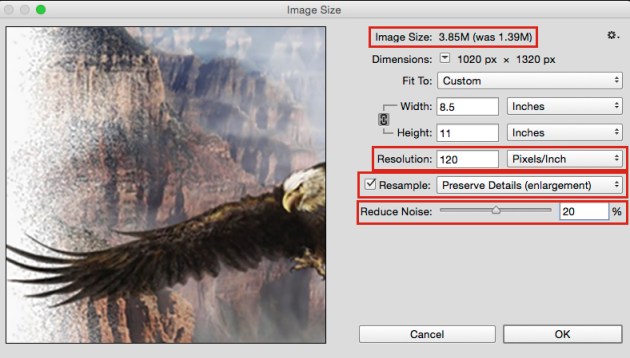
TIP OF THE WEEK: How to enlarge an image in Photoshop Creative Cloud.

With this method your Image Size (Pixel Dimension) is going to be changed. This should be only done once, since altering the Image Size too many times will cause a blurry image! (If you’d like to keep the Image Size the same; please click on TIP 2 below)

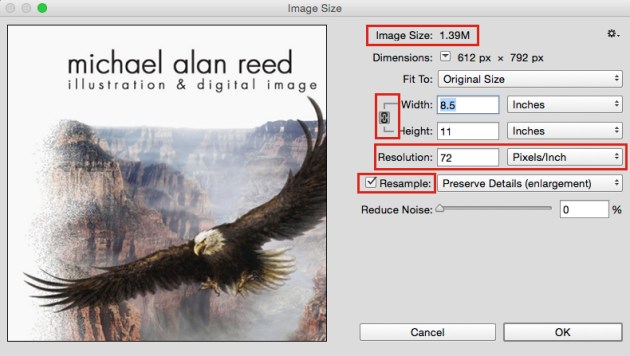
One possible solution: Go to MENU > IMAGE > IMAGE SIZE.
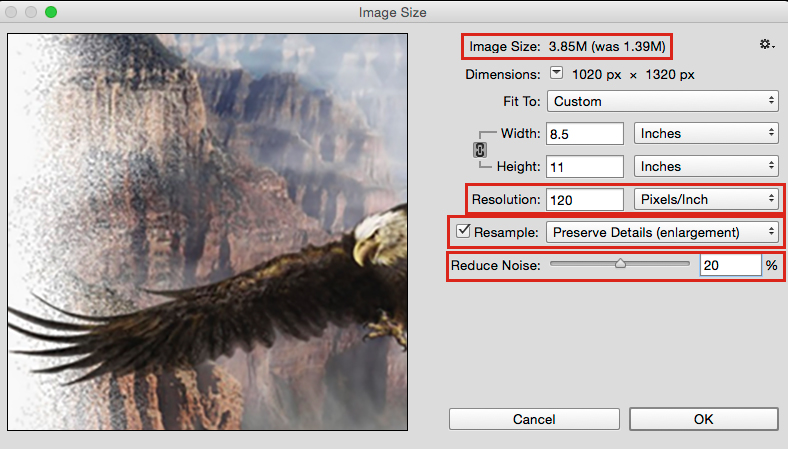
1. Pay attention to the Image Size
2. Make sure your Width and Height are connected so the image remains in proportion – see chain symbol! The Resample BOX needs to be activated! With this option you are able to change the Width / Height and Resolution separately. In CS6 the Resample box is called: Resample Image, but it has the same function.
3. Notice the Resolution (dpi = dots / pixels per inch)
enlarge1

4. Before you click OK, enlarge the Resolution or even double it
5. Pay attention again to the Image Size on top (On the left you see the new image size!)
6. You can select different options right next to the Resample Box. (We have chosen “Preserve Details” for Enlargements)
7. Drag the Reduce Noise slider to the right a bit to see what happens; which is a new feature in Adobe CC (see image below)
enlarge-2

Once you’re happy with the preview: HIT OK! But don’t forget: enlargements over 150% will pixelate more and more… especially if you sharpen the image later.

IMPORTANT: a professional printer needs your image at 300 dpi for the printing press. 120 dpi should be good enough for your own small Desktop Printer in your office. 72 dpi is usually the correct setting for images on the internet.

There are additional cool tricks on how to enlarge an image without loosing quality – but that is Mike Reed’s expertise; and he doesn’t show it for free > Buy Mike a cup of coffee 🙂

divider

TIP 2: additional tutorial for Adobe Photoshop CS5 and CS6 on how to change an image without changing the Pixel Dimensions (Image Size): PIXEL IS KING

divider

Deutsche Version:

Möchten Sie unsere gratis Tipps in Ihrem e-mail erhalten? Schreiben Sie sich unter FOLLOW mit Ihrer e-mail Adresse ein.

TIPP DER WOCHE: wie man ein Bild in Photoshop Creative Cloud vergrössert.

Mit dieser Methode wird die Bildgrösse (Pixelmasse) jedoch verändert und sollte nur einmal angewendet werden, um eine “starke Verpixelung” zu vermeiden.
(Eine andere Methode bei der die Bildgrösse (Pixelmasse) gleich bleiben; siehe unten TIPP 2).

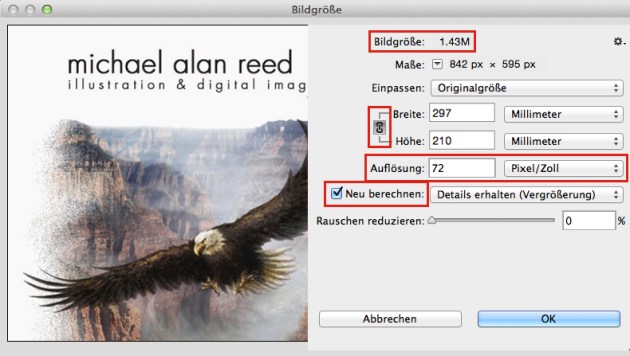
Eine mögliche Lösung: Gehen Sie zu MENÜ > BILD > BILDGRÖSSE.
1. Achten Sie auf die Bildgrösse
2. Es ist wichtig, dass die Breite und Höhe miteinander verknüpft sind. Beachten Sie das Ketten-Symbol! Dazu muss die Neu berechnen BOX aktiviert sein; Mit dieser Option haben Sie die Möglichkeit die Breite / Höhe separat von der Bildauflösung zu verändern. In CS6 hat die Neu berechnen Option einen anderen Namen: das Interpolationsverfahren. Die Funktion ist jedoch dieselbe.
3. Achten Sie auf die Auflösung (dpi = dots / pixels pro inch = in Europa benutzen wir Zoll anstelle von inch)
vergr1

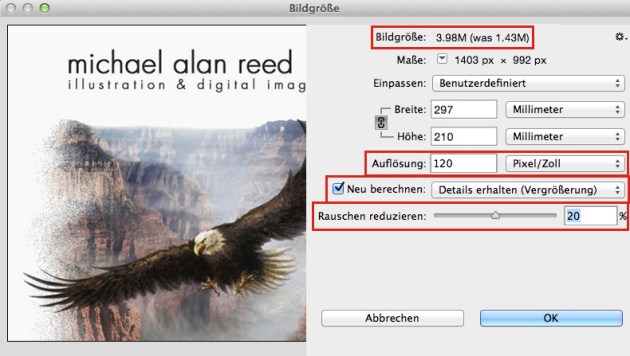
4. Bevor Sie auf OK klicken, vergrössern oder verdoppeln Sie die Auflösung
5. Achten Sie wieder auf die Bildgrösse oben (Links sehen Sie die neue Bildgrösse!)
6. Sie können von verschiedenen Optionen neben der Resample Box wählen. (Wir haben “Details erhalten für die Vergrösserung” gewählt)
7. Ziehen Sie den Rauschen reduzieren Hebel nach Bedarf nach rechts und schauen Sie was passiert. (siehe Bild unten) Dies ist eine neue Option in Adobe CC.
vergr2

Wenn Sie mit der Vorschau zufrieden sind: Klicken Sie auf OK! Nicht vergessen: Vergrösserungen über 150% zeigen die Pixel mehr und mehr… vor allem wenn Sie das Bild nachträglich noch verschärfen.

WICHTIG: ein professionelle Offset-Druckerei verlangt Ihr Bild mit einer 300 dpi Auflösung (Resolution). 120 dpi ist normalerweise genügend gross für Ihren kleinen Drucker in Ihrem Büro. 72 dpi genügt jedoch meistens für Fotos auf dem Internet.

Es gibt noch einige cool tricks wie man ein Bild ohne Qualitätsverlust vergrössert – aber das ist Mike Reed’s persönliche jahrelange Erfahrung; und dies zeigt er natürlich nicht gratis > Kauf Mike einen Kaffee 🙂

divider

TIPP 2: Weitere Infos wie man ein Foto in Adobe Photoshop CS5 bis CS6 anpasst OHNE dass die Pixelmasse (Bildgrösse) verändert werden: PIXEL IST KÖNIG

divider

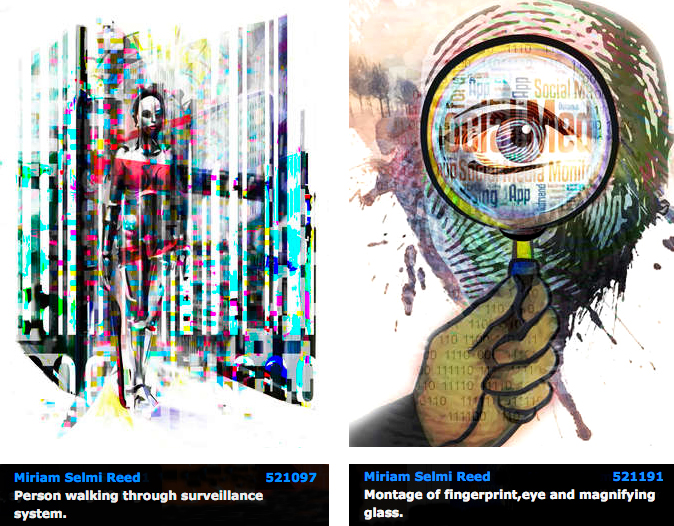
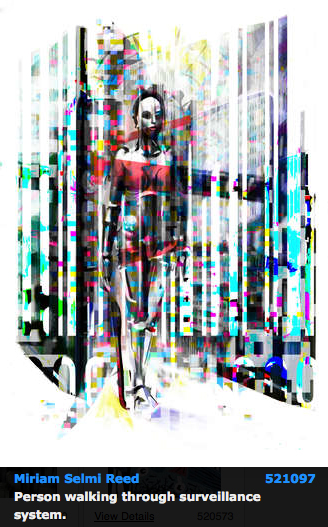
Today’s concept: Privacy

divider

Instead of using filters which change the overall color balance , I prefer to use LAB colors when I only need to adjust the brightness… if you’d like to know how; click on the link below!
Tutorial: What are LAB colors in Photoshop

Wenn ich bei meinen Illustrationen die Helligkeit meiner Farben separat von meinen Farbtönen verändern will, benutze ich LAB Farben… klicken Sie auf den Link um herauszufinden, wie das geht!
Anleitung: Was sind LAB Farben in Photoshop

divider

Courtesy of Illustration Source

Courtesy of Illustration Source / All rights reserved

View the artists’s homage on the topic: PRIVACY TODAY

Miriam Selmi Reed is represented by Illustration Source, New York City. Portfolio and contact: Illustration Source NYC

Illustration technique: watercolor, acrylic and pencil combined with digital mixed media using Adobe Photoshop and Illustrator.Copyright by Illustration Source, New York City.

Illustrations-Technik: Aquarell, Acryl mit Farbstift, gemischt mit Adobe Photoshop und Illustrator. Copyright by Illustration Source, New York City.

divider

Your source for commissioned illustration: ORIGINAL ART STUDIOS in New York City.

OAS

Portfolio Original Art Studios, New York City: MIRIAM SELMI REED

Tax time…

divider

TIP OF THE WEEK: How to make your own comic: Comic & Illustration

TIPP DER WOCHE: Zeichnen Sie ihren eigenen Comic: Comic & Illustration

divider

Miriam Selmi Reed represented and licensed by Illustration Source / courtesy of Illustration source

Courtesy of Illustration source

View the artists’s homage on the topic TAX TIME

Miriam Selmi Reed is represented by Illustration Source, New York City. Portfolio and contact: Illustration Source NYC

Illustration technique: Traditional painting combined with digital mixed media using Smart Objects in Photoshop and Illustrator. Copyright by Illustration Source, New York City.

Illustrations-Technik: Acrylbild gemischt mit Illustrator und Photoshop sowie Smart-Objekten. Copyright by Illustration Source, New York City.

divider

Your source for commissioned illustration: ORIGINAL ART STUDIOS in New York City.

OAS

Portfolio Original Art Studios, New York City: MIRIAM SELMI REED

Featured Illustrator: Michael Alan Reed

divider

Mike’s TIP OF THE WEEK: How to use a layer mask and make a background transparent in Photoshop – PHOTOSHOP LAYER MASK

divider

Featured Illustrator Mike Reed has an amazing technique; a combination of manual and digital media – we love his style! Manual drawing with pencil enhanced with digital media.

Copyright by Michael Alan Reed - all rights reserved

Copyright by Michael Alan Reed – all rights reserved

Michael Alan Reed, a native of the American North West, has been successfully working as a graphic designer / illustrator and image composer for many years. His work has been shown, printed and licensed in fashion, sportswear, magazines, products, advertising and animation internationally.

COOL STUFF! check out his PORTFOLIO and BLOG at: Michael Alan Reed
Contact & website: REEDesign

divider

Mike’s TIPP DER WOCHE: Wie man ein Foto in Photoshop mit einer Ebenenmaske freistellt und den Hintergrund transparent speichert – PHOTOSHOP EBENENMASKE

divider

Original Art Studios

Happy to announce that I just became part of the ORIGINAL ART STUDIOS in New York City.

OAS

Portfolio Original Art Studios, New York City: MIRIAM SELMI REED

Courtesy of Illustration Source

Illustration by Miriam Selmi Reed | Courtesy of Illustration Source, all rights reserved

Find out more or request a catalog – email: oas@illustrationsource.com
© Original Art Studios, 2015 | 15 East 32nd Street 7th Floor, New York, NY 10016 | USA | Illustration Source | Portfolio > Illustrationsource.com

divider

TIP OF THE WEEK: how I retouch my illustrations using the Stamp Tool and Healing Brush Tool in Photoshop CC or CS6. I place on an empty layer on top – while I select the option ALL LAYERS in the Control Bar – then I click the ALT key to sample and start stamping. 😉

Illustration by Miriam Selmi Reed / Courtesy of Illustration Source, all rights reserved

Illustration by Miriam Selmi Reed / With courtesy of Illustration Source, all rights reserved

TIPP DER WOCHE: Wie ich meine Illustrationen retuschiere mit dem Stempel Werkzeug oder dem Reparaturpinsel ist einfach. Ich benutze eine leere Ebene die ich ganz oben einfüge. Dann drücke ich die ALT Taste um einen sauberen Bereich aufzunehmen – mit der Option ALLE EBENEN aufnehmen in der Steuerung – und stemple vor mich hin. 😉

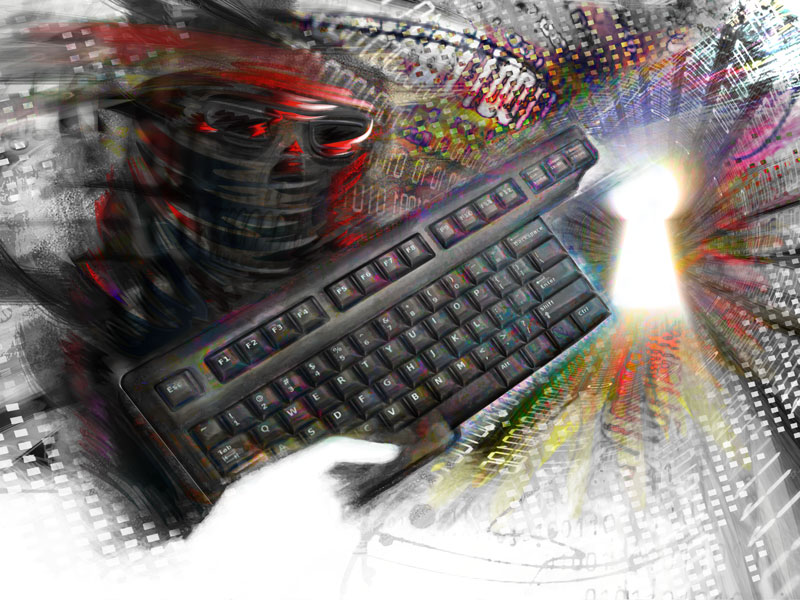
Data Security

divider

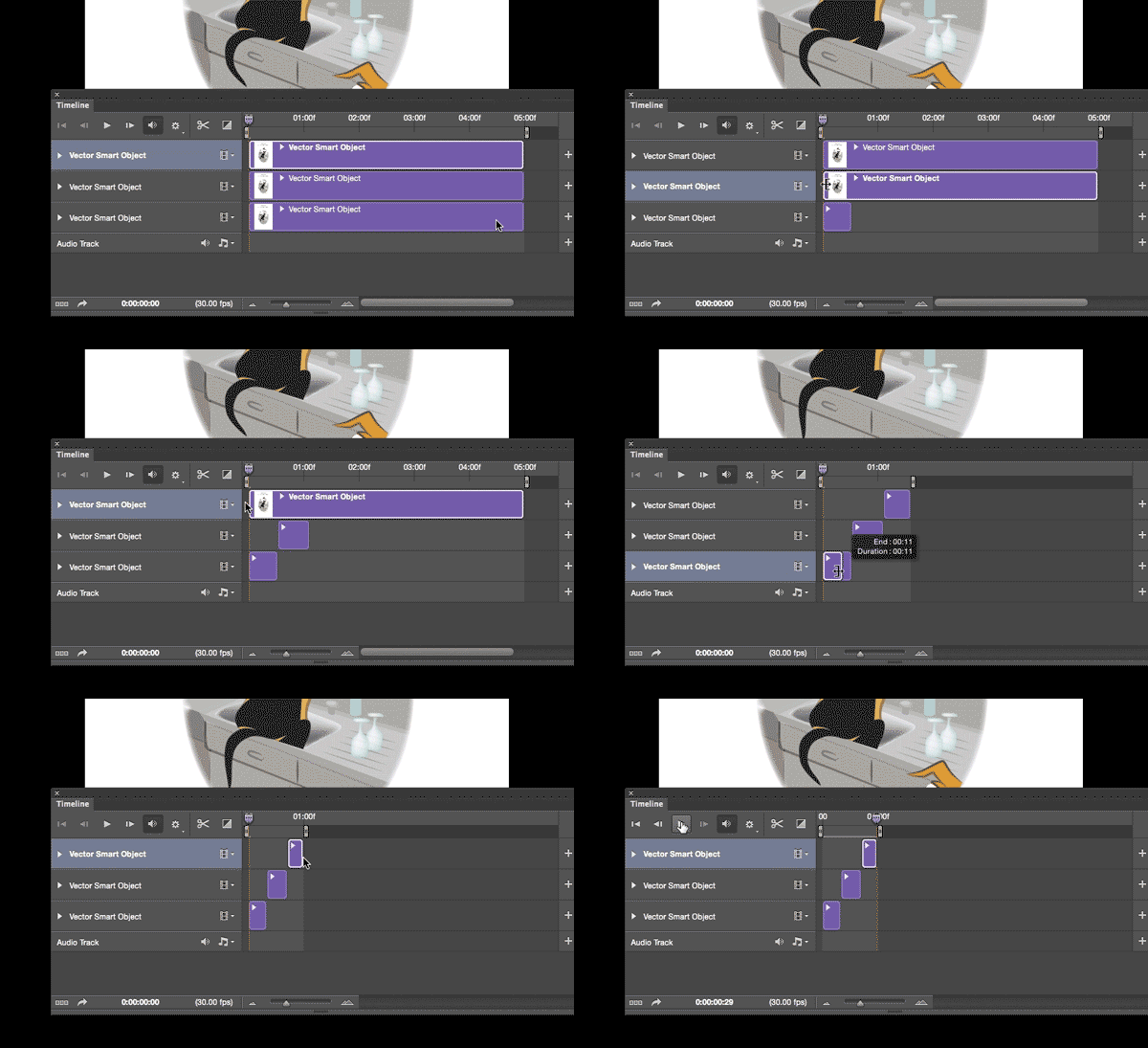
Tutorial: How to use Smart Objects in Adobe Photoshop.

divider

Courtesy of Illustration Source

Courtesy of Illustration Source

Courtesy of Illustration Source

Courtesy of Illustration Source

View the artists’s homage on the topic: Data Security

Miriam Selmi Reed is represented by Illustration Source, New York City. Portfolio and contact: Illustration Source NYC

Illustration technique: watercolor, acrylic and pencil combined with digital mixed media using Adobe Photoshop and Illustrator.Copyright by Illustration Source, New York City.

Illustrations-Technik: Aquarell, Acryl mit Farbstift, gemischt mit Adobe Photoshop und Illustrator. Copyright by Illustration Source, New York City.

divider

Anleitung: Wie man Smart Objekte in Adobe Photoshop benutzt.

divider

Moving forward in 2015!

The following illustration was created by Mimi Selmi Reed (webdesign: Adobe Muse) with pencils and water color – traced and executed in Illustrator & Photoshop – animated in Adobe Photoshop CC.
(Tutorial see below / Anleitung siehe unten)

Copyright by Miriam Selmi Reed - member SCBWI - all rights reserved.

Copyright by Miriam Selmi Reed – member SCBWI – all rights reserved.

Every Follower, Like and comment is welcome! More comics & cartoons at: Z-DOG COMIC

divider

ENGLISH:
Animations with Photoshop / Animationen mit Photoshop:
Photoshop timeline for animations is under Window > Timeline. Have fun!
How to create frame animations in Photoshop

DEUTSCH:
Die Photoshop-Zeitleiste für Animationen kann man unter Fenster > Zeitleiste finden. Viel Spass!
Erstellen von Frame-Animationen in Photoshop

animation

Happy new year – 2015!

Mixed media

Courtesy of Illustration Source

View the artists’s homage on the topic: A New Start!

Miriam Selmi Reed is represented by Illustration Source, New York City. Portfolio and contact: Illustration Source NYC

Illustration technique: Charcoal, acrylic and pencil combined with digital mixed media using Adobe Photoshop and Illustrator. Copyright by Illustration Source, New York City.

Illustrations-Technik: Kreide, Acryl mit Farbstift, gemischt Adobe Photoshop und Illustrator. Copyright by Illustration Source, New York City.

Today’s concept: Government

Courtesy of Illustration Source

Courtesy of Illustration Source

View the artists’s homage on the topic: Government

Miriam Selmi Reed is represented by Illustration Source, New York City. Portfolio and contact: Illustration Source NYC

Illustration technique: watercolor, acrylic and pencil combined with digital mixed media using Adobe Photoshop and Illustrator.Copyright by Illustration Source, New York City.

Illustrations-Technik: Aquarell, Acryl mit Farbstift, gemischt mit Adobe Photoshop und Illustrator. Copyright by Illustration Source, New York City.

Today’s concept: BOO !

Courtesy of Illustration Source

Courtesy of Illustration Source

View the artists’s homage on the topic: Boooo!…

Miriam Selmi Reed is represented by Illustration Source, New York City. Portfolio and contact: Illustration Source NYC

Illustration technique: Charcoal, acrylic and pencil combined with digital mixed media using Adobe Photoshop and Illustrator.Copyright by Illustration Source, New York City.

Illustrations-Technik: Kreide, Acryl mit Farbstift, gemischt Adobe Photoshop und Illustrator. Copyright by Illustration Source, New York City.