Pespective in Adobe Illustrator

As instructors of Adobe programs and creative professionals, we’ve assembled this blog as easy reference for our students and clients.” Miriam Selmi Reed & Michael Alan Reed

English version:

1. Open your Illustration in Adobe Illustrator
2. Select your Perspective Grid Tool. The 2 Point-Perspective pops-up.
3. Write some text, choose a color and select the BLUE Widget on the left.
4. Select your text with the Perspective Selection Tool and move it on to the grid. Now you can adjust the size.
5. Switch to the ORANGE Widget for the raster to the right and do the same there. Explore!

Our infos & tips: i-adobe eBook in English

by Miriam Selmi Reed – REEDesign.ch

1. Öffne deine Illustration in Adobe Illustrator
2. Wähle das Perspektiven Raster-Werkzeug. Das 2 Punkt-Perspektiven-Raster erscheint.
3. Schreibe deinen Text, suche eine Farbe aus und klick auf das BLAUE Widget links oben.
4. Wähle den Text mit dem Perspektiven-Auswahl-Werkzeug und ziehe ihn auf den Raster.
5. Wechsle zum Orangen Widget, welches für das rechte Raster zuständig ist und mach dasselbe dort. Viel Spass beim ausprobieren.

Unsere Tipps: i-adobe eBook in Deutsch

divider

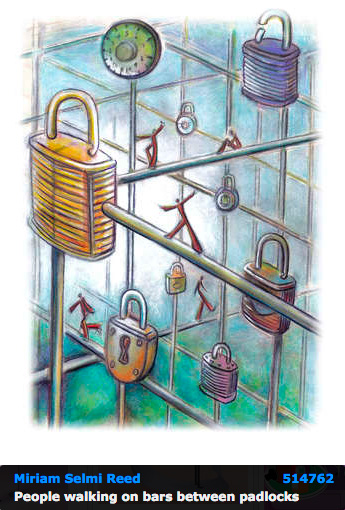
Courtesy of Illustration Source

View the artists’s homage on the topic: PERSPECTIVE

Illustration technique: watercolor, acrylic and pencil combined with digital mixed media using Adobe Photoshop and Illustrator.Copyright by Illustration Source, New York City.

Illustrations-Technik: Aquarell, Acryl mit Farbstift, gemischt mit Adobe Photoshop und Illustrator. Copyright by Illustration Source, New York City.
Brushes in Adobe Photoshop

As instructors of Adobe programs and creative professionals, we’ve assembled this blog as easy reference for our students and clients.” Miriam Selmi Reed & Michael Alan Reed

English version:
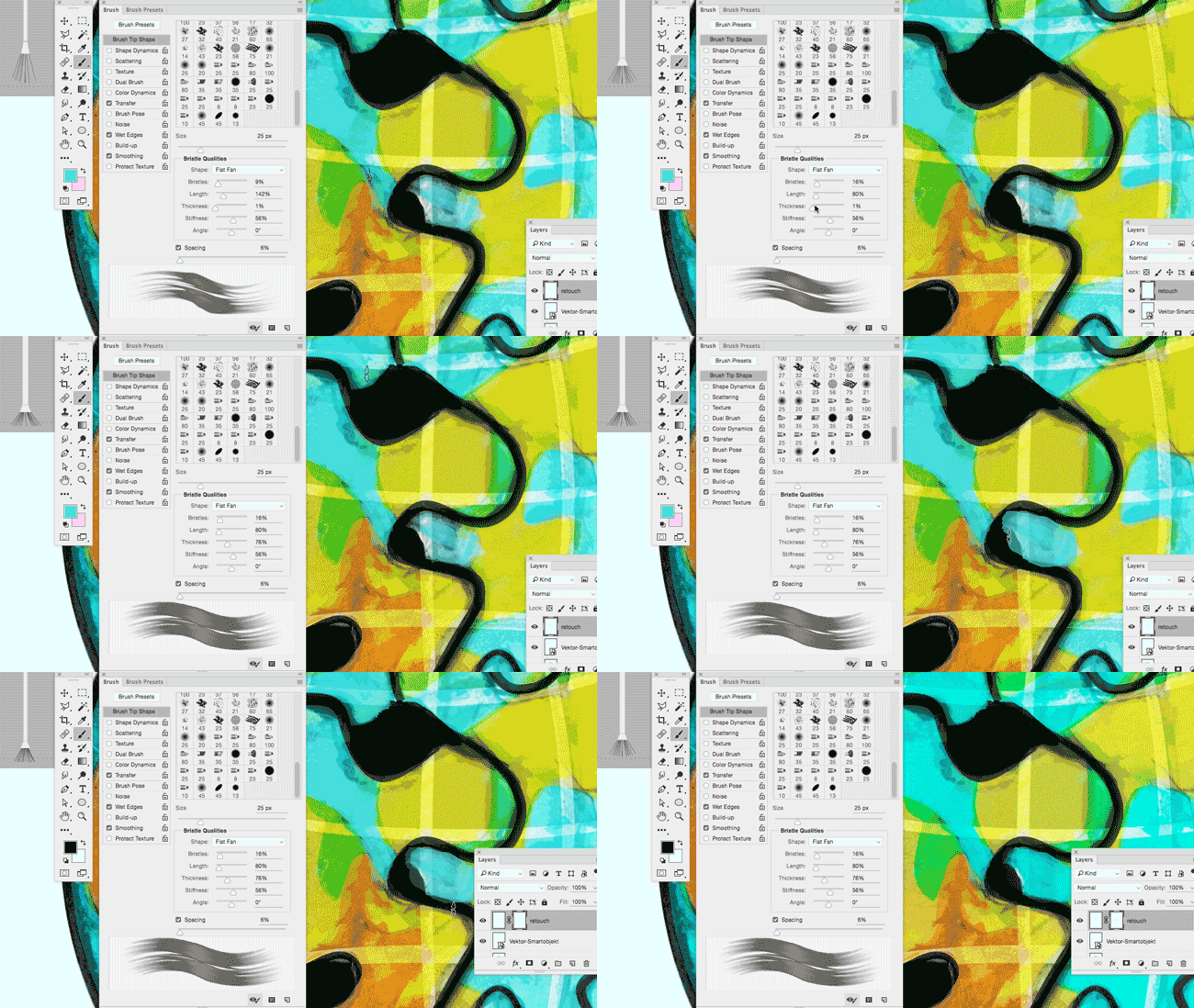
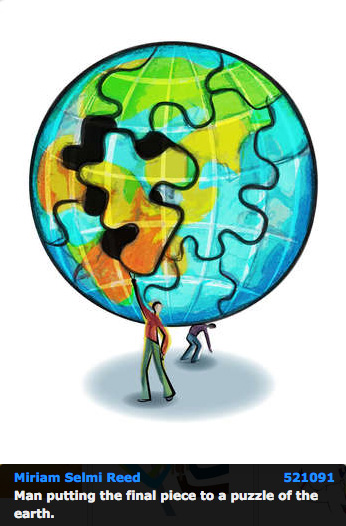
In my illustration below, I’ve used paint brushes and layer masks in Adobe Photoshop.
1. Open your picture in Adobe Photoshop CC
2. Open your brushes under > Window > Brush
3. Create a new layer on top where you can paint and make a layer mask for corrections:
Step-by-step-guide: How to make a layer mask. To make changes in your layer mask is simple: use your brush and paint directly into your layer mask using black or white!

Check out the Adobe Create Magazine: Tutorials. Any questions? Contact us at iADOBE FORUM Our tips for easy download: i-adobe eBook in English

Deutsche Version:
In meiner Illustration benutzte ich die Pinsel und Ebenenmasken in Adobe Photoshop.
1. Öffne dein Bild in Adobe Photoshop CC
2. Öffne deine Pinsel unter > Fenster > Pinsel
3. Erstelle eine neue Ebene ganz oben zum pinseln und eine Ebenenmaske für allfällige Korrekturen: Schritt-für-Schritt Anleitung: Wie man eine Ebenenmaske erstellt. Man korrigiert eine Ebenenmaske ganz einfach indem man direkt mit einem weissen oder schwarzen Pinsel innerhalb der Maske malt!

Dann schau mal ins Adobe Create Magazine rein: Tutorials. Hast du Fragen? Kontaktiere uns unter iADOBE FORUM! Unsere Tipps zum herunterladen: i-adobe eBook in Deutsch

divider

View the artists’s homage on the topic PEACE ON EARTH at Portfolio Illustration Source

Courtesy of Illustration Source

Licensed illustrations by ILLUSTRATION SOURCE NYC: MIRIAM SELMI REED

MUSE, WIX, Jimdo & Co.

As instructors of Adobe programs and creative professionals, we’ve assembled this blog as easy reference for our students and clients.” Miriam Selmi Reed & Michael Alan Reed

Deutsche Version siehe unten!

It is currently possible to design a good looking website without any HTML knowledge. You can place your own text and images into predesigned templates and upload them quickly.

One example, Adobe MUSE is part of the Adobe Creative Cloud. Here you’ll find MUSE TEMPLATES ready to use. You can also create your own website from scratch with MUSE. If you have solid knowledge of Adobe Indesign and you know how layers, links, and master pages work, then it is fairly easy to get a grip on Adobe MUSE. More info: Adobe MUSE tutorials. Our own Adobe MUSE-websites: www.selmi.net and www.REEDesign.ch.

It is also fairly easy to create a website by using WIX templates. Simply download a template and fill it with content: WIX.

I’ve just made a new website for our own small publishing company including web-shop with JIMDO websites – The only downfall with Jimdo is that visitors see in the URL (Uniform resource locator), that it is a free site: REEDaround Books.

I personally prefer WordPress.com and WordPress.org. Simply put, WordPress sites are Google friendly (Good SEO). Any questions? Contact us at iADOBE FORUM!
ALL tips for easy download: i-adobe eBook in English

Webdesign with ADOBE MUSE

Deutsche Version:

Ohne jegliche HTML Kenntnisse ist es heutzutage für jederman/jedefrau möglich eine gut aussehende Webseite zu gestalten, indem man Vorlagen – sogenannte Templates – benutzt und eigene Bilder/Texte einfügt.

Adobe MUSE ist Teil der Adobe Creative Cloud. Hier kannst du Adobe MUSE Vorlagen herunterzuladen. MUSE hat gewisse Ähnlichkeiten mit Adobe Indesign, d.h. mit guten InDesign Kenntnissen kann man sehr schnell selber eigene MUSE Webseiten gestalten, da es ähnlich funktioniert wie InDesign mit Musterseiten, Ebenen und Verknüpfungen. Mehr Info: Lernvideos Adobe MUSE. Hier sind unsere eigenen Adobe MUSE-Webseiten: www.selmi.net and www.REEDesign.ch.

Mit den WIX Templates ist es noch einfacher Webseiten zu erstellen, da man sich einfach eine Vorlage auswählt und nach Lust und Laune Bilder und Texte in die vorgegebenen Rahmen auffüllen kann: WIX.

Ich selber habe gerade eine neue Webseite inklusive Web-Shop mit JIMDO erstellt, da es gratis ist, um zu sehen, ob sich meine zweisprachigen Kinderbücher via Shop überhaupt verkaufen lassen. Was ist denn der Hacken bei Jimdo? Ganz einfach: man erkennt am URL (Uniform resource locator), dass es eine Webseite von Jimdo ist, die Gratis erstellt wurde. Der Link wird dadurch lang: REEDaround Books

Mir persönlich gefallen WordPress.com und WordPress.org. Ganz einfach, weil wir damit bei Google automatisch schnell gefunden werden. (Google SEO)

Hast du Fragen? Kontaktiere uns unter iADOBE FORUM!
Alle Tipps zum herunterladen: i-adobe eBook in Deutsch

Perspective!

“As instructors of Adobe programs and creative professionals, we’ve assembled this blog as easy reference for our students and clients.” Miriam Selmi Reed & Michael Alan Reed

divider

Deutsche Version siehe unten!
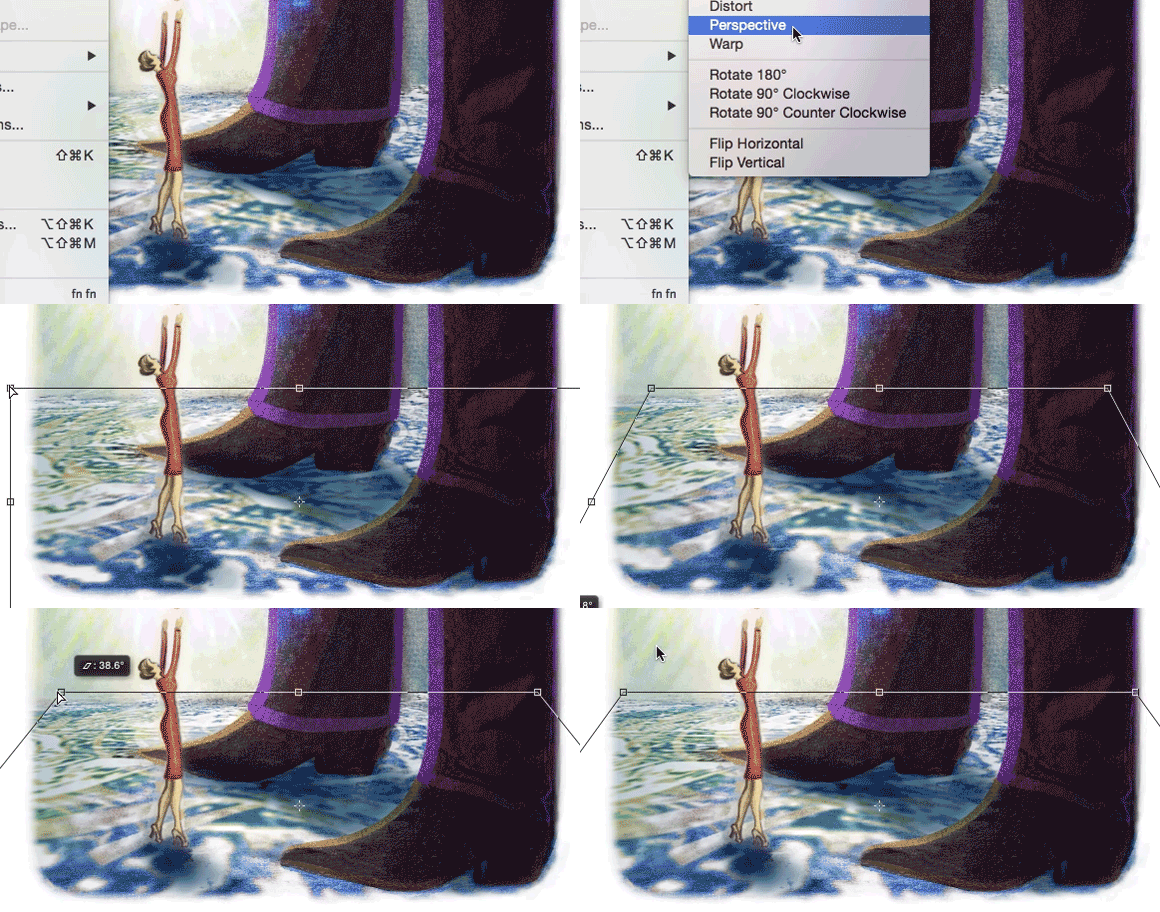
Photoshop Tip: I normally use the perspective option in Photoshop, to tilt the floor; as shown in my Illustration below. I open my Photoshop file and go to EDIT > TRANSFORM and choose PERSPECTIVE. With this method, I can alter the PERSPECTIVE as I wish; by simply pulling the anchor points to change it. Hit ENTER once you’re done.
Illustrator Tip: I’ve traced the outlines with Adobe Illustrator using Adobe CC: New Tracing Tools in Adobe Illustrator
ALL tips of this Blog combined in one 72 pages PDF for easy download: i-adobe book in English – Preview & download here

Illustration by Miriam Selmi Reed / Courtesy of Illustration Source

Deutsche Version:
Photoshop Tip: Ich benutze die Perspektiven-Option in Photoshop, um den Boden perspektivisch nach hinten zu kippen; wie man oben bei meiner Illustration sieht. Ich öffne meine Photoshop-Datei und gehe zu BEARBEITEN > TRANSFORMIEREN und wähle Perspektivisch. Mit dieser Methode kann ich die PERSPEKTIVE ändern indem ich an den Hebeln ziehe. Wichtig: mit der ENTER Taste bestätigen.
Illustrator Tipp: Ich habe die neuen Zeichnungswerkzeuge von Adobe CC benutzt um die Illustration unten zu zeichnen: Neue Zeichnungswerkzeuge in Adobe Illustrator
Alle Tipps von diesem Blog kombiniert in einem 72-Seiten PDF zum herunterladen: i-adobe book in Deutsch – Vorschau & Download hier

divider

Courtesy of Illustration Source

Courtesy of Illustration Source

View the artists’s homage on the topic: MONEY

Miriam Selmi Reed is represented by Illustration Source, New York City. Portfolio and contact: Illustration Source NYC

Illustration technique: watercolor, acrylic and pencil combined with digital mixed media using Adobe Photoshop and Illustrator.Copyright by Illustration Source, New York City.

Illustrations-Technik: Aquarell, Acryl mit Farbstift, gemischt mit Adobe Photoshop und Illustrator. Copyright by Illustration Source, New York City.

divider

Your source for commissioned illustration: ORIGINAL ART STUDIOS in New York City.

OAS

Portfolio Original Art Studios, New York City: MIRIAM SELMI REED

300 % !!!

divider

Deutsche Version siehe unten!
Indesign Tip: How to check on the separations for the printing press. Paper is like a sponge, which means more than 300% color is not possible for the paper to absorb. Adobe InDesign offers the Solution under MENU > WINDOW > OUTPUT > SEPARATIONS PREVIEW > INK LIMIT 300%. The areas higher than 300% are shown in Adobe Indesign with this method!
Here is the Step-by-Step guide on how to check the separations in Adobe InDesign: SEPARATIONS-PREVIEW

Indesign Tip: how to use the REGISTRATION-BLACK
ALL tips of this Blog combined in one 72 pages PDF for easy download: i-adobe book in English – Preview & download here

300

Deutsche Version:
InDesign Tipp: Wie man in InDesign den Farbauftrag für den Offsetdruck kontrollieren kann. Papier ist wie ein Schwamm, d.h. mehr als 300% Farbauftrag kann ein Papier nicht aufsaugen. Die Lösung bietet Adobe InDesign unter MENU > FENSTER > AUSGABE > SEPARATIONSVORSCHAU > FARBAUFTRAG 300%. Die Teile im Bild, welche die erlaubten 300% übersteigen, werden damit in InDesign angezeigt!
Schritt-für-Schritt Anleitung zu diesem wichtigen Thema “wie man den Farbauftrag in InDesign überprüft”: SEPARATIONS-VORSCHAU

Indesign Tipp “Wie man das Passermarken-Schwarz benutzt”: PASSERMARKEN-SCHWARZ
Alle Tipps von diesem Blog kombiniert in einem 72-Seiten PDF zum herunterladen: i-adobe book in Deutsch – Vorschau & Download hier

THE MOCK UP WORLD

Deutsche Version siehe unten!

How cool is that! Many years I spent time in Photoshop putting my designed CD Covers, websites, books etc. together for presentations to show it to clients… even though I’m teaching Photoshop since years it took me hours to make it look professional.

By accident I’ve found this link online:
MOCK UP WORLD

Since I’m working with MOCK UP world templates, it takes only minutes to present a new product to a client!

I’ve downloaded a few mock-ups for free to try out. At the moment, they offer a “freebie-package” since they would like to find new subscribers.
FREE MOCK UPS

1. I open their Mock-up file in Adobe Photoshop
2. I click on the Smart-Object on the layer “Replace me”
3. A new file opens, where I can place my own design
4. I hit the safe button once I’m happy; right after that, my own design gets applied into the Mock-up PSD document.
Now you are free to send an jpg per e-mail to a client, or place a Tiff into Indesign for printing.
HAVE FUN with Mock-up World!

Cool tip on how to use: SMART OBJECTS

ALL tips combined in one PDF: i-adobe book in English – Preview & download here

replaceme

Deutsche Version:

Eine super Sache! Viele Jahre habe ich verbracht in Photoshop meine Bücher, CD Covers, Webseiten und Broschüren mühsam für Präsentationen “zusammen-zu-stiefeln”… und trotz allen Photoshop Kenntnissen, sah das Resultat doch nicht so professionell aus…

Per Zufall habe ich dann online diesen Link entdeckt:
MOCK UP WORLD

Seit ich Mockup World gefunden habe, ist es eine schnelle Sache für mich ein neues Produkt meinen Kunden vorzustellen!

Um es mal auszuprobieren habe ich mir ein paar gratis Mock-ups heruntergeladen. Im Moment gibt es sogar ein Freebie-packet da sie neue Subscribers finden wollen.
GRATIS MOCK UPS

1. ich öffne die Mock-up Datei in Adobe Photoshop
2. ich klicke auf das Smart-Objekt auf der Ebene “Replace me”
3. eine neue Datei öffnet sich, worin ich mein eigenes Design einfügen kann
4. wenn ich zufrieden bin, speichere ich; denn damit wird mein eigenes Design ins Mock-up PSD übernommen.
Dann steht es mir frei entweder ein jpg per e-mail an meinen Kunden zu schicken, oder ein Tiff ins Indesign einzufügen und auszudrucken.
VIEL SPASS mit Mock-up World!

Weiterer Tipp wie man: SMART OBJEKTE benutzt.

Alle Tipps kombiniert in einem PDF: i-adobe book in Deutsch – Vorschau & Download hier

package / verpacken… just do it!

Deutsche Version siehe unten!

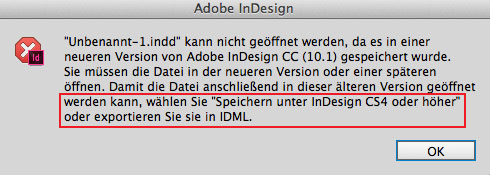
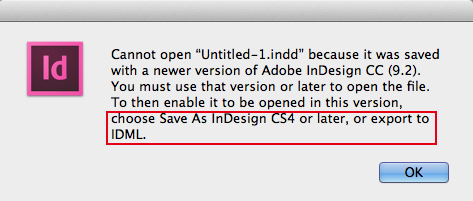
Have you ever tried to open an Adobe InDesign file and the message pops-up “cannot open file since it was created with a newer version”?

inddwarning

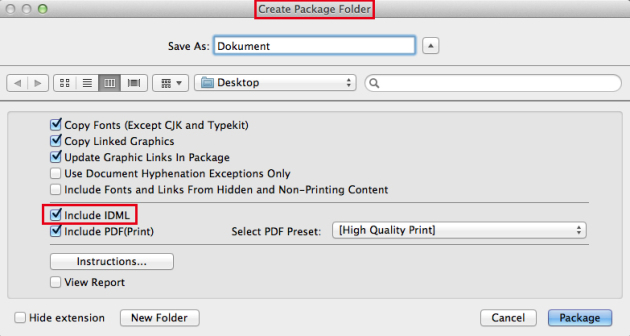
The solution is simple: you HAVE TO PACKAGE your document together with an IDML (=InDesign Markup).
With the packaging command, under MENU > FILE > PACKAGE, InDesign CC collects ALL links and fonts used in the document and creates a folder. It automatically creates an IDML, which is the KEY to open the file in older versions. Open your packaged folder and click on the IDML Icon (InDesign Markup): the InDesign document opens without any error messages!

Here is a tutorial from Adobe I strongly suggest to watch: Indesign package files
Don’t forget: this tutorial was filmed in an older version, which means you have to include an IDML (Indesign Markup) File yourself. Under SAVE AS > choose under FORMAT “Indesign CS4 or later (IDML)” and include this in your packaged folder for people who are still using CS4.

file_package_indd

Adobe Illustrator CC (Creative Cloud): package in Adobe Illustrator CC

divider

Deutsche Version:

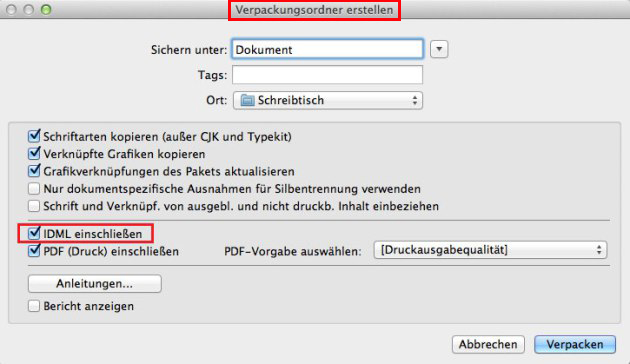
Wer kennt diese Fehlermeldung beim öffnen von Adobe InDesign Dateien: “die Datei kann nicht geöffnet werden, da sie in einer neueren Version erstellt wurde”?

indesign-warnung

Die Lösung ist einfach: man MUSS das InDesign CC Dokument zusammen mit einem IDML (=InDesign Markup) VERPACKEN. Mit dem verpacken Befehl, unter MENÜ > DATEI > VERPACKEN, wird InDesign CC ALLE Bilder und Schriften in einen Ordner verpacken.
Es erstellt zudem automatisch ein IDML. Öffne den verpackten Ordner und klick auf das IDML Icon (InDesign Markup): das InDesign Dokument wird damit ohne Probleme geöffnet! D.h. das IDML ist der Schlüssel um ältere InDesign Versionen zu öffnen.

Hier ist ein Film dazu direkt von Adobe den ich sehr empfehle anzuschauen: Tutorial Indesign verpacken

idml_deutsch

Adobe Illustrator CC (Creative Cloud): Verpacken in Adobe Illustrator CC

RGB or CMYK ?

divider

Deutsche Version siehe unten!
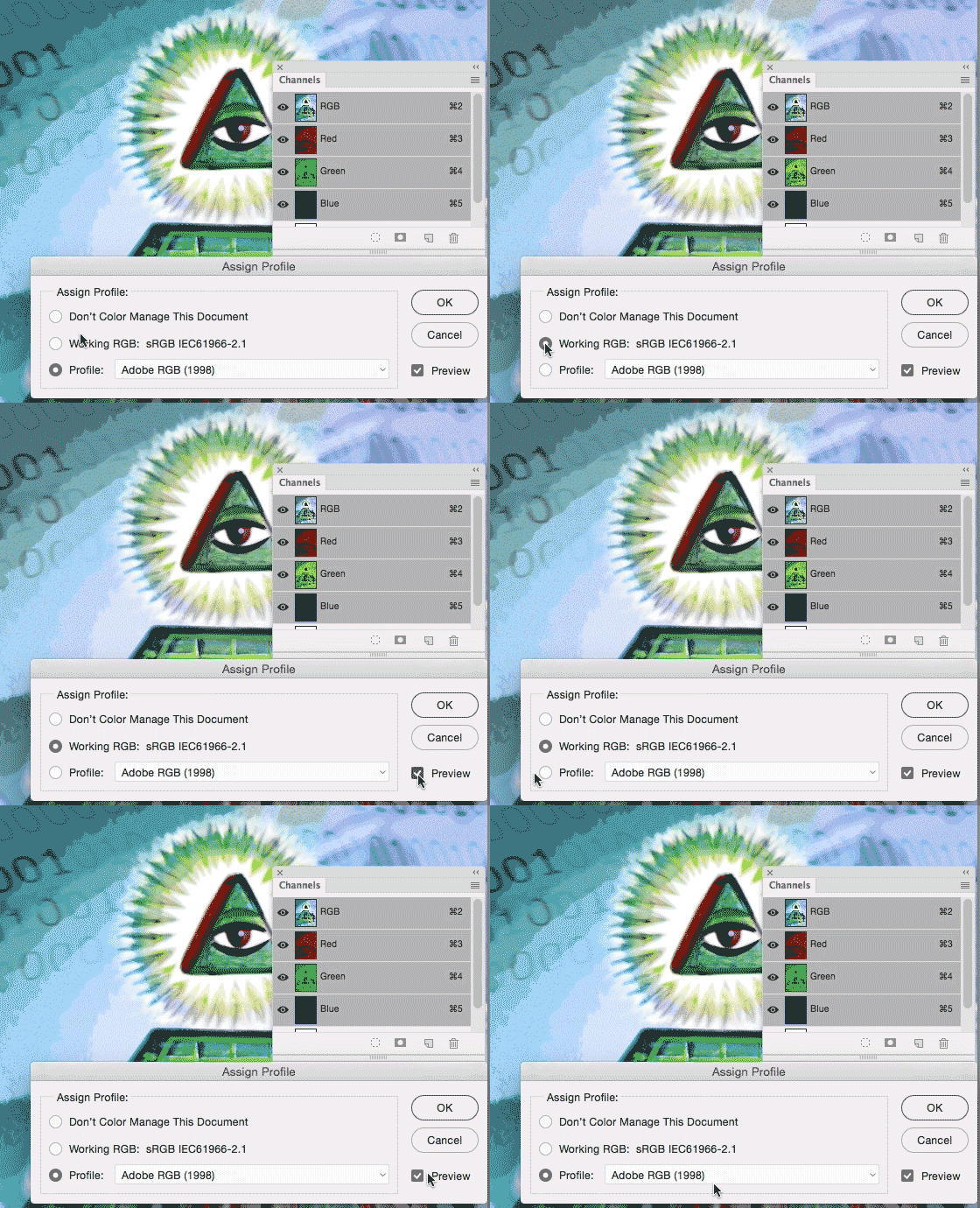
My personal tip: I love to work with RGB in Photoshop, as shown on my Illustration below. I prefer RGB since it has millions of colors to choose from. Either sRGB or Adobe RGB depending on the project. (see animation below)

When converting to CMYK you can go to IMAGE > MODE. The professional method to convert a RGB file into CMYK would be: Photoshop > Menu > Edit > Convert to Profile and select the CMYK color profile of your choice. (To find out which CMYK color profile is correct for your project, depends on the printing press and the chosen paper.) Nevertheless, it’s important to know that CMYK files have only a range of approx. 4000 – 6000 colors used for the printing process, so it is better for me to keep the PSD file with layers in RGB and convert a flatten Tiff-Copy to CMYK.
More on the RGB-topic: RGB versus S-RGB
ALL tips of this Blog combined in one 72 pages PDF for easy download: i-adobe book in English – Preview & download here

Shows sample of sRGB and Adobe RGB / zeigt Beispiel von sRGB und Adobe RGB

Photoshop > Menu > Edit > Assign Profiles: Shows difference of sRGB to Adobe RGB / Photoshop > Menu > Bearbeiten > Profile zuweisen: zeigt Unterschied von sRGB zu Adobe RGB

Deutsche Version
Mein persönlicher Tipp: Ich arbeite am liebsten mit RGB in Photoshop, wie man unten bei meiner Illustration sehen kann. Ich bevorzuge RGB da es Millionen von Farbmöglichkeiten hat, je nach Projekt wähle ich sRGB oder Adobe RGB. (Siehe Animation oben)

Wenn man sein Bild in CMYK konvertieren will, kann man unter BILD > MODUS das CMYK Fogra 39 Farbprofil wählen. Die professionelle Methode wäre jedoch: Photoshop > Menu > Bearbeiten > in Profil umwandeln und wähle dort das korrekte CMYK Farbprofil. (welches Farbprofil korrekt ist, hängt von der Druckmachine und Papierwahl ab; download Farbprofile www.eci.org). Es ist wichtig nicht zu vergessen, dass CMYK Dokumente nur ca. 4000 – 6000 Farbmöglichkeiten haben, da dieser Modus für die Offsetdruckmaschine auf Papier gedacht ist, d.h. ich persönlich behalte meine PSD Datei in RBG (mit Ebenen) und speichere eine Tiff-Kopie (ohne Ebenen) welches ich in das gewünschte CMYK Farbprofil umwandle.
Mehr über das Thema RGB oder s-RGB: RGB versus S-RGB
Alle Tipps von diesem Blog kombiniert in einem 72-Seiten PDF zum herunterladen: i-adobe book in Deutsch – Vorschau & Download hier

divider

Courtesy of Illustration Source

Courtesy of Illustration Source

View the artists’s homage on the topic: MONEY

Miriam Selmi Reed is represented by Illustration Source, New York City. Portfolio and contact: Illustration Source NYC

Illustration technique: watercolor, acrylic and pencil combined with digital mixed media using Adobe Photoshop and Illustrator.Copyright by Illustration Source, New York City.

Illustrations-Technik: Aquarell, Acryl mit Farbstift, gemischt mit Adobe Photoshop und Illustrator. Copyright by Illustration Source, New York City.
divider

Your source for commissioned illustration: ORIGINAL ART STUDIOS in New York City.

OAS

Portfolio Original Art Studios, New York City: MIRIAM SELMI REED

Get creative in 2017!

divider

Deutsche Version siehe unten!
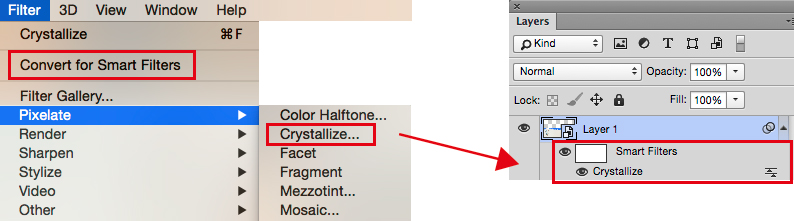
Photoshop Tipp > SMART FILTERS: When I’m using Filters in Adobe Photoshop as shown on my Illustration below, I first go under MENU > FILTER > Convert for Smart Filters. With this method, I can apply every filter and work non-destructive. I open my layers and click on my Smart-Filter-icon which opens the previous chosen filter settings so I can make my adjustments.
More tipps on how to work with SMART OBJECTS : COMBINE Adobe Illustrator with Photoshop!
ALL tips of this Blog combined in one 72 pages PDF for easy download: i-adobe book in English – Preview & download here

smart-filters

Deutsche Version
Photoshop Tip > SMART FILTER: Wenn ich in Adobe Photoshop Filter benutze – siehe unten – dann gehe ich unter MENU > FILTER > Konvertieren für Smart Filter. Mit dieser Methode arbeite ich nicht-Destruktiv , und kann somit jeden Filter löschen oder nach Wunsch verändern. Dazu öffne ich mein Ebenen-Bedienfeld und klicke auf meinen Smart-Filter-Icon, damit sich der vorher gewählte Filter wieder öffnet und ich Änderungen vornehmen kann.
Mehr Tipps wie man mit SMART OBJEKTEN arbeitet : kombiniere Adobe Illustrator mit Photoshop!
Alle Tipps von diesem Blog kombiniert in einem 72-Seiten PDF zum herunterladen: i-adobe book in Deutsch – Vorschau & Download hier

divider

ARTIST OF THE MONTH – SIS in NYC:

Courtesy of Illustration Source

Courtesy of Illustration Source

Miriam Selmi Reed is represented by Illustration Source, New York City. Portfolio and contact: Illustration Source NYC

Illustration technique: watercolor, acrylic and pencil combined with digital mixed media using Adobe Photoshop and Illustrator.Copyright by Illustration Source, New York City.

Illustrations-Technik: Aquarell, Acryl mit Farbstift, gemischt mit Adobe Photoshop und Illustrator. Copyright by Illustration Source, New York City.

View the SIS artists’s homage on the topic: New Beginnings!

Drawing / Zeichnen “the easy way” !

Deutsche Version siehe unten!
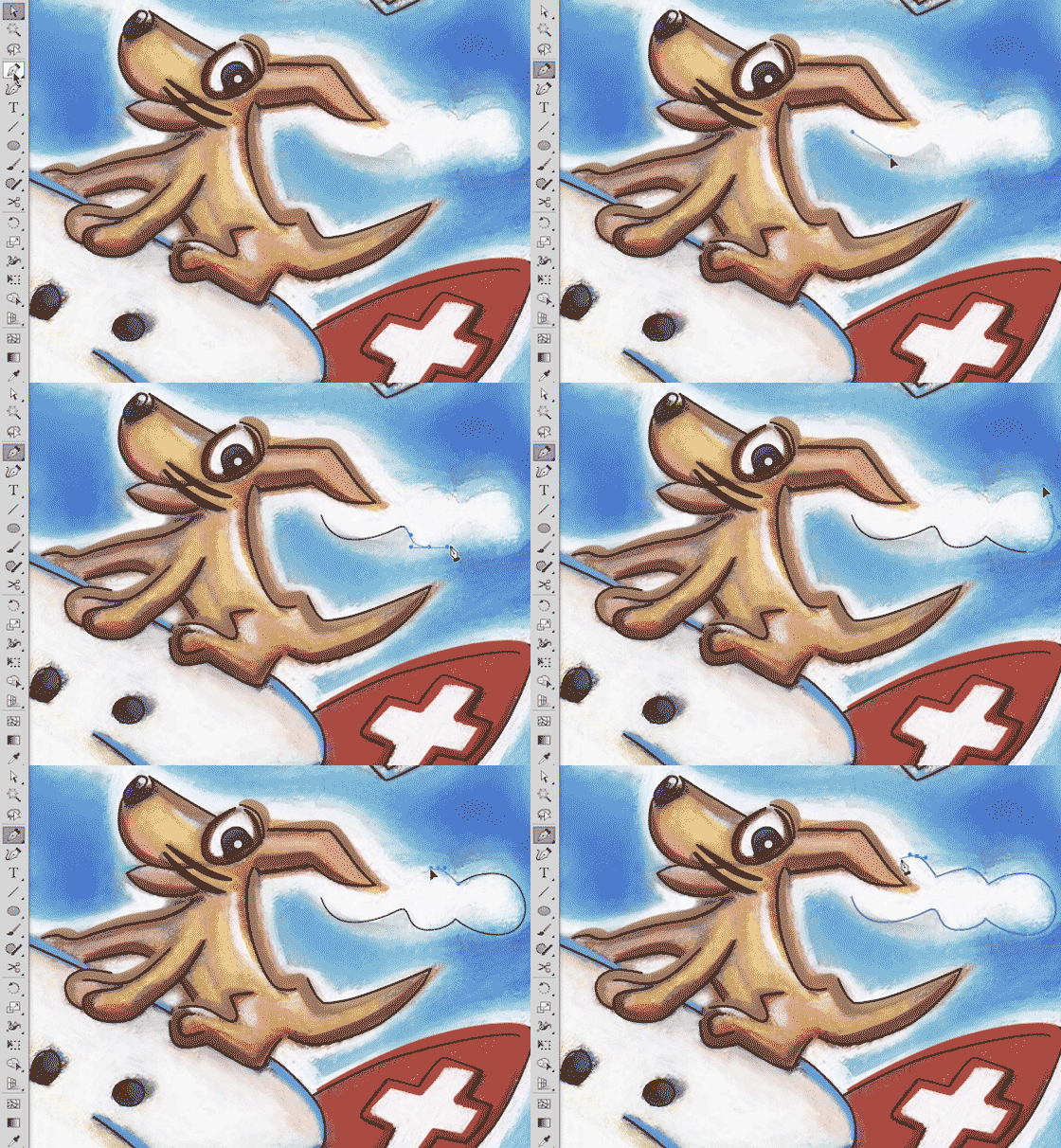
Drawing is easy! I love drawing with the pen tool in Adobe Illustrator, as shown in my Illustration below. I use a simple “click n’drag technique” which allows me to control each anchor point.
Step-by-step guide on how to “Draw-your-own-Comic” for advanced Adobe users: COMIC-DRAWING with Adobe Illustrator.
ALL tips of this Blog combined in one 72 pages PD F for easy download: i-adobe book in English – Preview & download here

Comic illustration by Miriam Selmi Reed for ZIGGY- books. All rights reserved.

Comic illustration by Miriam Selmi Reed for ZIGGY- books. All rights reserved.

Deutsche Version
Zeichnen ist super einfach! Ich zeichne mit dem Zeichenstift-Werkzeug in Adobe Illustrator mit meiner “klick-ziehen-Methode” um jeden Ankerpunkt zu kontrollieren, wie ich oben bei meiner Illustration zeige.
“Zeichne deinen eigenen Comic Workshop” – Für fortgeschrittene Adobe BenutzerInnen: COMIC-ZEICHNEN mit Adobe Illustrator.
Alle Tipps von diesem Blog kombiniert in einem 72-Seiten PDF zum herunterladen: i-adobe book in Deutsch – Vorschau & Download hier

divider

Run ZIGGY Run bilingual Comic for kids / zweisprachiger Comic für Kinder: ISBN 978-3-9524704-0-4
International store: RUN ZIGGY RUN International Store (6 Euro go to animal rescue / 6 Euro gehen in den Tierschutz)

Store in Germany: HUGENDUBEL Deutschland (2 Euro per book sale go to animal rescue / 2 Euro pro Buchverkauf gehen in den Tierschutz)

Store in Switzerland: EX LIBRIS, Schweiz (2 CHF per book sale go to animal rescue / 2 CHF pro Buchverkauf gehen in den Tierschutz)

SCAN !

divider

Deutsche Version siehe unten!
Scan Tip: I love to scan my drawings and open them in Adobe Photoshop, as shown on my Illustration below. I use a simple scanner and use a high dpi setting. In Adobe Photoshop I use LAYERS > as well as TRANSPARANCIES so I can paint on a layer on top of my scan, working non-destructive. I also use mostly LAYER MASKS when I have to erase parts of my work. I simply avoid destructive methods like the “eraser tool”!
Step-by-step guide for layer masks: LAYER MASKS in Adobe Photoshop.
ALL tips of this Blog combined in one 72 pages PDF for easy download: i-adobe book in English – Preview & download here

Deutsche Version
Scan Tipp: Ich scanne meine Zeichnungen gerne ein und öffne sie in Adobe Photoshop, wie ich unten bei meiner Illustration zeige. Ich benutze einen normalen Scanner mit einer hohen DPI Einstellung. In Adobe Photoshop benutze ich EBENEN > und TRANSPARENZEN damit ich auf der Ebene oberhalb meines Scans nicht-destruktiv arbeiten kann. Ich benutze zudem immer EBENENMASKEN wenn ich Teile meines Bilder löschen möchte. Ich vermeide prinzipiell das “Radiergummi-Werkzeug” welches Pixel unwiderruflich löscht!
Hier sind die Arbeitsschritte dazu: EBENEN-MASKEN in Adobe Photoshop.
Alle Tipps von diesem Blog kombiniert in einem 72-Seiten PDF zum herunterladen: i-adobe book in Deutsch – Vorschau & Download hier

divider

Courtesy of Illustration Source

Courtesy of Illustration Source

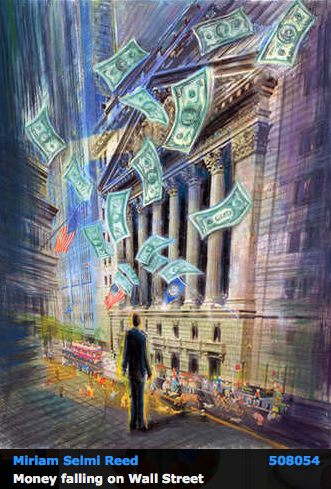
View the artists’s homage on the topic: WALL STREET

Miriam Selmi Reed is represented by Illustration Source, New York City. Portfolio and contact: Illustration Source NYC

Illustration technique: watercolor, acrylic and pencil combined with digital mixed media using Adobe Photoshop and Illustrator.Copyright by Illustration Source, New York City.

Illustrations-Technik: Aquarell, Acryl mit Farbstift, gemischt mit Adobe Photoshop und Illustrator. Copyright by Illustration Source, New York City.

divider

Your source for commissioned illustration: ORIGINAL ART STUDIOS in New York City.

OAS

Portfolio Original Art Studios, New York City: MIRIAM SELMI REED

RUN ZIGGY RUN – Happy Holidays everyone!

Our bilingual RUN ZIGGY RUN Book; the perfect gift for kids / With this ZIGGY book you support an animal in need. Thank you!
Unser zweisprachiges RUN ZIGGY RUN Buch; Das perfekte Geschenk für Kinder / mit diesem ZIGGY Buch unterstützt du ein Tier in Not. Danke!

Store in Germany: RUN ZIGGY RUN – HUGENDUBEL Germany

Store in Switzerland: RUN ZIGGY RUN – EXLIBRIS, Switzerland

Secure store with international shipping: RUN ZIGGY RUN – International Store

z-dog_animation1

RUN ZIGGY RUN
Bilingual German/English ZIGGY books are 2 language Turn-2-Learn reading adventures for kids 3 to 8 years old!
36 pages in color, 6.75 x 6,75″ / REEDAROUND Books, ISBN: 978-3-9524704-0-4

Zweisprachige Deutsch/Englisch ZIGGY-Bücher sind ein Drehen-zum-Lernen Abenteuer für Kinder von 3 bis 8 Jahre alt! 36 Seiten in Farbe, 17 x 17 cm / ISBN: 978-3-9524704-0-4

runziggyrun-small1

NEWS: RUN ZIGGY RUN books for sale at the children’s book store in Zurich, Switzerland, Oberdorfstrasse 32! and the Scheidegger Bookstore in Affoltern am Albis.

kinderbuchladen

ZIGGY’s BLOG: with films, animations and more: Have fun!

Languages in Adobe InDesign / Sprachen in Adobe InDesign

Deutsche Version siehe unten!
TIP OF THE MONTH:
“How to change the languages in Adobe InDesign”:

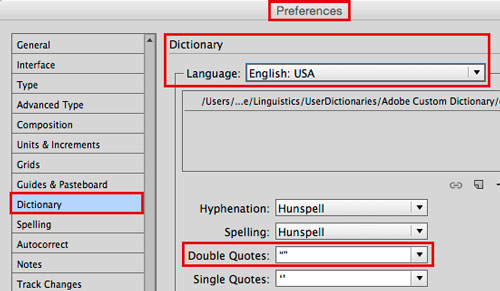
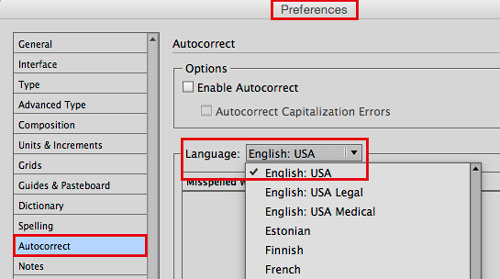
To avoid problems with languages in InDesign, it is crucial to make sure that the language you have chosen is THE SAME in the Preferences AND in the font settings!

1. Open InDesign and go to MENU > EDIT > PREFERENCES and make the following selections:
(Mac: INDESIGN > PREFERENCES) – The settings below are for ENGLISH USA:

pref1

pref2

It is VERY important to choose the same language in the Characters:
charac

Same goes IF you are using a Paragraph or Character Style:
para

Now when you import or place your Word document; Indesign will recognise your settings!

Additional Tip: How to import a large word doc into InDesign

ALL tips combined in one PDF: i-adobe book in English – Preview & download here

divider

Deutsche Version
TIPP DES MONATS:
“Wie man die Spracheinstellungen in Adobe InDesign korrekt einstellt”:

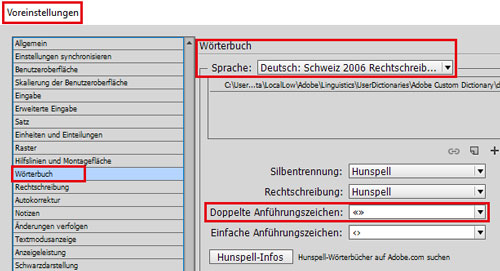
Um Konflikte mit verschiedenen Sprachen zu vermeiden ist es WICHTIG, dass man dieselbe Spracheinstellung in den Voreinstellungen UND in den Zeichenformatierung oder Zeichen-Absatzformate wählt:

1. Öffne InDesign und gehe zu MENU > BEARBEITEN > VOREINSTELLUNGEN:
(Mac: INDESIGN > VOREINSTELLUNGEN) – Diese Einstellungen sind für die Schweiz:

vorein1

vorein2

Es ist SEHR WICHTIG die gleiche Sprache in der Zeichenformatierung zu wählen:
vorein3

Dasselbe gilt natürlich wenn man Zeichen- oder Absatzformat verwendet:
vorein4

Beim importieren oder platzieren eines Word Dokuments werden somit diese Einstellungen korrekt umgesetzt – zudem funktioniert die Autokorrektur damit besser.

Weiterer Tipp: Wie man ein grosses Word Doc ins InDesign platziert

Alle Tipps kombiniert in einem PDF: i-adobe book in Deutsch – Vorschau & Download hier

Social Media!

divider

English version:
Photoshop Tip: I always have to scale the size of my images with Adobe Photoshop. Here I show the steps of my job; how to prepare my illustration at a 300 dpi resolution, 7 inches wide for Adobe InDesign. I go to MENU > IMAGE > IMAGE SIZE and follow this steps: How to reduce or enlarge a Photoshop file without loosing quality.

Deutsche Version:
Photoshop Tipp: Ich muss immer wieder meine Bilder mit Adobe Photoshop skalieren. Hier zeige ich die Arbeitsschritte; wie ich meine Illustration auf 300 dpi ändere und als 15 cm breites Bild für Adobe InDesign vorbereite. Ich gehe zu MENÜ > BILD > BILDGRÖSSE und befolge diese Arbeitsschritte: Wie man ein Bild in Photoshop ohne Qualitätsverlust vergrössert oder verkleinert.

divider

Courtesy of Illustration Source

Courtesy of Illustration Source

View the artists’s homage on the topic: DATA SECURITY and SOCIAL MEDIA

Miriam Selmi Reed is represented by Illustration Source, New York City. Portfolio and contact: Illustration Source NYC

Illustration technique: watercolor, acrylic and pencil combined with digital mixed media using Adobe Photoshop and Illustrator.Copyright by Illustration Source, New York City.

Illustrations-Technik: Aquarell, Acryl mit Farbstift, gemischt mit Adobe Photoshop und Illustrator. Copyright by Illustration Source, New York City.

COMMUNICATION & POLITICS

divider

Photoshop Tip: What is the difference between assign a color profile or to convert a color profile? Here it is: Assign / convert a color profile in Adobe Photoshop!
“I personally work in my Photoshop illustration file in Adobe RGB and leave all the layers, masks and paths intact. Once my illustration is done, I flatten the PSD file, get rid off all paths and save it out as a Tiff file. My agent SIS prefers RGB files while my printer wants a CMYK file and he lets me know the preferred color profile his printing press wants. The key to this problem: communicate with your client/printer!”

Deutsche Version
Photoshop Tipp: Was ist der Unterschied zwischen Farbprofil zuweisen oder umwandeln? Hier ist die Anleitung dazu: Wie man Farbprofile umwandelt / zuweist in Adobe Photoshop!
“Ich arbeite gerne “nicht destruktiv” mit Adobe Photoshop und bleibe in Adobe RGB mit allen Ebenen, Masken und Pfade. Wenn meine Illustration fertig ist, reduziere ich meine Datei auf eine Ebene und speichere es als Tiff Datei. Mein Agent SIS möchte RGB files, meine Druckerei möchte aber CMYK files und er lässt es mich wissen, welches Farbprofil ich verwenden soll. Die Lösung zum Problem: kommuniziere mit dem Kunden/Druckerei!”

divider

IMAGE OF TODAY – ILLUSTRATION SOURCE IN NEW YORK CITY:

Courtesy of Illustration Source

Courtesy of Illustration Source

View the artists’s homage on the topic: COMMUNICATION & POLITICS

Miriam Selmi Reed is represented by Illustration Source, New York City. Portfolio and contact: Illustration Source NYC

Illustration technique: watercolor, acrylic and pencil combined with digital mixed media using Adobe Photoshop and Illustrator.Copyright by Illustration Source, New York City.

Illustrations-Technik: Aquarell, Acryl mit Farbstift, gemischt mit Adobe Photoshop und Illustrator. Copyright by Illustration Source, New York City.

divider

Your source for commissioned illustration: ORIGINAL ART STUDIOS in New York City.

OAS

Portfolio Original Art Studios, New York City: MIRIAM SELMI REED

LAB colors / LAB Farben in Photoshop

divider

Deutsche Version siehe unten!
TIP OF THE MONTH:
“How I quickly change my brightness with Adobe Photoshop WITHOUT changing my colors”:

To get the my best result; I change my illustration under IMAGE > MODE to 16 Bit and then go to IMAGE > MODE and select Lab Color.

With this trick I’m able to change the brightness seperately from my colors! Here is the step-by-step guide: How to work with the Lab Color Mode in Photoshop.

lab

Deutsche Version
TIPP DES MONATS:
“Wie ich die Helligkeit mit Adobe Photoshop anpasse OHNE meine Farben zu verändern”:

Um mein bestes Resultat zu erreichen, ändere ich meine Illustration unter BILD > MODUS auf 16 Bit, gehe dann zu BILD > MODUS > und wähle den Modus Lab-Farbe.

Mit diesem Trick kann ich meine Helligkeiten separat von den Farben ändern! Hier ist ist alles im Detail erklärt: Wie man mit dem Lab-Farbe-Modus in Photoshop arbeitet.

Courtesy of Illustration Source

Courtesy of Illustration Source

View the artists’s homage on the topic: THE GRADUATE

Miriam Selmi Reed is represented by Illustration Source, New York City. Portfolio and contact: Illustration Source NYC

Illustration technique: watercolor, acrylic and pencil combined with digital mixed media using Adobe Photoshop and Illustrator.Copyright by Illustration Source, New York City.

Illustrations-Technik: Aquarell, Acryl mit Farbstift, gemischt mit Adobe Photoshop und Illustrator. Copyright by Illustration Source, New York City.
Work smart!

divider

Deutsche Version siehe unten!
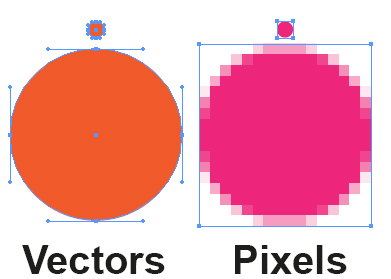
Photoshop Tip: I love to mix Photoshop and Illustrator, as shown on my Illustration below. I copy my Illustrator drawing and place it as a SMART OBJECT into my Photoshop file. With this method, I can work non-destructive and make as many changes as I wish. It shows an interesting mixture between pixels and sharp vector outlines!
More on this topic: How to use SMART OBJECTS

VectorE

Deutsche Version
Photoshop Tipp: Ich mische gerne Photoshop and Illustrator, wie man unten bei meiner Illustration sieht. Ich kopiere meine Illustrator Zeichnung und platziere es als SMART OBJEKT in meine Photoshop Datei. Mit dieser Methode, kann ich nicht-destruktive arbeiten und so viele Änderungen machen wie ich will. Zudem zeigt es eine interessante Mischung zwischen Pixel und harten Vektor Linien.
Mehr über dieses Thema: Wie man SMART OBJEKTE benutzt

divider

Courtesy of Illustration Source

Courtesy of Illustration Source

View the artists’s homage on the topic: THE GRADUATE

Miriam Selmi Reed is represented by Illustration Source, New York City. Portfolio and contact: Illustration Source NYC

Illustration technique: watercolor, acrylic and pencil combined with digital mixed media using Adobe Photoshop and Illustrator.Copyright by Illustration Source, New York City.

Illustrations-Technik: Aquarell, Acryl mit Farbstift, gemischt mit Adobe Photoshop und Illustrator. Copyright by Illustration Source, New York City.

divider

Your source for commissioned illustration: ORIGINAL ART STUDIOS in New York City.

OAS

Portfolio Original Art Studios, New York City: MIRIAM SELMI REED

Illustrator Workshop: Symbols 2

Tutorial in English and German / Anleitung in Deutsch und Englisch

Deutsche Version siehe unten!
divider

English:
How I form the photo pattern in Adobe Illustrator: I go under MENU > OBJECT > ENVELOPE DISTORT > ENVELOPE OPTIONS and choose “Distort Pattern Fills”.

5E

Then I go to MENU > ENVELOPE DISTORT > MAKE WITH MESH and select the Rows and Columns I want.

6E

Then I choose the Direct Selection Tool (White Arrow) and move the points until I get the shape I want!

7

divider

MORE INFO’S: HOW TO CREATE YOUR OWN PATTERN

MEHR INFO’S: WIE MAN EIN EIGENES MUSTER ERSTELLT

divider

Deutsch:
Wie ich das Muster in Adobe Illustrator verziehe und forme: Ich gehe unter MENÜ > OBJEKT > HÜLLEN > HÜLLEN-OPTIONEN und wähle “Musterfüllungen verzerren” .

5

Dann gehe ich zu MENÜ > OBJEKT > GITTER > HÜLLENGITTER und wähle meine Zeilen und Spalten.

6

Dann nehme ich das Direkt-Auswahl-Werkzeug (Weisser Pfeil) und ziehe an den Punkten bis ich mein gewünschtes Resultat erreicht habe!
7

Illustrator Workshop: Symbols 1

Tutorial in English and German / Anleitung in Deutsch und Englisch

Deutsche Version siehe unten!
divider

English Version:
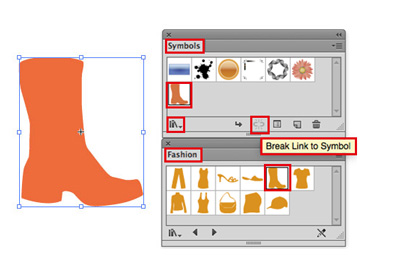
How I use Symbols in Adobe Illustrator: I go under MENU > WINDOW > SYMBOLS and choose a Fashion Symbol which you can find in the Symbol-Library. Very important: to click on the icon “Break Link to Symbol”.

1E

Then I place a leather-photo (tiff or jpg) and select Embed on top.

2E

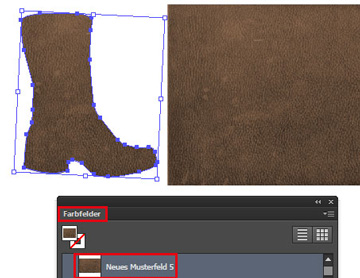
I select the leather photo and drag it into my Illustrator Swatch Box to create a New Pattern Swatch. (Menu > Window > Swatches)
4E

Then I select my Symbol (Boot) and click on the leather pattern to fill.
Next time I will show how to form the leather pattern inside the boot to make it more 3D!

divider

Our new i-adobe Ebook is available here – in English – including films on 72 pages:
EASY DOWNLOAD

Unser neues i-adobe book ist hier erhältlich – in Deutsch – inklusive Filme auf 72 Seiten: SICHERER DOWNLOAD

divider

Deutsche Version:
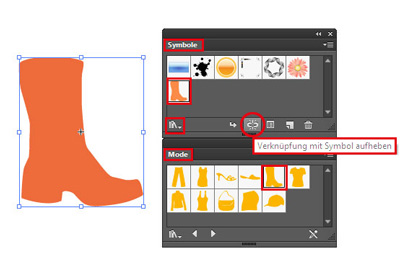
Wie ich Symbole in Adobe Illustrator benutze: Ich gehe unter MENÜ > FENSTER > SYMBOLE und wähle ein Mode-Symbol welche man in den Symbol-Bibliotheken finden kann. Sehr wichtig: auf das icon klicken “Verknüpfung mit Symbol aufheben”.

1

Dann platziere ich ein Leder-Foto (tiff oder jpg) und klicke oben in der Steuerung auf Einbetten .

2

Ich wähle das Leder-Foto an und ziehe es in meine Illustrator Farbfelder um ein neues Musterfeld zu erstellen. (Menü > Fenster > Farbfelder)
4

Dann wähle ich mein Symbol (Stiefel) und fülle es mit meinem neuen Ledermuster indem ich auf das neue Musterfeld klicke. Nächstes Mal werde ich zeigen wie ich das Ledermuster um den Stiefel forme damit es mehr 3D wirkt.

Publish your InDesign layout online!

Tutorial in English and German / Anleitung in Deutsch und Englisch

Deutsche Version siehe unten!
divider

English version:

Would you like to instantly publish your InDesign documents online and mobile, using animation, slideshow, video, etc… in your layout? Since InDesign CC 2015, you can! The new Publish Online feature lets you publish any InDesign document to Adobe Cloud, view it online with any mobile device and instantly share with Facebook or LinkedIn!

This HTML version of your document works on all modern desktop or tablet browsers!
Here’s how it works:

1. With your InDesign document open, click the new “Publish Online” button above the Control Bar. (Or choose File > Publish Online (Preview)
publish

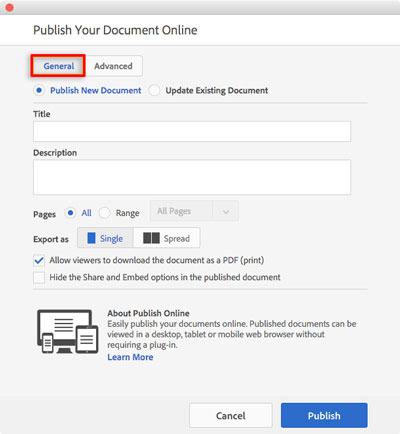
2. In the subsequent dialog box, click the General tab & and if needed, the Advanced tab for your selections:

publish

Then simply click the button PUBLISH.
Your file will begin uploading to your Adobe Web Dashboard. Once the file has been uploaded, you can click “View Document” to view in a browser. Click “Copy” to copy the URL for sharing or, simply click one of the sharing icons to share directly with Facebook, LinkedIn or email.

To access and manage all your Publish Online documents, choose File > Publish Online Dashboard.

Here is our example: 123 i Adobe online Book

Direct Link to Adobe: Self Publishing with InDesign

divider

Deutsche Version:

Möchten Sie Ihr Indesign Layout online fürs Internet oder Mobiltelefon publizieren? Mit Animationen, Diashows oder Video’s? Seit InDesign CC 2015 ist dies möglich! Die Publish Online Funktion erlaubt Ihnen das InDesign Dokument auf die Adobe Cloud zu laden und publiziert es online oder auf dem IPad oder Mobiltelefon ­— und Sie können es sogar auf Facebook oder LinkedIn teilen!

Diese HTML Version von Ihrem Dokument funktioniert auf allen modernen Desktops oder Tablets!
So funktioniert’s:

1. Wenn Sie Ihr InDesign Dokument offen haben, klicken Sie oben in der Steuerung auf den neuen “Publish Online” Button. (oder gehen Sie zu Datei > Publish Online (Vorschau)

veroeffentlichen

2. Im Bedienfeld, klicken Sie auf “Allgemein” und wenn nötig auf die Option “Erweitert” und geben Ihre Wünsche ein:

veroeffentlichen

Dann klicken Sie auf den Button VERÖFFENTLICHEN.
Ihre Datei wird nun auf den Adobe Web Dashboard geladen. Sobald Ihre Datei geladen ist, können Sie auf “Ansicht” klicken um es in Ihrem Browser anzusehen. Oder Sie klicken auf “Kopieren” um den URL link mit anderen zu teilen. Um Ihr Dokument auf Facebook, LinkedIn zu teilen, klicken Sie auf die Sharing Buttons.

Um Ihre Publish Online Dokumente zu verwalten, wählen Sie Datei > Web-Dashboard.


Hier ist unser Beispiel: 123 i Adobe online PDF Buch

Direkter Link zu Adobe: Publish Online mit InDesign