Social Media 2

divider

Photoshop Tutorial: Clipping Mask and Adjustment Layers
Here is a cool trick on how to use a font as a clipping mask, which I’ve used on my illustration below. Click on the link for more info.

divider

Photoshop Tipp: Schnittmaske und Einstellungsebene
Hier ist ein einfacher Trick wie ich eine Schrift als Schnittmaske benutze. Dieselbe Methode benutzte ich unten bei meiner Illustration.

divider

Miriam Selmi Reed represented and licensed by Illustration Source

Courtesy of Illustration Source

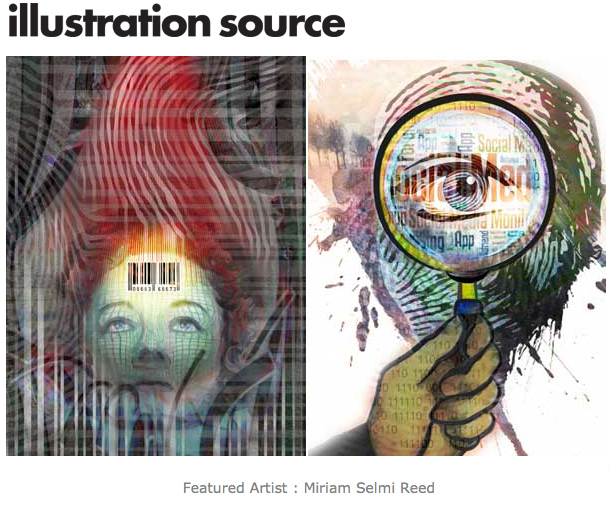
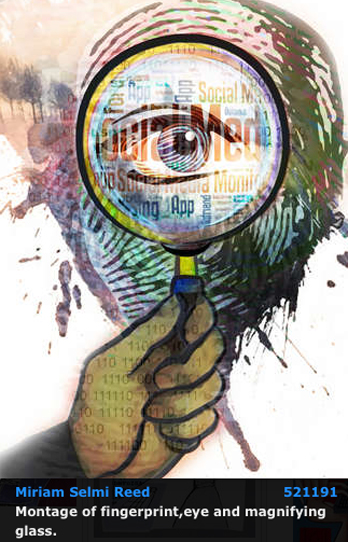
View the artists’s homage on the topic: SOCIAL MEDIA

Miriam Selmi Reed is represented by Illustration Source, New York City. Portfolio and contact: Illustration Source NYC

Illustration technique: watercolor, acrylic and pencil combined with digital mixed media using Adobe Photoshop and Illustrator.Copyright by Illustration Source, New York City.

Illustrations-Technik: Aquarell, Acryl mit Farbstift, gemischt mit Adobe Photoshop und Illustrator. Copyright by Illustration Source, New York City.

divider

Your source for commissioned illustration: ORIGINAL ART STUDIOS in New York City.

OAS

Portfolio Original Art Studios, New York City: MIRIAM SELMI REED

Cool Illustrator Effects

Tutorial in English and German / Anleitung in Deutsch und Englisch

Deutsche Version siehe unten!

divider

English version:

Would you like to receive our tips for free in your e-mail box? Simply select FOLLOW to sign up with your e-mail address.

TIP OF THE WEEK: Cool Illustrator Effects!

Did you ever try the cool Illustrator effects in CS6 or Creative Cloud?

1. Draw a small star or any simple shape you like
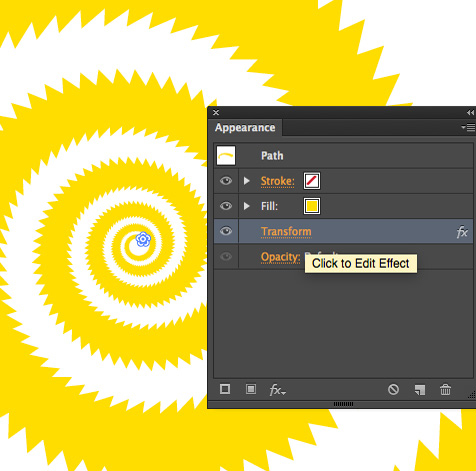
2. Go to MENU > EFFECT > DISTORT & TRANSFORM > TRANSFORM
3. Type in the numbers of your choice or use the same numbers as shown below
4. Click the Preview Button

effectE1

5. Click OK, if you like the Preview

EffectE2

You want to change your effect? Simply go to MENU > WINDOW > APPEARANCE and click on Transform FX to open the same Effect-Window again.
To delete an effect; simply drag it to the trash can.

EffectE3

There are many effects you can try – since you can change them anytime with the APPEARANCE window, it’s really fun to try them all 🙂

divider

TIP 2: additional tutorial for Adobe InDesign Effects: INDESIGN EFFECTS

divider

Deutsche Version:

Möchten Sie unsere gratis Tipps in Ihrem e-mail erhalten? Schreiben Sie sich unter FOLLOW mit Ihrer e-mail Adresse ein.

TIPP DER WOCHE: Cool Illustrator Effekte!

Haben Sie jemals die coolen Illustrator Effekte in CS6 oder Creative Cloud ausprobiert?

1. Zeichnen Sie einen kleinen Stern oder Form nach Wunsch
2. Gehen Sie zu MENU > EFFEKT > VERZERRUNGS- UND TRANSFORMATIONSFILTER > TRANSFORMIEREN
3. Tippen Sie Ihre Nummern ein oder nehmen die gleichen wie unten im Bild
4. Klicken Sie auf Vorschau

effectD1

5. Klicken Sie OK, wenn Ihnen die Vorschau gefällt

EffectE2

Möchten Sie Ihren Effekt ändern? Gehen Sie zu MENU > FENSTER > AUSSEHEN und klicken Sie auf Transformieren FX um dasselbe Effekte-Bedienfeld wieder zu öffnen und Änderungen vorzunehmen.
Mit dem Auge können Sie den Effekt temporär ausschalten und den Effekt ganz löschen ist einfach; klicken Sie auf den Papierkorb.

Mit dem Aussehen-Bedienfeld können Sie jeden Effekt modifizieren oder löschen.
Dies betrifft auch 3-D Effekte, Schlagschätten usw.

EffectD3

Es gibt endlos viele Effekte – da Sie diese jederzeit löschen oder ändern können, macht es Spass so viele wie möglich auszuprobieren 🙂

divider

TIPP 2: Zusätzliche Anleitung für Adobe InDesign Effekte: INDESIGN EFFEKTE

divider

Social Media 1

divider

Illustrator Tip Part 1: New Drawing Tools in Adobe Illustrator CC – Part 1
I love the new drawing tools in Adobe Illustrator Creative Cloud; the new Curvature-tool makes tracing so much easier!

Illustrator Tip Part 2: New Drawing Tools in Adobe Illustrator CC – Part 2
I’ve also used the new Pencil-Tool in my new illustrations you see below. Click on the link to get more info.

Adobe Illustrator CS6 Tip: How to draw in Adobe Illustrator CS6

divider

Illustrator Tipp Teil 1: Neue Zeichnungs-Werkzeuge in Adobe Illustrator CC – Teil 1
Dieses neue Krümmungs-Werkzeug macht es noch einfacher Kurven zu zeichnen und Ankerpunkte zu setzen.

Illustrator Tipp Teil 2: Neue Zeichnungs-Werkzeuge in Adobe Illustrator CC – Teil 2
Bei meinen neuen Illustrationen benutzte ich auch das neue Buntstift-Werkzeug. Klicken Sie auf den Link für mehr Info!

Adobe Illustrator CS6 Tipp: Wie man mit Illustrator CS6 zeichnen kann

divider

Courtesy of Illustration Source

Courtesy of Illustration Source

Courtesy of Illustration Source

Courtesy of Illustration Source

View the artists’s homage on the topic: SOCIAL MEDIA

Miriam Selmi Reed is represented by Illustration Source, New York City. Portfolio and contact: Illustration Source NYC

Illustration technique: watercolor, acrylic and pencil combined with digital mixed media using Adobe Photoshop and Illustrator.Copyright by Illustration Source, New York City.

Illustrations-Technik: Aquarell, Acryl mit Farbstift, gemischt mit Adobe Photoshop und Illustrator. Copyright by Illustration Source, New York City.

divider

Your source for commissioned illustration: ORIGINAL ART STUDIOS in New York City.

OAS

Portfolio Original Art Studios, New York City: MIRIAM SELMI REED

The Weather Report

divider

Tip 1: How to show the Photoshop channels in color!
Normally the channels in Photoshop are being shown in greyscale. In certain cases I prefer to see them in colors to make alterations. Click on the link for more info.

Tip 2: The difference between S-RGB and RGB in Adobe Photoshop
I will use sRGB for my own illustrations – you may see one below – if I’m certain that my artwork will only be for digital display. Please click on the link for more info.

divider

Tipp 1: Wie man die Kanäle in Photoshop in Farbe anzeigt
Normalerweise werden die Kanäle in Schwarz/Weiss angezeigt. Ich ziehe es manchmal vor diese farbig zu bearbeiten. Für mehr Info bitte auf den Link klicken.

Tipp 2: Der Unterschied zwischen S-RGB und RGB in Adobe Photoshop
Ich selber benutze sRGB gerne für meine Illustrationen – siehe Beispiel unten – wenn ich sicher bin, dass diese nur auf Webseiten erscheinen werden. Für mehr Info bitte auf den Link klicken.

divider

Miriam Selmi Reed represented and licensed by Illustration Source / courtesy of Illustration source

Courtesy of Illustration Source

View the artists’s homage on the topic THE WEATHER REPORT

Miriam Selmi Reed is represented by Illustration Source, New York City. Portfolio and contact: Illustration Source NYC

Illustration technique: Traditional painting combined with digital mixed media using Smart Objects in Photoshop and Illustrator. Copyright by Illustration Source, New York City.

Illustrations-Technik: Acrylbild gemischt mit Illustrator und Photoshop sowie Smart-Objekten. Copyright by Illustration Source, New York City.

divider

Your source for commissioned illustration: ORIGINAL ART STUDIOS in New York City.

OAS

Portfolio Original Art Studios, New York City: MIRIAM SELMI REED

How to enlarge an image in Photoshop – wie man ein Bild in Photoshop vergrössert

Tutorial in English and German / Anleitung in Deutsch und Englisch

Deutsche Version siehe unten!
divider

English version:

Would you like to receive our tips for free in your e-mail box? Simply select FOLLOW to sign up with your e-mail address.

TIP OF THE WEEK: How to enlarge an image in Photoshop Creative Cloud.

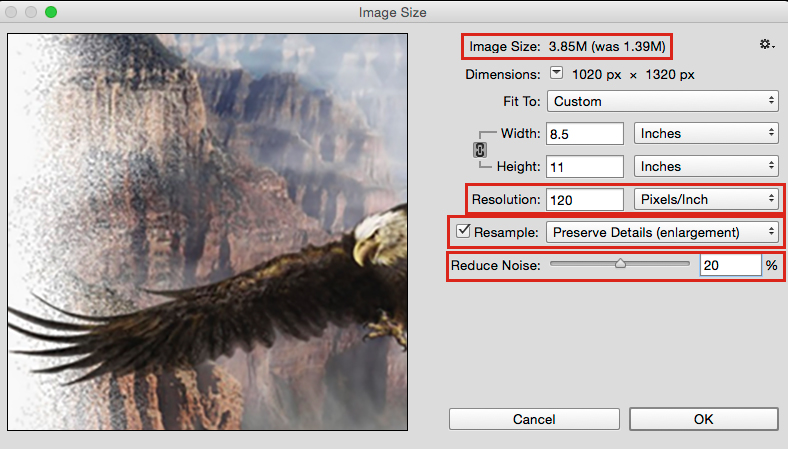
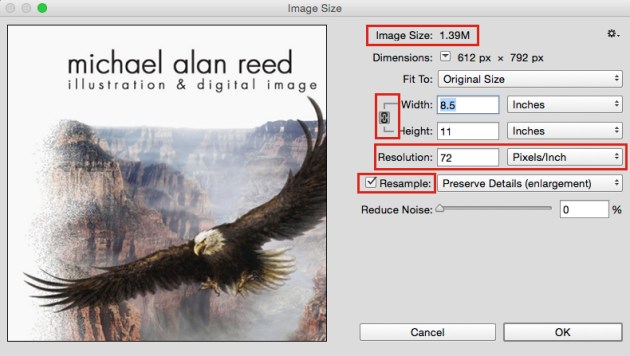
With this method your Image Size (Pixel Dimension) is going to be changed. This should be only done once, since altering the Image Size too many times will cause a blurry image! (If you’d like to keep the Image Size the same; please click on TIP 2 below)

One possible solution: Go to MENU > IMAGE > IMAGE SIZE.
1. Pay attention to the Image Size
2. Make sure your Width and Height are connected so the image remains in proportion – see chain symbol! The Resample BOX needs to be activated! With this option you are able to change the Width / Height and Resolution separately. In CS6 the Resample box is called: Resample Image, but it has the same function.
3. Notice the Resolution (dpi = dots / pixels per inch)
enlarge1

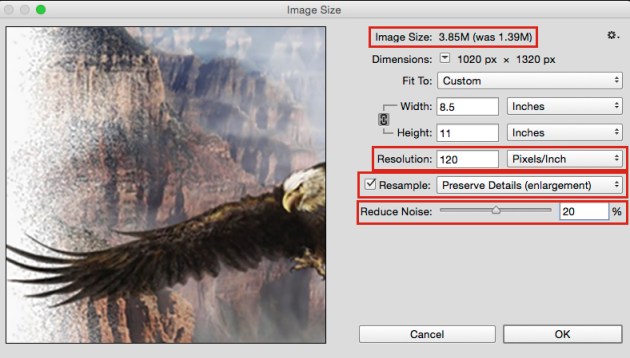
4. Before you click OK, enlarge the Resolution or even double it
5. Pay attention again to the Image Size on top (On the left you see the new image size!)
6. You can select different options right next to the Resample Box. (We have chosen “Preserve Details” for Enlargements)
7. Drag the Reduce Noise slider to the right a bit to see what happens; which is a new feature in Adobe CC (see image below)
enlarge-2

Once you’re happy with the preview: HIT OK! But don’t forget: enlargements over 150% will pixelate more and more… especially if you sharpen the image later.

IMPORTANT: a professional printer needs your image at 300 dpi for the printing press. 120 dpi should be good enough for your own small Desktop Printer in your office. 72 dpi is usually the correct setting for images on the internet.

There are additional cool tricks on how to enlarge an image without loosing quality – but that is Mike Reed’s expertise; and he doesn’t show it for free > Buy Mike a cup of coffee 🙂

divider

TIP 2: additional tutorial for Adobe Photoshop CS5 and CS6 on how to change an image without changing the Pixel Dimensions (Image Size): PIXEL IS KING

divider

Deutsche Version:

Möchten Sie unsere gratis Tipps in Ihrem e-mail erhalten? Schreiben Sie sich unter FOLLOW mit Ihrer e-mail Adresse ein.

TIPP DER WOCHE: wie man ein Bild in Photoshop Creative Cloud vergrössert.

Mit dieser Methode wird die Bildgrösse (Pixelmasse) jedoch verändert und sollte nur einmal angewendet werden, um eine “starke Verpixelung” zu vermeiden.
(Eine andere Methode bei der die Bildgrösse (Pixelmasse) gleich bleiben; siehe unten TIPP 2).

Eine mögliche Lösung: Gehen Sie zu MENÜ > BILD > BILDGRÖSSE.
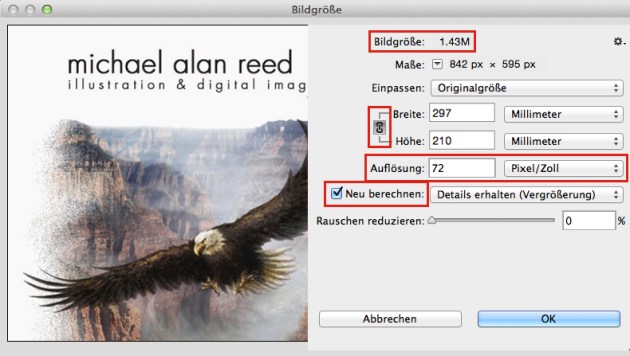
1. Achten Sie auf die Bildgrösse
2. Es ist wichtig, dass die Breite und Höhe miteinander verknüpft sind. Beachten Sie das Ketten-Symbol! Dazu muss die Neu berechnen BOX aktiviert sein; Mit dieser Option haben Sie die Möglichkeit die Breite / Höhe separat von der Bildauflösung zu verändern. In CS6 hat die Neu berechnen Option einen anderen Namen: das Interpolationsverfahren. Die Funktion ist jedoch dieselbe.
3. Achten Sie auf die Auflösung (dpi = dots / pixels pro inch = in Europa benutzen wir Zoll anstelle von inch)
vergr1

4. Bevor Sie auf OK klicken, vergrössern oder verdoppeln Sie die Auflösung
5. Achten Sie wieder auf die Bildgrösse oben (Links sehen Sie die neue Bildgrösse!)
6. Sie können von verschiedenen Optionen neben der Resample Box wählen. (Wir haben “Details erhalten für die Vergrösserung” gewählt)
7. Ziehen Sie den Rauschen reduzieren Hebel nach Bedarf nach rechts und schauen Sie was passiert. (siehe Bild unten) Dies ist eine neue Option in Adobe CC.
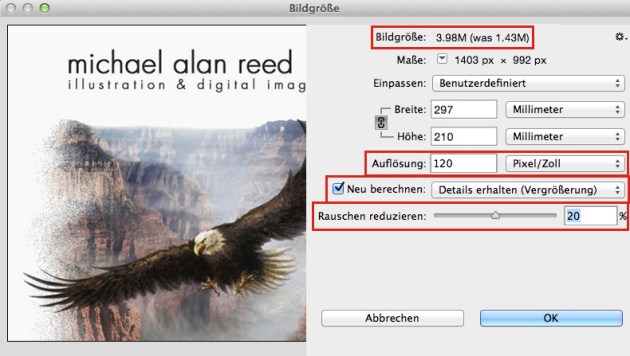
vergr2

Wenn Sie mit der Vorschau zufrieden sind: Klicken Sie auf OK! Nicht vergessen: Vergrösserungen über 150% zeigen die Pixel mehr und mehr… vor allem wenn Sie das Bild nachträglich noch verschärfen.

WICHTIG: ein professionelle Offset-Druckerei verlangt Ihr Bild mit einer 300 dpi Auflösung (Resolution). 120 dpi ist normalerweise genügend gross für Ihren kleinen Drucker in Ihrem Büro. 72 dpi genügt jedoch meistens für Fotos auf dem Internet.

Es gibt noch einige cool tricks wie man ein Bild ohne Qualitätsverlust vergrössert – aber das ist Mike Reed’s persönliche jahrelange Erfahrung; und dies zeigt er natürlich nicht gratis > Kauf Mike einen Kaffee 🙂

divider

TIPP 2: Weitere Infos wie man ein Foto in Adobe Photoshop CS5 bis CS6 anpasst OHNE dass die Pixelmasse (Bildgrösse) verändert werden: PIXEL IST KÖNIG

divider

Today’s concept: Privacy

divider

Instead of using filters which change the overall color balance , I prefer to use LAB colors when I only need to adjust the brightness… if you’d like to know how; click on the link below!
Tutorial: What are LAB colors in Photoshop

Wenn ich bei meinen Illustrationen die Helligkeit meiner Farben separat von meinen Farbtönen verändern will, benutze ich LAB Farben… klicken Sie auf den Link um herauszufinden, wie das geht!
Anleitung: Was sind LAB Farben in Photoshop

divider

Courtesy of Illustration Source

Courtesy of Illustration Source / All rights reserved

View the artists’s homage on the topic: PRIVACY TODAY

Miriam Selmi Reed is represented by Illustration Source, New York City. Portfolio and contact: Illustration Source NYC

Illustration technique: watercolor, acrylic and pencil combined with digital mixed media using Adobe Photoshop and Illustrator.Copyright by Illustration Source, New York City.

Illustrations-Technik: Aquarell, Acryl mit Farbstift, gemischt mit Adobe Photoshop und Illustrator. Copyright by Illustration Source, New York City.

divider

Your source for commissioned illustration: ORIGINAL ART STUDIOS in New York City.

OAS

Portfolio Original Art Studios, New York City: MIRIAM SELMI REED

Tax time…

divider

TIP OF THE WEEK: How to make your own comic: Comic & Illustration

TIPP DER WOCHE: Zeichnen Sie ihren eigenen Comic: Comic & Illustration

divider

Miriam Selmi Reed represented and licensed by Illustration Source / courtesy of Illustration source

Courtesy of Illustration source

View the artists’s homage on the topic TAX TIME

Miriam Selmi Reed is represented by Illustration Source, New York City. Portfolio and contact: Illustration Source NYC

Illustration technique: Traditional painting combined with digital mixed media using Smart Objects in Photoshop and Illustrator. Copyright by Illustration Source, New York City.

Illustrations-Technik: Acrylbild gemischt mit Illustrator und Photoshop sowie Smart-Objekten. Copyright by Illustration Source, New York City.

divider

Your source for commissioned illustration: ORIGINAL ART STUDIOS in New York City.

OAS

Portfolio Original Art Studios, New York City: MIRIAM SELMI REED

Featured Illustrator: Michael Alan Reed

divider

Mike’s TIP OF THE WEEK: How to use a layer mask and make a background transparent in Photoshop – PHOTOSHOP LAYER MASK

divider

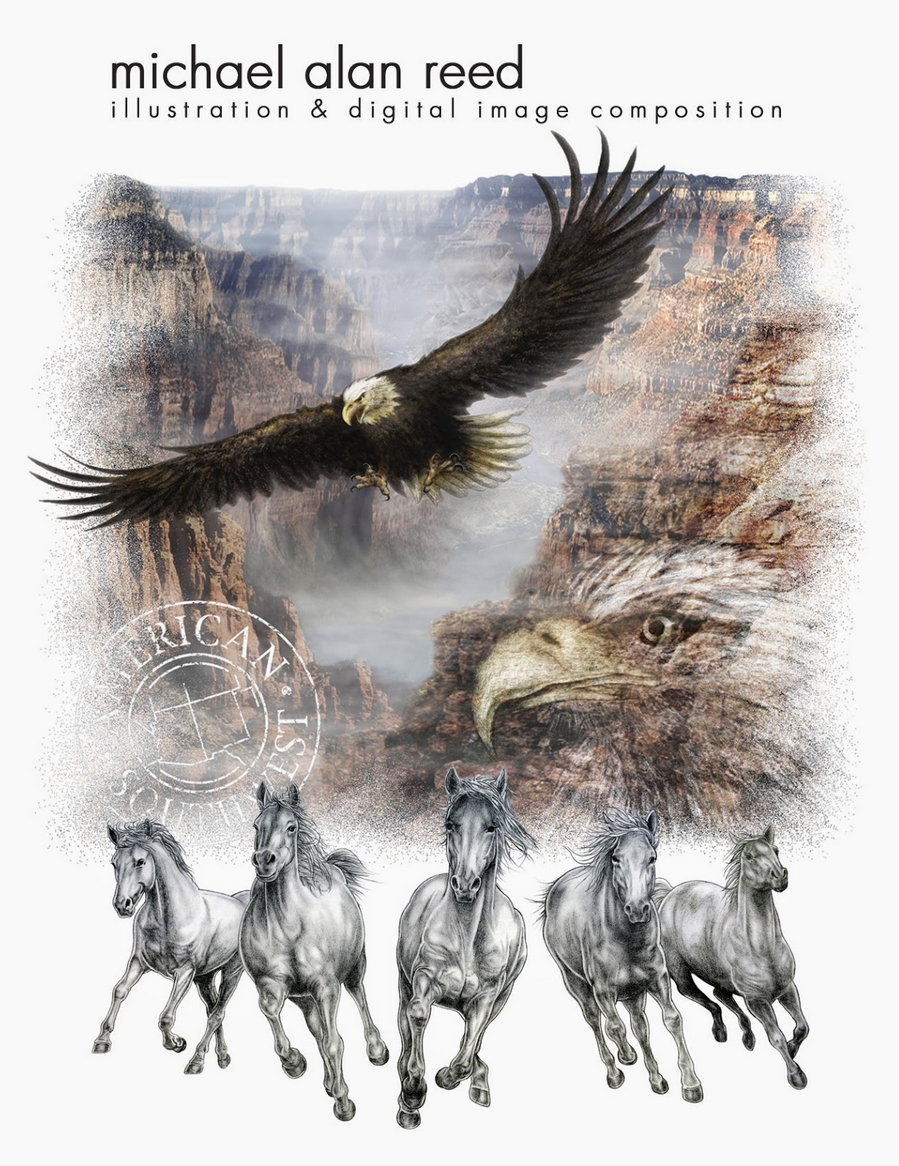
Featured Illustrator Mike Reed has an amazing technique; a combination of manual and digital media – we love his style! Manual drawing with pencil enhanced with digital media.

Copyright by Michael Alan Reed - all rights reserved

Copyright by Michael Alan Reed – all rights reserved

Michael Alan Reed, a native of the American North West, has been successfully working as a graphic designer / illustrator and image composer for many years. His work has been shown, printed and licensed in fashion, sportswear, magazines, products, advertising and animation internationally.

COOL STUFF! check out his PORTFOLIO and BLOG at: Michael Alan Reed
Contact & website: REEDesign

divider

Mike’s TIPP DER WOCHE: Wie man ein Foto in Photoshop mit einer Ebenenmaske freistellt und den Hintergrund transparent speichert – PHOTOSHOP EBENENMASKE

divider

Display modus / Anzeigeleistung in Adobe InDesign

Tutorial in English and German / Anleitung in Deutsch und Englisch

Deutsche Version siehe unten!
divider

English version:

Would you like to receive our tips for free in your e-mail box? Simply select FOLLOW to sign up with your e-mail address.

TIP OF THE WEEK: How to change the display quality in Adobe InDesign

Have you ever placed an .ai vector* image (AI = Adobe Illustrator) in Adobe InDesign and wondered why it looks so pixelated?
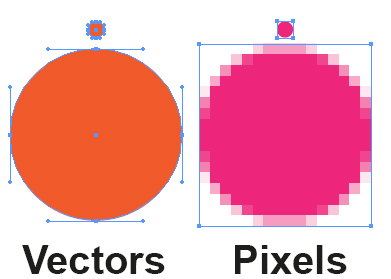
*= Vector graphics are based on vectors (also called paths), with crisp edges and can be enlarged without loss of image quality. (Vector program: Adobe Illustrator)

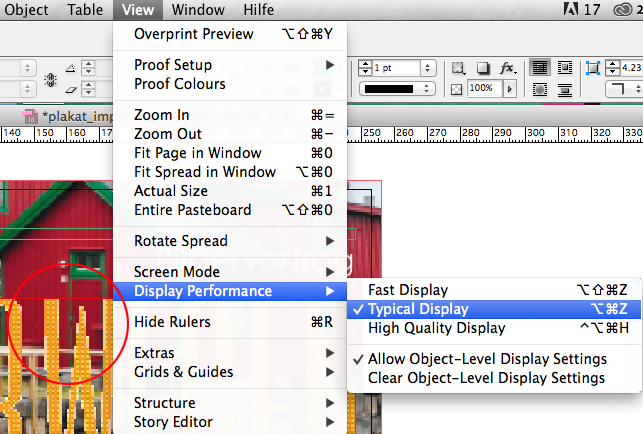
1. Open Adobe InDesign, place an Illustrator vector graphic and go to MENU > VIEW > DISPLAY PERFORMANCE. You’ll notice pixels shown in the graphic. The setting is set as Typical Display as shown below.

DisplayE1

divider

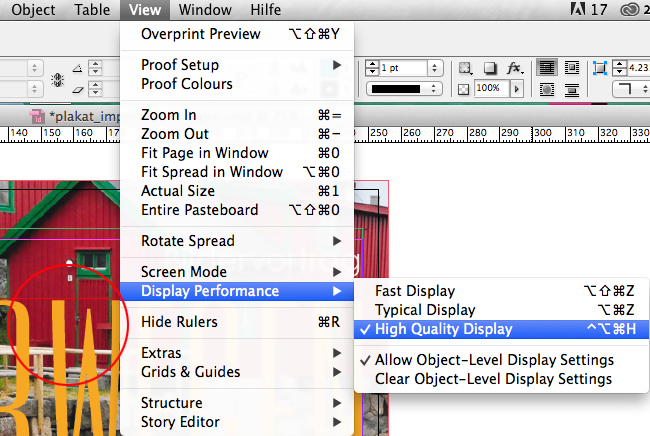
When you wish to see the actual perfect quality of your Illustrator vector image simply change the setting to High Quality Display and your vector images show as crisp as your original Illustrator file!

divider

DiplayE2

Trailers, answering questions and tutorials take lots of time. Of course it is free, but maybe you’d like to buy us a cup of coffee? 😉

PayPal Donate Button

divider

Deutsche Version:

Möchten Sie unsere gratis Tipps im e-mail erhalten? Schreiben Sie sich unter FOLLOW mit Ihrer e-mail Adresse ein.

TIPP DER WOCHE: Wie man die Anzeigeleistung in Adobe InDesign ändert

Haben Sie jemals eine .ai Vektor* Datei (AI = Adobe Illustrator) in Adobe InDesign platziert und sich gewundert, warum es so verpixelt aussieht?
*= Vektorgrafiken basieren auf Vektoren (auch Pfade genannt) und lassen sich ohne Qualitätsverlust beliebig skalieren. (Vektorprogramm = Adobe Illustrator)

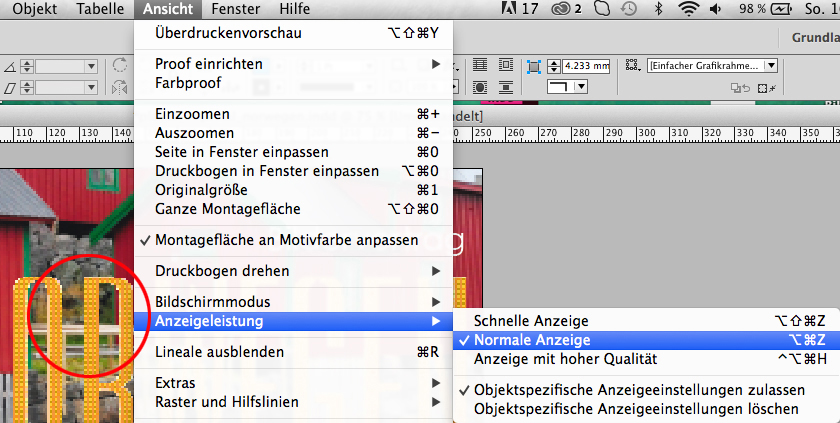
1. Öffnen Sie Adobe InDesign, platzieren Sie eine Illustrator-Vektorgrafik und gehen zu MENÜ > ANSICHT > ANZEIGELEISTUNG. Sie bemerken jetzt vermutlich die Pixel in Ihrer platzierten Vektordatei. Die Anzeigeleitung ist als Normale Anzeige eingestellt wie Sie unten sehen.

AnzeigeD1

divider

Wenn Sie die scharfen Konturen Ihrer Illustrator Vektordatei sehen möchten, wechseln Sie die Einstellung ganz einfach zu Anzeige mit hoher Qualität und Ihre Vektordateien sehen so scharf aus wie ihre original Illustrator Dateien!

divider

AnzeigeD2

Übungen, beantworten von Fragen und Gratis-Tipps zusammenzustellen braucht viel Zeit. Natürlich ist es gratis, aber vielleicht spendieren Sie uns einen “Kaffee?” 😉

PayPal Donate Button

Original Art Studios

Happy to announce that I just became part of the ORIGINAL ART STUDIOS in New York City.

OAS

Portfolio Original Art Studios, New York City: MIRIAM SELMI REED

Courtesy of Illustration Source

Illustration by Miriam Selmi Reed | Courtesy of Illustration Source, all rights reserved

Find out more or request a catalog – email: oas@illustrationsource.com
© Original Art Studios, 2015 | 15 East 32nd Street 7th Floor, New York, NY 10016 | USA | Illustration Source | Portfolio > Illustrationsource.com

divider

TIP OF THE WEEK: how I retouch my illustrations using the Stamp Tool and Healing Brush Tool in Photoshop CC or CS6. I place on an empty layer on top – while I select the option ALL LAYERS in the Control Bar – then I click the ALT key to sample and start stamping. 😉

Illustration by Miriam Selmi Reed / Courtesy of Illustration Source, all rights reserved

Illustration by Miriam Selmi Reed / With courtesy of Illustration Source, all rights reserved

TIPP DER WOCHE: Wie ich meine Illustrationen retuschiere mit dem Stempel Werkzeug oder dem Reparaturpinsel ist einfach. Ich benutze eine leere Ebene die ich ganz oben einfüge. Dann drücke ich die ALT Taste um einen sauberen Bereich aufzunehmen – mit der Option ALLE EBENEN aufnehmen in der Steuerung – und stemple vor mich hin. 😉

Graphic Styles / Grafikstile in Adobe Illustrator

Tutorial in English and German / Anleitung in Deutsch und Englisch

Deutsche Version siehe unten!
divider

English version:

Would you like to receive our tips for free in your e-mail box? Simply select FOLLOW to sign up with your e-mail address.

TIP OF THE WEEK: Graphic Styles in Illustrator CS6

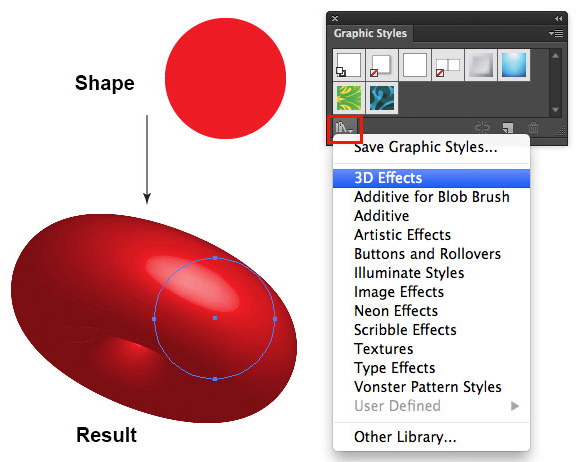
1. Open a new document in Adobe Illustrator and draw a simple shape with a fill color.

2. Select your shape with the Selection Tool and go to Window > Graphic styles. Select the drop-down-arrow of the Libraries and choose your favorite Graphic Style.
In our example, we are using the 3D Effect Library.

graphicstyle

Each time you select a Graphic Style in one of the protected Adobe Libraries, it will be added on to your personal Graphic Style collection and can be altered as you wish.
Under Window > Appearance you may change the Graphic Style or delete it.

There are lots of Graphic Styles in the Adobe Library you should try out – have fun!

divider

Deutsche Version:

Möchten Sie unsere gratis Tipps im e-mail erhalten? Schreiben Sie sich unter FOLLOW mit Ihrer e-mail Adresse ein.

TIPP DER WOCHE: Grafikstile in Illustrator CS6

1. Öffnen Sie ein neues Dokument in Adobe Illustrator, zeichnen Sie eine einfache Form und färben Sie diese mit einer Flächen-Farbe ein.

2. Wählen Sie die Form mit dem Auswahl-Werkzeug an und gehen Sie zu Fenster > Grafikstile. Wählen Sie einen Grafikstil nach Wunsch unter den Bibliotheken an.
Hier zeigen wir ein Beispiel aus der 3D-Effekte Bibliothek.

Grafikstil

Jedesmal wenn man einen Grafikstil von den schreibgeschützen Adobe Bibliotheken anwählt, wird dieser zu den eigenen Grafikstilen dazugefügt und kann somit verändert werden.
Unter Fenster > Aussehen kann man jeden Grafikstil verändern oder löschen.

Es gibt viele Grafikstile in den Adobe Bibliotheken die man ausprobieren sollte – viel Spass!

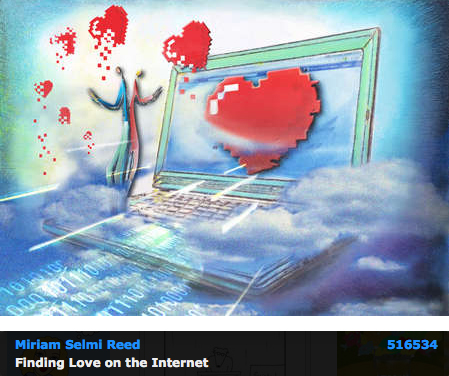
To The One I Love

divider

Tutorial: How to draw with Adobe Illustrator.

divider

Courtesy of Illustration Source

Courtesy of Illustration Source

View the artists’s homage on the topic: To The One I Love

Miriam Selmi Reed is represented by Illustration Source, New York City. Portfolio and contact: Illustration Source NYC

Illustration technique: watercolor, acrylic and pencil combined with digital mixed media using Adobe Photoshop and Illustrator.Copyright by Illustration Source, New York City.

Illustrations-Technik: Aquarell, Acryl mit Farbstift, gemischt mit Adobe Photoshop und Illustrator. Copyright by Illustration Source, New York City.

divider

Anleitung: Wie man mit Adobe Illustrator zeichnet.

divider

Vectorize your hand writing – Vektorisieren sie ihre Handschrift

Tutorial in English and German – Anleitung in Deutsch und Englisch

Deutsche Version siehe unten!
divider

We just received a “coffee” donation and request from a former student for the following tutorial:

ENGLISH version:

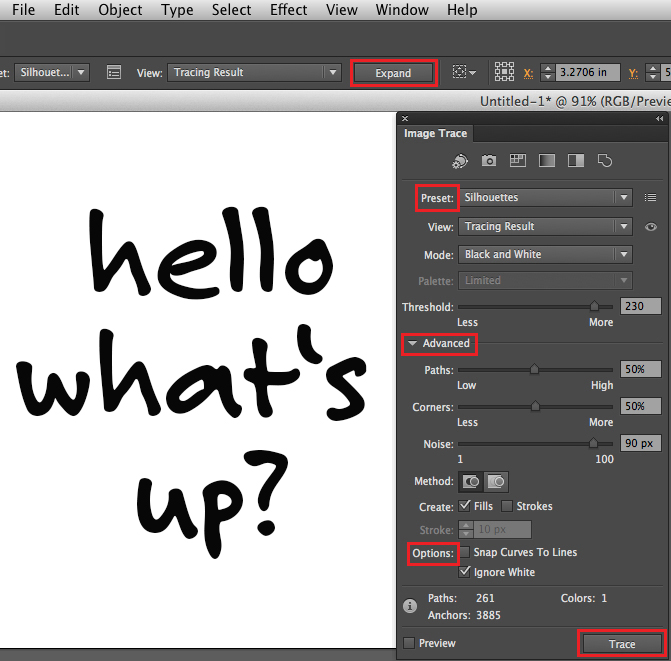
Vectorize your hand writing (scan or photo) in Illustrator CS6 or CC and colorize it!
In three simple steps:
1. Place a scan or pixel image (jpg, tiff, psd) into Illustrator CS6 or CC.
2. Go to Menu > Window > Image Trace, choose your Preset, select under Advanced your Options and click on Trace.
3. When you are done, don’t forget to click on Expand in order to vectorise your image.
You may select the box “Ignore White” to delete the white background and make it transparent.
Tip: Choose your Direct-Selection-Tool to colorise each font element separately and place it into your InDesign document.

(To vectorize in CS5: go under Object > Live Trace > Tracing Options.)

imagetrace_new

divider

DEUTSCHE Version:

Dieses folgende Tutorial wurde auf Anfrage zusammengestellt, als “Danke für die Kaffee-Donation”:

Vektorisieren Sie ihre Handschrift (Scan oder digitales Foto) in Illustrator CS6 oder CC.
In drei einfachen Schritten:
1. Platzieren sie ihre Pixel-Vorlage (jpg, tiff, psd) in ihr Illustrator CS6 Dokument.
2. Gehen sie zu Menü > Fenster > Bildnachzeichner, wählen sie ihre Vorgabe, wählen zudem unter Erweitert ihre Optionen und klicken auf Nachzeichnen.
3. Wenn sie fertig sind, ist es wichtig auf Umwandeln zu klicken. Damit wird ihr Foto vektorisiert.
Sie können die Box “Weiss ignorieren” anwählen um den weissen Hintergrund zu löschen.
Tipp: Wählen sie das Direktauswahl-Werkzeug um jeden Buchstaben separat einzufärben und platzieren sie es in ihr InDesign Dokument.

(Um in CS5 zu vektorisieren: gehen sie unter Object > Interaktiv nachzeichnen > Nachzeichneroptionen.)

Bildnachzeichner_new

Additional option:

Compound Path Release option if you are trying to colorize a font
In case you’d like to colorize a font: With the “Compound Path Release” option, you can release the paths and colorize individual parts of each letter separately.

Zusatzinformation:

Option “Zusammengesetzter Pfad zurückwandeln” beim einfärben von Schriften
Möchten sie einzelne Buchstaben einer Schrift einfärben: Mit der Option “Zusammengesetzter Pfad zurückwandeln” kann man die Verknüpfung aller Pfade lösen und jeder Teil innerhalb des Buchstaben einzeln einfärben.

Tutorial spoken in English & German / Schritt für Schritt Anleitung auf Deutsch und Englisch:

How to save down to a lower version / wie man in eine tiefere Version abspeichert

Tutorial in English and German / Anleitung in Deutsch und Englisch

Deutsche Version siehe unten!
divider

English version:

Would you like to receive our tips for free in your e-mail box? Simply select FOLLOW to sign up with your e-mail address.

TIP OF THE WEEK: How to save down to a lower version in Adobe Illustrator and InDesign

Have you ever tried to open an Illustrator or InDesign file and the message pops-up “cannot open file since it was created in a newer version”?

Here is the solution for Adobe Illustrator:

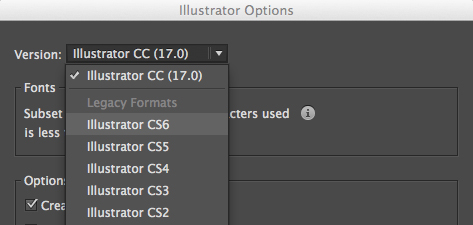
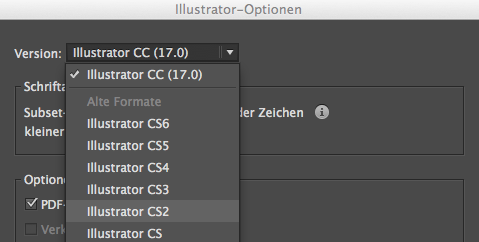
1. When you work in Adobe Illustrator and select the SAVE command: don’t forget to select the lower version of your choice!

Illustrator_SaveAs2

divider

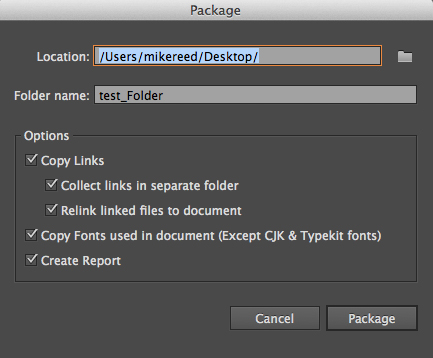
2. New in Illustrator Creative Cloud; you can package your document! With the package command – under MENU > FILE > PACKAGE – Illustrator collects the links and fonts you’ve used in the document and creates a folder.
A very practical tool, Adobe InDesign has featured for years.
(Except for the Typekit Fonts which can only be used with the Creative Cloud)

File-Package

divider

When you work in Adobe InDesign and select the SAVE command: don’t forget to save an IDML (InDesign Markup)! The IDML is the key to open an InDesign document in a lower version.

InDesign CS6 and CS5:
How to make an IDML in InDesign CS6, so I can open it in an older version

Indesign CC – Creative Cloud:
How to make an IDML InDesign CC (Creative Cloud), so I can open it in an older version

divider

TIP: HOW TO USE TYPEKIT IN ADOBE CREATIVE CLOUD

divider

Deutsche Version:

Möchten Sie unsere gratis Tipps im e-mail erhalten? Schreiben Sie sich unter FOLLOW mit Ihrer e-mail Adresse ein.

TIPP DER WOCHE: Wie man in Illustrator auf eine niedrigere Version abspeichern kann

Haben Sie jemals versucht eine Illustrator oder Indesign Datei zu öffnen und eine Fehlermeldung erscheint mit der Nachricht “die Datei kann nicht geöffnet werden, da sie in einer neueren Version erstellt wurde”?

Hier ist die Lösung für Adobe Illustrator:

1. Wenn Sie in Adobe Illustrator arbeiten und den Befehl SPEICHERN eingeben: wählen Sie ganz einfach die niedrigere Version Ihrer Wahl!

Illustrator_SpeichernUnter

divider

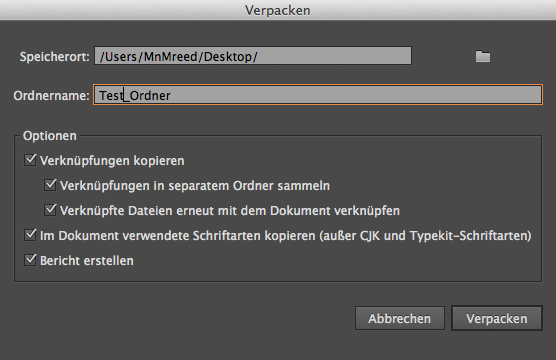
2. NEU in Illustrator Creative Cloud; Sie können neu Ihr Dokument verpacken! Mit dem verpacken Befehl – unter MENÜ > DATEI > VERPACKEN – sammelt Illustrator die Verknüpfungen und Schriften die Sie in Ihrem Dokument benutzen und sammelt diese in einen Ordner.
Eine praktische Sache; Adobe InDesign hat dies schon seit Jahren.
(Ausser der Typekit Fonts, welche nur von Creative Cloud Benutzer gebraucht werden können)

Datei_Verpacken

divider

Wenn Sie in Adobe InDesign arbeiten, vergessen Sie nicht ein IDML zu exportieren. (IDML=InDesign Markup.) Das IDML ist der Schlüssel um InDesign Dokumente in älteren Versionen öffnen zu können.

InDesign CS6 und CS5:
Wie man in InDesign CS6 ein IDML erstellt um es in einer älteren Version öffnen zu können

Indesign CC – Creative Cloud:
Wie man in InDesign CC (Creative Cloud) ein IDML erstellt um es in einer älteren Versionen öffnen zu können

divider

TIPP: WIE MAN TYPEKIT IN ADOBE CREATIVE CLOUD BENUTZT

Featured artist at Illustration Source, New York City

divider

Tutorial / Anleitung: How to draw with Illustrator CC / Wie man mit Illustrator CC zeichnet

divider

Copyright by SIS New York City - Courtesy of Illustration Source, NYC

Copyright by SIS New York City – Courtesy of Illustration Source, NYC

Miriam Selmi Reed is represented by Illustration Source, New York City. Portfolio and contact: Featured Artist Miriam Selmi Reed

Licensed Illustrations at Illustration Source, New York City: DATA SECURITY

Miriam worked in Zurich as a designer/illustrator in both full-time and freelance positions for advertising agencies such as Wirz BBDO and McCann Erickson. After that, she came to the United States to work for Disney on the new Disneyland Tokyo theme park designs. Miriam then went on to work with Cinesite/Kodak, the Hollywood special effects company, as staff illustrator/concept artist for various feature film projects.

Illustration Source provides you with speed and convenience. Their website design and simple pricing allows you more time to work on your project and less time searching for images and decoding costs.

The artists represented by Illustration Source are some of the best illustrators working today.

divider

Tutorial / Anleitung: How to use transparent layers in Photoshop / Wie man mit transparenten Ebenen in Photoshop arbeitet

divider

Font search / Schriftart suchen / InDesign

Tutorial in English and German / Anleitung in Deutsch und Englisch

Deutsche Version siehe unten!
divider

English version:

Would you like to receive our tips in your e-mail box? Simply select FOLLOW to sign up with your e-mail address.

TIP OF THE WEEK: How to find and replace hidden fonts in Adobe InDesign

The answer is simple: Go to MENU > FONT > FIND FONT – please look at the image below!

In my example the font Courier New Regular should not be used in the document.
I will replace it with Century Gothic which is the correct font I should be using.
As soon as I hit the CHANGE ALL button, the Font Courier will be replaced by Century Gothic throughout the whole InDesign document.

FontSearch

Trailers, answering questions and tutorials take lots of time. Of course it is free, but maybe you’d like to buy us a cup of coffee? 😉

PayPal Donate Button

divider

Deutsche Version:

Möchten Sie unsere gratis Tipps im e-mail erhalten? Schreiben Sie sich unter FOLLOW mit Ihrer e-mail Adresse ein.

TIPP DER WOCHE: Wie man in Adobe InDesign versteckte Fonts finden und ersetzen kann

Die Lösung ist einfach: gehen Sie zu MENU > SCHRIFT > SCHRIFTART SUCHEN – siehe Bild unten.

In meinem Beispiel sollte die Times Bold in meinem Dokument nicht benutzt werden.
Ich werde diese Schrift somit mit der korrekten Minion Pro Regular ersetzen.
Sobald ich den Button CHANGE ALL klicke, wird die “falsche” Times im ganzen InDesign Dokument mit der “korrekten” Minion ersetzt.

SchriftartSuchen

divider

Übungen, beantworten von Fragen und Gratis-Tipps zusammenzustellen braucht viel Zeit. Natürlich ist es gratis, aber vielleicht spendieren Sie uns einen “Kaffee?” 😉

PayPal Donate Button

divider

Data Security

divider

Tutorial: How to use Smart Objects in Adobe Photoshop.

divider

Courtesy of Illustration Source

Courtesy of Illustration Source

Courtesy of Illustration Source

Courtesy of Illustration Source

View the artists’s homage on the topic: Data Security

Miriam Selmi Reed is represented by Illustration Source, New York City. Portfolio and contact: Illustration Source NYC

Illustration technique: watercolor, acrylic and pencil combined with digital mixed media using Adobe Photoshop and Illustrator.Copyright by Illustration Source, New York City.

Illustrations-Technik: Aquarell, Acryl mit Farbstift, gemischt mit Adobe Photoshop und Illustrator. Copyright by Illustration Source, New York City.

divider

Anleitung: Wie man Smart Objekte in Adobe Photoshop benutzt.

divider

Moving forward in 2015!

The following illustration was created by Mimi Selmi Reed (webdesign: Adobe Muse) with pencils and water color – traced and executed in Illustrator & Photoshop – animated in Adobe Photoshop CC.
(Tutorial see below / Anleitung siehe unten)

Copyright by Miriam Selmi Reed - member SCBWI - all rights reserved.

Copyright by Miriam Selmi Reed – member SCBWI – all rights reserved.

Every Follower, Like and comment is welcome! More comics & cartoons at: Z-DOG COMIC

divider

ENGLISH:
Animations with Photoshop / Animationen mit Photoshop:
Photoshop timeline for animations is under Window > Timeline. Have fun!
How to create frame animations in Photoshop

DEUTSCH:
Die Photoshop-Zeitleiste für Animationen kann man unter Fenster > Zeitleiste finden. Viel Spass!
Erstellen von Frame-Animationen in Photoshop

animation

Happy new year – 2015!

Mixed media

Courtesy of Illustration Source

View the artists’s homage on the topic: A New Start!

Miriam Selmi Reed is represented by Illustration Source, New York City. Portfolio and contact: Illustration Source NYC

Illustration technique: Charcoal, acrylic and pencil combined with digital mixed media using Adobe Photoshop and Illustrator. Copyright by Illustration Source, New York City.

Illustrations-Technik: Kreide, Acryl mit Farbstift, gemischt Adobe Photoshop und Illustrator. Copyright by Illustration Source, New York City.